Trupeer Blog
Podsumuj

In a world where distributed teams are the norm, keeping everyone aligned is more challenging than ever. Executives need to communicate effectively across time zones, ensuring that all team members are on the same page. Weekly executive video updates can be an effective solution, but they require time and resources that might not always be available. That's where AI avatars come into play, providing a scalable way to maintain regular communication without the overhead of traditional video production. Imagine sending out a polished, engaging video update every week without spending hours behind the camera or in editing software. According to a recent study,
companies using AI avatars for video updates have seen a 30% increase in employee engagement.
This approach not only saves time but also ensures a consistent and professional presentation. For leaders looking to implement this strategy, understanding the tools and techniques available is crucial. If you're exploring how to create instructional video efficiently,
Why does creating weekly executive video updates matter?
For distributed teams, communication is the linchpin that holds everything together. Without clear updates from leadership, teams can become siloed, leading to misalignment and inefficiencies. Weekly executive video updates provide a direct channel from leadership to all team members, ensuring that everyone has the latest information. They are critical for maintaining transparency, which builds trust and accountability within the organization. In a remote setup, where face-to-face interactions are limited, these updates serve as a vital touchpoint that can prevent the feeling of isolation among employees. Trupeer also ships a collaborative video editing software for teams that handles this step without extra setup.
Also, these updates serve a strategic role beyond just information dissemination. They are a platform for leaders to set the tone and pace for the week, aligning teams around key priorities and goals. When done effectively, they can drive engagement and motivate teams by reinforcing the company's vision and values. For stakeholders like project managers and team leads, these updates can provide the necessary context to guide their teams effectively. According to a product marketing use case, consistent and clear communication can reduce project cycle times by up to 25%, underscoring the importance of these weekly touchpoints.
What are the benefits of weekly executive video updates for distributed teams?
Adopting a weekly cadence for video updates brings several advantages to distributed teams.
Increased Engagement. Regular video updates keep employees engaged by providing a dynamic, visually appealing medium that can capture attention more effectively than text-based communications.
Consistent Messaging. AI avatars ensure that the messaging is consistent across all updates, reducing the risk of misinterpretation and enhancing the clarity of communication.
Time Efficiency. Using AI tools to automate the creation and distribution of videos saves significant time. Leaders can focus on strategic tasks rather than video production.
Scalability. AI avatars allow for the rapid scaling of communication efforts without requiring additional human resources. This ensures that as the team grows, the communication strategy can grow with it.
Cost-effectiveness. Compared to traditional video production, using an AI video platform significantly reduces costs, making it accessible for organizations of all sizes.
Improved SOPs. Video updates can also enhance standard operating procedures by integrating them into regular communication, as seen in create effective video SOPs.
Which Trupeer features help you create weekly executive video updates for distributed teams?
Trupeer offers a suite of features designed to simplify the creation of weekly executive video updates, making the process efficient and effective.
AI screen recording with auto-zoom and click detection
Trupeer's AI screen recording feature enables leaders to capture their screens efficiently, ensuring that key actions and details are highlighted automatically. The auto-zoom and click detection capabilities make it easy to focus on specific parts of the screen, which is particularly useful when demonstrating software or highlighting data. This feature requires no installation, as it's accessible through a browser-based recorder, making it convenient for executives who might not have dedicated video recording equipment. By using this tool, you can produce professional-looking screen recordings that integrate smoothly into your video updates, enhancing their clarity and impact.
AI avatars / talking-head video (stock library + custom)
One of Trupeer's standout features is its ability to create talking-head videos using AI avatars. This capability allows you to choose from a library of stock avatars or create your own custom avatars. These avatars can be used to deliver messages in a more engaging and human-like manner, even if you're not available to record the video yourself. This feature is particularly beneficial for maintaining consistency in your communication, as the avatar can be used to convey the same message across different updates. For those looking to create your own custom AI avatar video, Trupeer provides the tools needed to personalize and brand your communications effectively.
AI voiceover in 65+ natural voices, adjustable pace and tone
Trupeer's AI voiceover capabilities offer over 65+ natural voices, allowing you to select a voice that matches the tone and style of your brand. You can also adjust the pace and tone of the voiceover to suit the specific needs of your message. This flexibility ensures that the audio component of your video updates is as polished and professional as the visual elements. By using AI voiceover, you can save time while delivering a high-quality audio experience that enhances the overall impact of your updates. This feature is particularly valuable for leaders who may not have the time or resources to record their voice for every update.
Automatic filler-word removal
Trupeer's post-capture editing capabilities include automatic filler-word removal, which eliminates words like "um" and "ah" as well as long pauses. This feature simplifies the editing process, ensuring that your video updates are concise and focused. By removing these distractions, you can deliver a more professional and polished final product without spending hours in post-production. This capability is ideal for leaders who want to convey their message clearly and effectively, without the need for extensive editing expertise.
AI-searchable knowledge base with timestamp deep-links
Trupeer provides an AI-searchable knowledge base that indexes every recording with timestamp-level deep links. This feature is invaluable for teams that need to reference specific parts of a video update quickly. By making your video updates searchable, you enable your team to access the information they need precisely when they need it, enhancing productivity and reducing the time spent searching for information. This is particularly beneficial for distributed teams, where time zone differences can make real-time communication challenging.
How do you create weekly executive video updates for distributed teams using Trupeer?
Step 1: Capture Your Screen
Start by using Trupeer's AI screen recording with auto-zoom and click detection. Open the Trupeer browser-based recorder, which requires no installation. Click on "Start Recording" to begin capturing your screen. The tool automatically detects clicks and zooms in on relevant areas, ensuring that key information is highlighted. This step allows you to efficiently record your screen walkthrough while maintaining focus on the important elements. The auto-zoom feature is particularly beneficial for software demonstrations or data presentations, making your updates more engaging and informative. Expect the recording process to take as long as your actual presentation, plus a few extra minutes for setup and finalization. When SOPs come into the same conversation, a Scribe alternatives comparison helps clarify the scope.
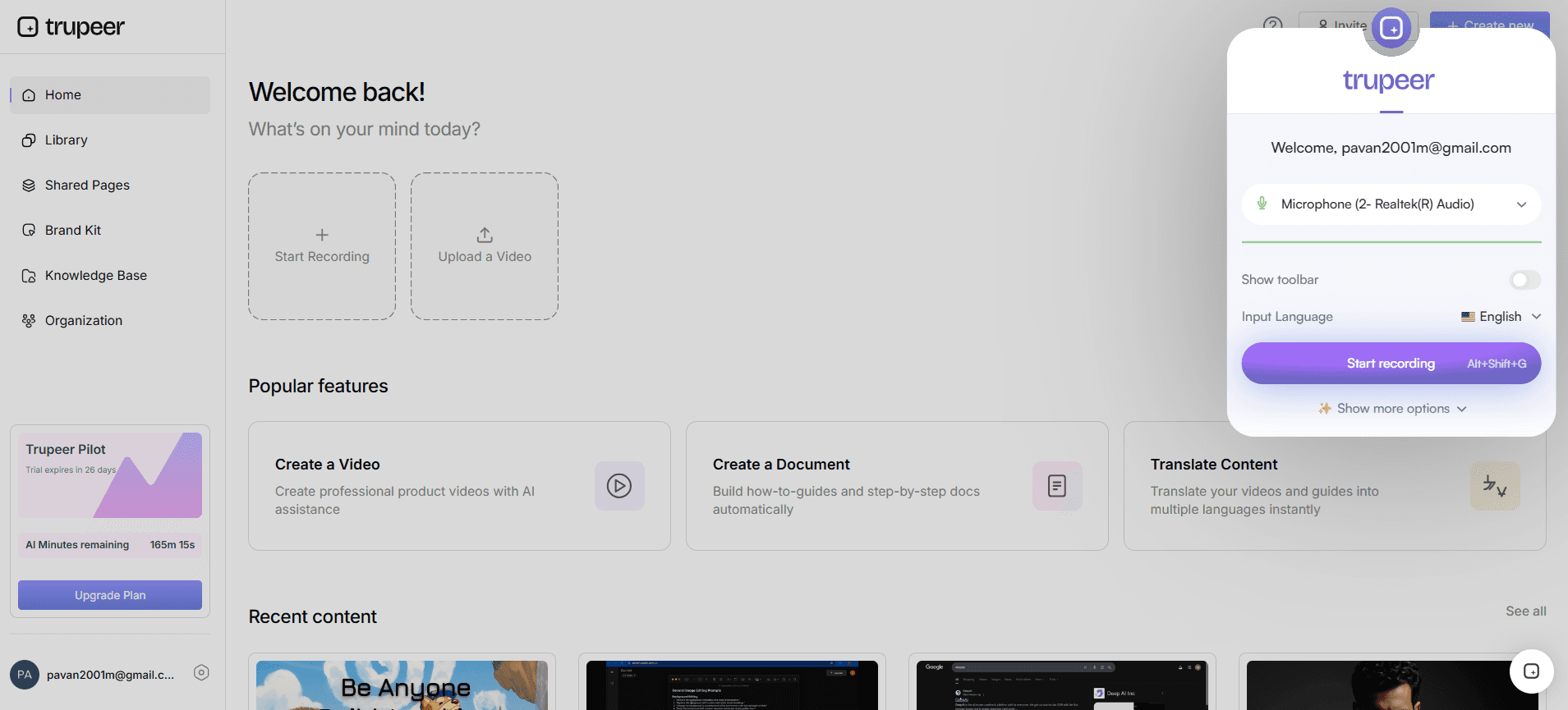
Step 2: Add AI Avatars
After capturing your screen, it's time to incorporate AI avatars to deliver your message. Within Trupeer, navigate to the AI avatars section and choose from the available stock library or create your own custom avatar. Click on "Select Avatar" and adjust the appearance settings to match your brand's tone. You can even integrate a custom avatar through HeyGen integration for a more personalized touch. This step ensures that your video updates have a consistent and professional appearance, regardless of your availability to record personally. Adding an avatar typically takes about 10-15 minutes, allowing for adjustments and previewing.
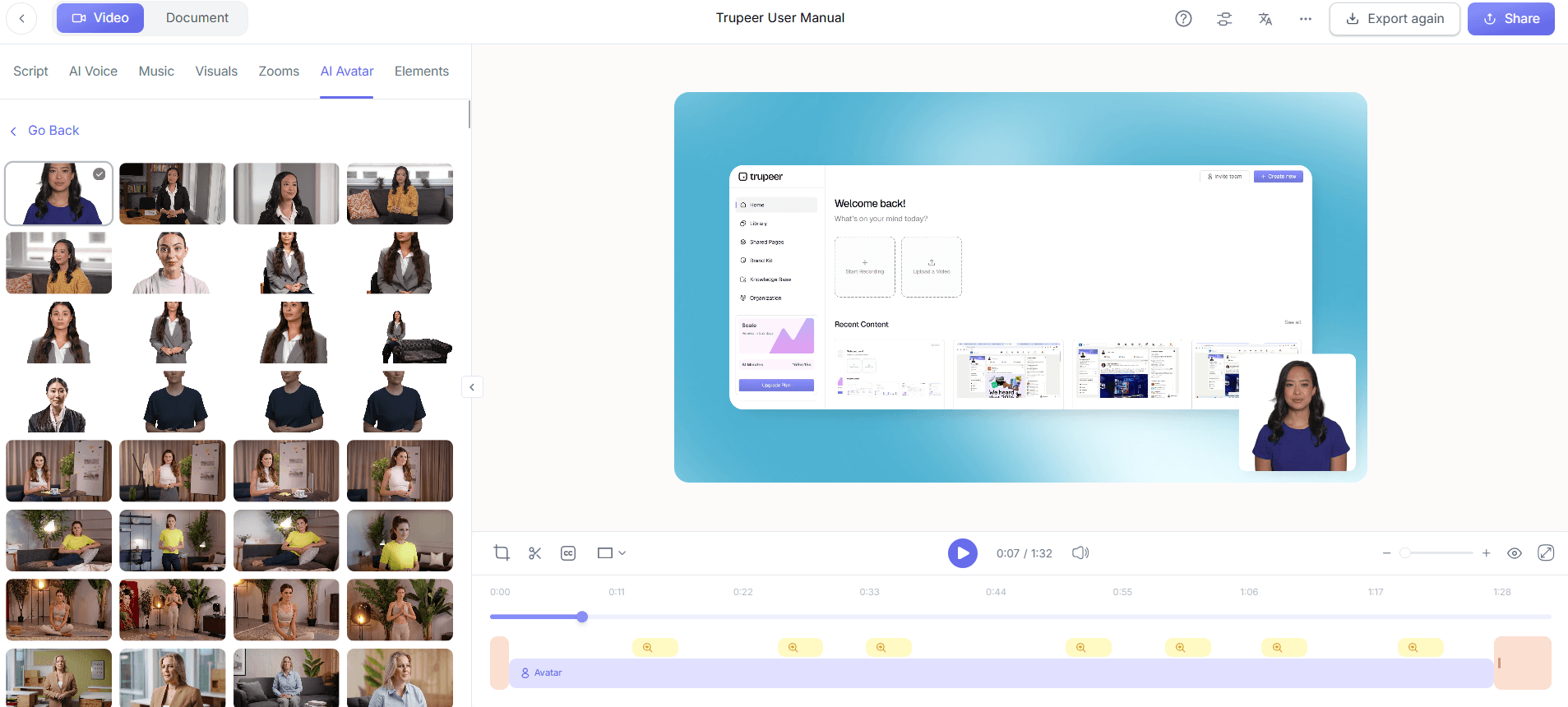
Step 3: Generate AI Voiceover
Next, enhance your video with AI voiceover in one of 65+ natural voices available in Trupeer. Select "Voiceover" from the editing menu and choose a voice that complements your avatar and message. Adjust the pace and tone to align with the mood of your update. This feature allows you to deliver a polished audio experience without needing to record your voice separately. It also saves time by eliminating the need for extensive audio editing. Generating the voiceover is quick, usually completing in under 5 minutes, depending on the length of your script.

Step 4: Edit and Remove Fillers
Trupeer's automatic filler-word removal tool is next. After generating your voiceover, use this feature to eliminate unnecessary words like "um" and "ah," as well as long pauses. Navigate to the editing panel and click "Remove Fillers." This step refines your content, making it more concise and professional. The process is fully automated, requiring no manual intervention, and typically takes just a couple of minutes to complete. It's essential for maintaining audience engagement, as it ensures your message remains clear and focused.
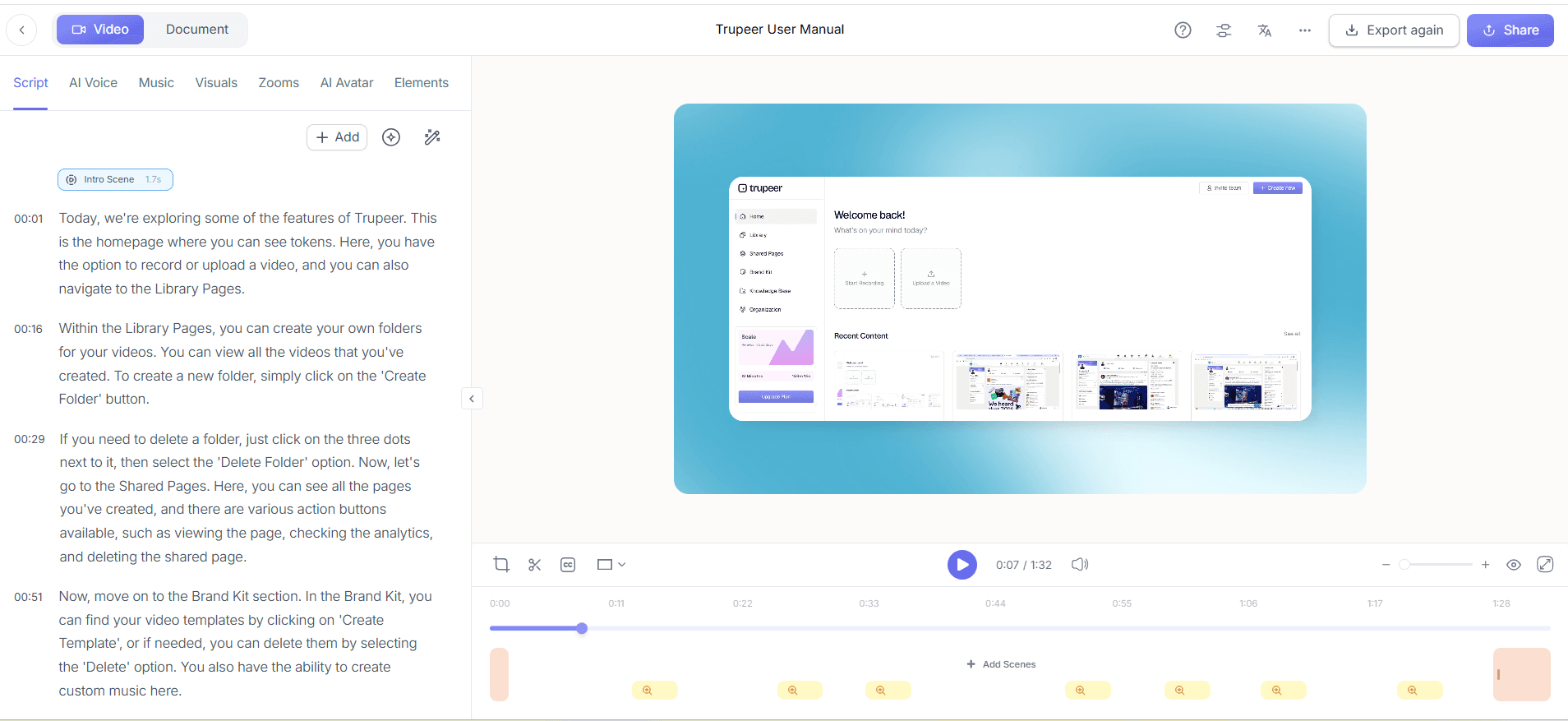
Step 5: Create Auto Chapters
Once your content is edited, enhance accessibility by using Trupeer's auto chapters and segment detection. This feature automatically divides your video into logical sections, making it easy for viewers to navigate and find specific information. In the editing interface, click on "Auto Chapters" to activate this feature. The tool analyzes your video and inserts chapter markers at appropriate points, based on the content flow. This step is crucial for long updates, as it allows team members to quickly jump to relevant sections. The chapter creation process is swift, typically taking about 3-5 minutes.
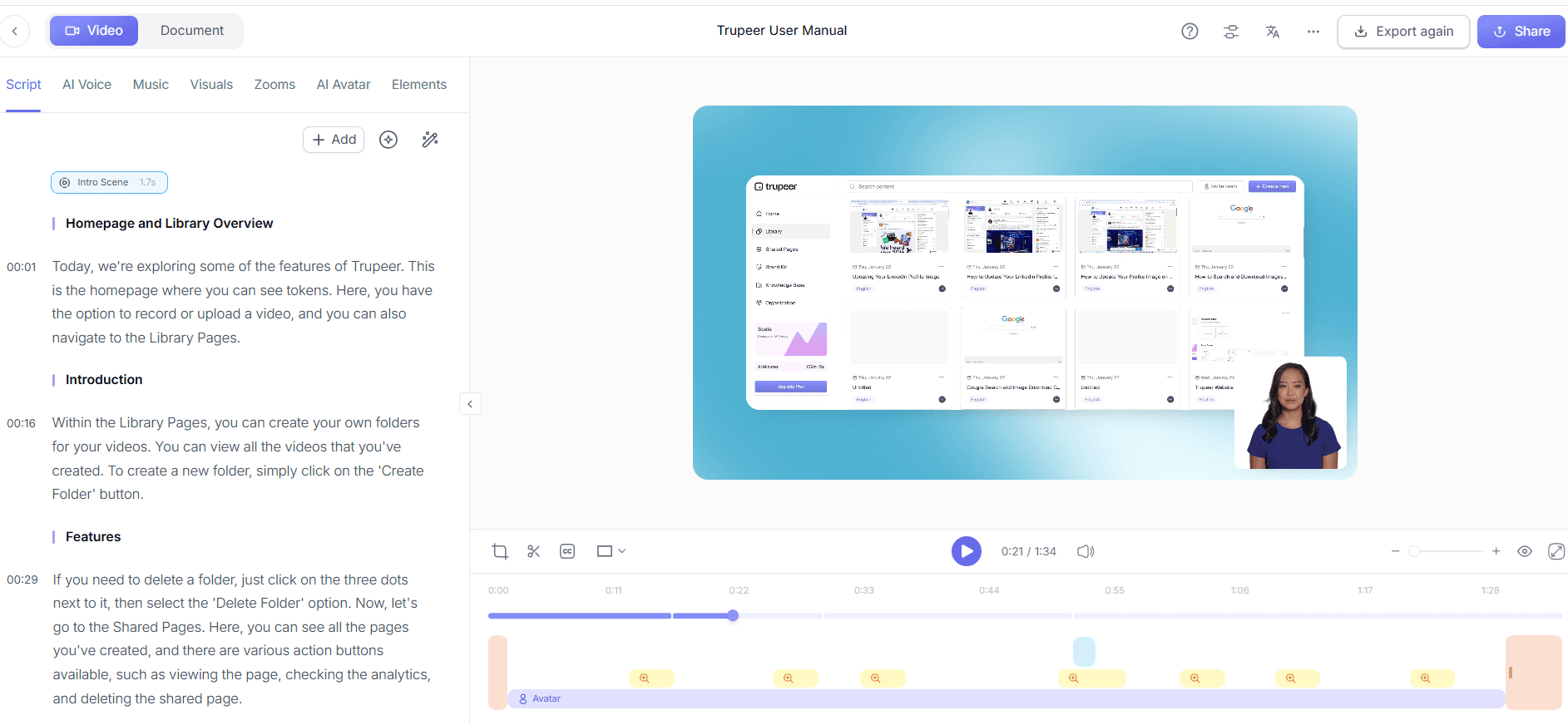
Step 6: Publish and Share
With your video fully edited and segmented, it's time to publish and distribute it to your team. Trupeer offers multiple publishing options, including direct sharing via email or embedding the video on your company portal. Click "Publish" and choose your preferred distribution method. You can also host the video on a custom domain for easy access. Trupeer provides viewer engagement analytics to track how your team interacts with the content, offering insights into which segments are most engaging. This final step ensures your update reaches its audience effectively and allows you to gather valuable feedback for future improvements.
What tips help you create weekly executive video updates for distributed teams?
Creating effective video updates requires strategic planning and execution. Here are some tips to enhance your process:
Plan Your Content. Outline your key messages before recording. This ensures a focused and coherent update.
Use Consistent Branding. Apply your brand's color scheme and logos to maintain a professional appearance, using Trupeer's brand kits.
Optimize for Engagement. Keep your videos concise, ideally under 10 minutes, to hold your audience's attention.
use Analytics. Use engagement analytics to understand viewer behavior and refine future updates for better impact.
Test Your Setup. Ensure all technical aspects are functioning correctly before recording, including audio and screen capture settings.
Engage with Questions. Encourage team members to submit questions before your update, addressing them in your video to increase interaction.
Enhance with Visuals. Incorporate charts or graphics to support your points, making the content more visually appealing.
Teams weighing tools often start with a Loom alternatives comparison before standardizing on a workflow.
Many teams pair this with a documentation platform that generates written guides from the same recording, so the pitch and the how-to stay in sync.
Frequently asked questions
How do I choose the right AI avatar for my updates?
Choosing the right AI avatar involves considering your brand image and the message you want to convey. Trupeer offers a variety of stock avatars and the option to create custom ones through HeyGen integration. Select an avatar that aligns with your company's culture and the tone of the update. If you're delivering a serious message, opt for a more formal avatar. For more casual updates, a friendly and approachable avatar may be more suitable. Experiment with different options to see which resonates best with your audience.
What if my video update exceeds 10 minutes?
While it's best to keep updates under 10 minutes for best engagement, sometimes content requires more time. In such cases, use Trupeer's auto chapters feature to break down the video into digestible sections. This allows viewers to easily navigate to the parts most relevant to them. You can also provide a summary at the beginning or end to highlight key points. Remember, the goal is clarity and engagement, so always aim to be concise and focused in your delivery.
Can Trupeer help with video localization?
Yes, Trupeer offers solid video localization features. The platform supports AI video translation and dubbing into 40+ languages with lip-sync, making it ideal for global teams. This capability ensures that your message is accurately conveyed across different regions, enhancing understanding and engagement. Using the AI video translation feature, you can reach non-English speaking audiences effectively, ensuring inclusivity and broad reach.
What equipment do I need to use Trupeer effectively?
Trupeer is designed to be user-friendly and requires minimal equipment. A standard computer or laptop with internet access is sufficient, as the platform's browser-based recorder eliminates the need for additional software installs. For best results, ensure you have a good quality microphone and a quiet recording environment to capture clear audio. A webcam is optional if you intend to use AI avatars for the visual component, but a decent setup can enhance the overall quality of your updates.
Is there a way to track how my team engages with the video updates?
Yes, Trupeer provides comprehensive viewer engagement analytics. These analytics offer insights into how your team interacts with the video content, including metrics like view duration, drop-off points, and engagement heatmaps. This data is invaluable for understanding which parts of your update resonate most and where viewers might lose interest. By analyzing these patterns, you can refine future updates to improve engagement and ensure that your communications are as effective as possible.


