Trupeer Blog
Podsumuj

Imagine it's Friday afternoon, and your marketing team is scrambling to produce enough content for the upcoming week. You're tasked with creating multiple videos, but with a small team and limited resources, it seems like an impossible feat. Missing deadlines or compromising on quality isn't an option. That's where batch recording comes in. By recording multiple videos in one session, you can maximize efficiency without sacrificing quality. In fact, with an effective batch recording strategy, you could produce ten high-quality videos in just one afternoon. This approach not only helps you keep up with content demands but also ensures continuity and consistency across your video outputs. Check out how training videos can be simplified using this method.
Why does batch recording multiple videos in one session matter?
In the competitive landscape of product marketing, content is king. The ability to produce high-quality, engaging videos consistently is crucial for maintaining brand visibility and engagement. However, creating video content can be time-consuming and resource-intensive. Teams often find themselves stretched thin, trying to balance production with other critical marketing tasks. Batch recording addresses this challenge by allowing teams to focus their efforts and resources efficiently. By dedicating a single session to recording multiple videos, teams can reduce the time spent on setup, transitions, and alignment, which are often overlooked but collectively consume significant resources.
For small teams, the stakes are even higher. Without the luxury of extensive resources, every hour and dollar counts. Batch recording becomes a strategic approach to level the playing field, enabling smaller teams to compete with larger counterparts without compromising on quality. It also reduces the cognitive load on team members, as they can maintain a creative flow without constant interruptions. The consistency in production style and message also strengthens brand identity, ensuring that each video ties smoothly into the overarching marketing strategy. Ultimately, batch recording enables teams to deliver content that resonates with audiences, building stronger connections and driving engagement.
What are the benefits of batch recording multiple videos in one session?
Batch recording offers a range of benefits that can transform your video production process.
Time efficiency. By recording multiple videos in one session, you significantly reduce the time spent on repetitive tasks such as setup and teardown. This efficiency allows you to allocate more time to other aspects of your marketing videos.
Consistency. Keeping the same recording setup for multiple videos ensures that your content maintains a uniform look and feel. This consistency is crucial for establishing and reinforcing your brand identity.
Cost savings. By consolidating recording sessions, you can cut down on equipment rental costs and minimize the need for additional personnel, ultimately saving your team money.
Improved focus. Focusing on one task at a time enables your team to maintain a creative flow, leading to better content quality and more engaging videos.
Scalability. A single AI video platform allows you to scale your video production efficiently, accommodating growing content demands without additional strain on resources.
Strategic planning. With batch recording, you can plan your content calendar in advance, ensuring that your marketing efforts align with your overarching strategy and goals.
Which Trupeer features help you record multiple videos in one session?
Trupeer offers a suite of features designed to enhance the batch recording process, making it easier than ever to produce multiple high-quality videos in a single session.
AI screen recording with auto-zoom and click detection
Trupeer's AI screen recording with auto-zoom and click detection is a big shift for batch recording. This feature automatically focuses on the most relevant parts of your screen, ensuring that viewers have a clear view of the content. The click detection further enhances this by highlighting actions, making tutorials and demonstrations more engaging and informative. With this automated focus, you can simplify your recording process, reducing the need for manual adjustments and keeping your production on track.
Silent screen recording with automatic AI narration
This feature allows you to capture your screen silently while Trupeer's AI automatically generates narration. It's perfect for producing content without the need for live voice recording, which can be time-consuming and error-prone. The AI narration is customizable, allowing you to adjust the tone and pace to suit your audience. This capability is particularly useful when you need to produce multiple videos quickly, as it eliminates the need for post-production voice-over work.
AI voiceover in 65+ natural voices, adjustable pace and tone
Trupeer's AI voiceover offers a diverse range of over 50 natural-sounding voices, with the ability to adjust pace and tone. This flexibility enables you to tailor your voiceovers to different audiences or moods, enhancing viewer engagement. Whether you're creating educational content or promotional videos, this feature ensures your message is delivered clearly and effectively. It's a powerful tool for maintaining consistency across multiple videos, especially when batch recording.
Auto chapters and segment detection
With Trupeer's auto chapters and segment detection, your videos are automatically divided into logical sections, making them easier to navigate. This is particularly beneficial for longer recordings or complex topics, as it allows viewers to jump to specific sections of interest. It saves significant editing time and enhances the viewer experience by providing a structured, easy-to-follow format. This feature is invaluable when producing a high volume of content in one session.
Automatic SOP generation from any recording
Trupeer's ability to generate Standard Operating Procedures (SOPs) from any recording simplifies the documentation process. This feature is ideal for creating instructional content, as it provides a written record of the steps demonstrated in your video. The SOPs are edit-ready and exportable, allowing for easy distribution and integration into your organization's knowledge base. using this feature ensures your team can efficiently produce both video and written content, maximizing the value of each recording session. Discover how this auto-generated documentation can benefit your processes.
AI-searchable knowledge base
Trupeer's AI-searchable knowledge base indexes every recording with timestamp-level deep links. This feature transforms your video library into a powerful resource, allowing team members and clients to quickly locate specific content. The deep links enable users to jump directly to relevant sections, enhancing accessibility and utility. This is particularly useful for batch-recorded videos, where large volumes of content can be daunting to navigate without effective search capabilities.
Browser-based recorder (no install) and desktop app
The flexibility of Trupeer's browser-based recorder and desktop app means you can choose the platform that best suits your needs. The browser-based option requires no installation, making it quick and easy to start recording. Meanwhile, the desktop app offers additional features and capabilities for more complex projects. Both options support smooth integration with other Trupeer features, ensuring a smooth and efficient batch recording process.
Shared pages / client-facing portals
Trupeer's shared pages and client-facing portals facilitate the distribution of your batch-recorded videos. These portals enable you to organize and present your content in a professional format, making it accessible to clients or team members. The ability to customize these pages ensures that your content aligns with your brand's visual identity, maintaining consistency across all touchpoints. This feature is particularly valuable for agencies or teams managing multiple clients, as it simplifies the sharing and presentation of content.
With Trupeer's solid suite of features, batch recording becomes a simplified process, allowing you to produce high-quality videos efficiently and effectively. Explore the potential of screen recording tools for tutorial videos to enhance your workflow.
How do you record multiple videos in one session step by step with Trupeer?
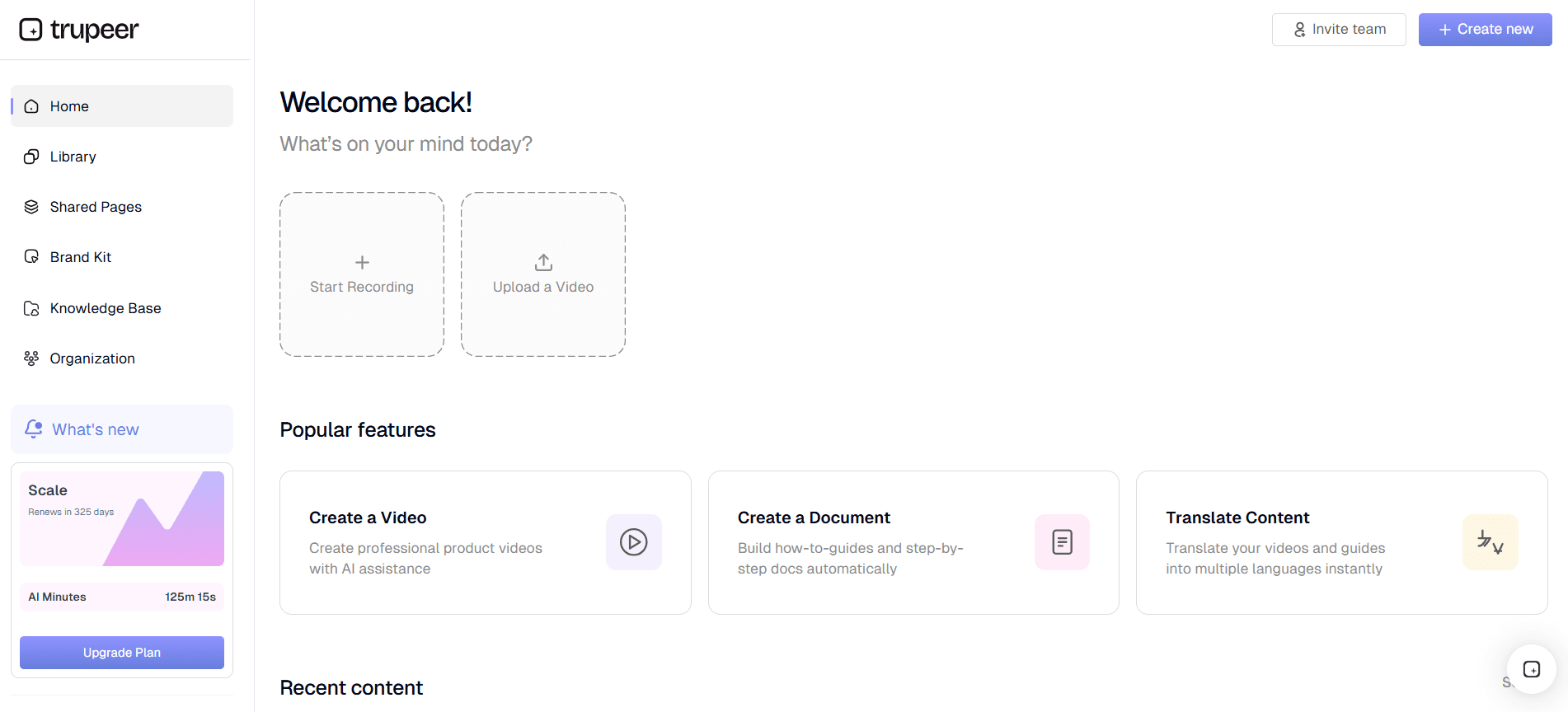
Step 1: Set Up Your Recording Environment
Begin by preparing your recording environment for best sound and lighting. Open Trupeer's browser-based recorder on your computer. This requires no installation, making it a quick and convenient start. Ensure your microphone and camera settings are configured correctly for high-quality input. Select the option to use the AI screen recording with auto-zoom and click detection. This feature intelligently focuses on areas of interest, ensuring that your audience always sees the most relevant parts of the screen. Spend a few minutes checking your environment for any potential disturbances, as this will enhance recording efficiency. When SOPs come into the same conversation, a Scribe alternatives comparison helps clarify the scope.
Step 2: Plan Your Content Segments
Next, outline the content for each video. Trupeer’s auto chapters and segment detection can help organize your content into logical parts. Draft a script or bullet points for each video to maintain focus and consistency. The AI voiceover feature, with its 65+ natural voices, can be used to add narration in post-production, but having a clear outline ensures the AI narration aligns with your intended message. This preparation can save time during recording, as you'll know exactly what to focus on and when, reducing the need for post-editing.
Step 3: Start Recording with AI Features
Now it's time to start recording. Use Trupeer's AI screen recording features to capture your content. Click the "Record" button and watch as Trupeer automatically zooms in on active areas and highlights mouse clicks, enhancing the instructional quality. If you prefer silent recording, activate the silent screen recording option, which will allow the AI to add narration later. This method is efficient for batch recording because it minimizes distractions and keeps the focus on visual content while AI handles the audio narration.
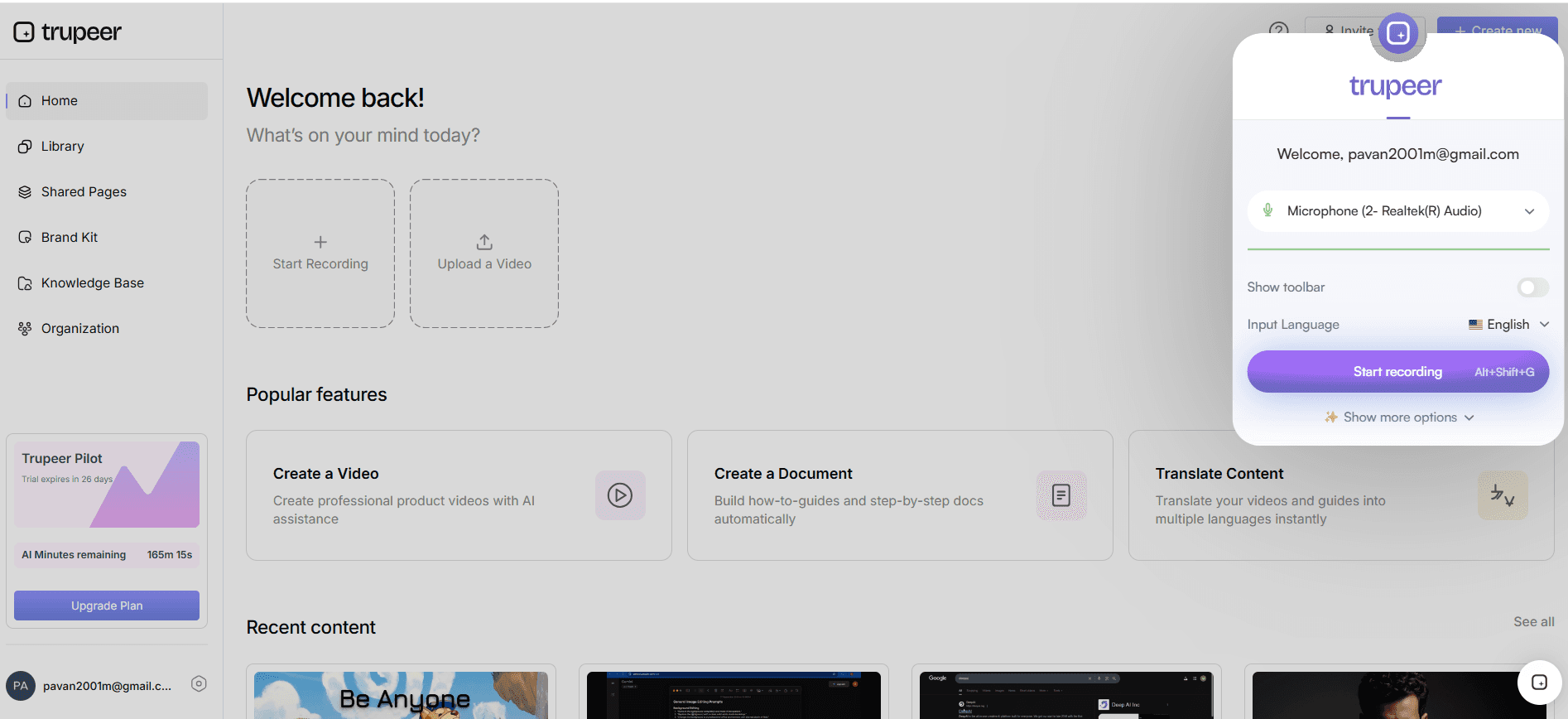
Step 4: Use AI Voiceover for Narration
Once recording is complete, use Trupeer’s AI voiceover to add narration. This feature supports over 65+ natural voices with adjustable pace and tone, allowing you to match the voice to the target audience. Select a voice, then input your script or use Trupeer's generated suggestions. The process is quick, typically taking just a few minutes per video. This ensures a professional finish without the need for time-consuming manual voice recording sessions, which is crucial when you're producing multiple videos.
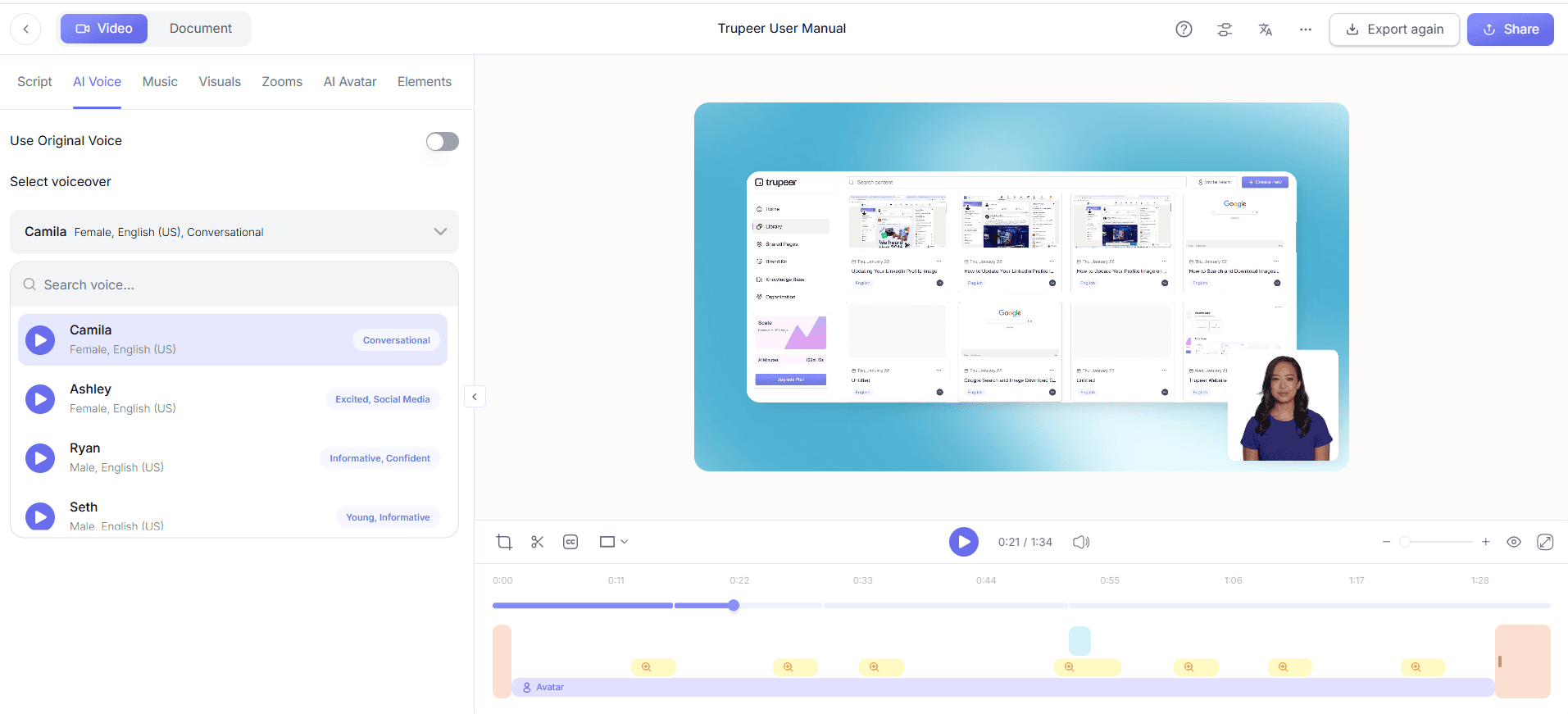
Step 5: Edit and Enhance Your Videos
After narration, proceed to edit your videos using Trupeer's AI editing capabilities. Features like automatic filler-word removal and auto chapters help refine your content, making it concise and engaging. Use the brand kits and branded templates to maintain a consistent visual style across all videos. This step might take around 10 to 15 minutes per video, depending on the complexity of edits. The AI-driven editing tools simplify this process, allowing you to focus more on content quality than technical adjustments.
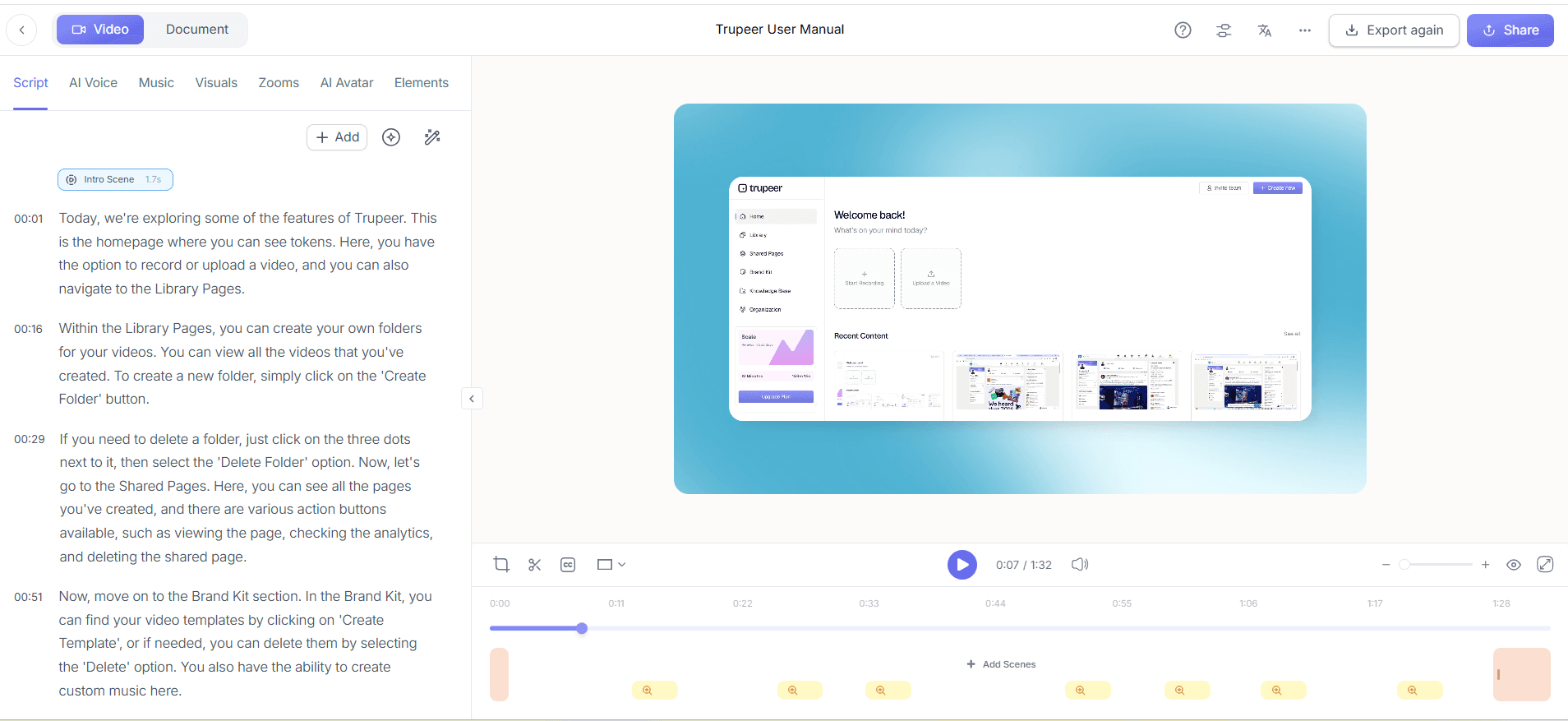
Step 6: Distribute and Share Your Content
Finally, use Trupeer’s shared pages and client-facing portals to distribute your videos. These platforms offer an organized and professional way to present your content. You can also host videos on a custom domain with single sign-on for secure access. The AI-searchable knowledge base indexes your content, providing easy access for future reference. This comprehensive distribution strategy ensures that your batch-recorded videos reach the right audience efficiently, maximizing their impact and utility.
What tips help you record multiple videos in one session?
To maximize the efficiency and quality of your batch recording sessions, consider these practical tips.
Create a Detailed Plan. Outline each video's content before recording to maintain focus and ensure comprehensive coverage.
Optimize Your Setup. Set up your recording environment once and use it for all videos to maintain consistency and save time.
Use Templates. use brand kits and templates to ensure a consistent style across videos, which simplifies the editing process.
Set Time Limits. Allocate specific times for recording each video to maintain momentum and prevent fatigue.
use AI Tools. Employ features like AI voiceover and auto chapters to enhance quality and reduce manual work.
Review and Adjust. After each video, review the recording quickly to make necessary adjustments for subsequent videos.
Collaborate Effectively. Use tools like shared pages to gather feedback from team members efficiently.
Teams weighing tools often start with a Loom alternatives comparison before standardizing on a workflow.
Trupeer also ships a product videos that handles this step without extra setup.
Frequently asked questions
How does batch recording improve efficiency?
Batch recording improves efficiency by consolidating multiple video shoots into a single session, reducing time spent on repetitive tasks like setup and breakdown. This approach minimizes interruptions and allows for a more focused recording process. The use of features like AI screen recording and automatic chapters further simplifies the workflow, enabling rapid production without sacrificing quality. By planning content and using consistent settings, you can maintain a steady creative flow and produce cohesive, professional videos efficiently.
What equipment do I need for batch recording?
For batch recording, you'll need a reliable computer, a quality microphone, and a camera. Trupeer's browser-based recorder requires no additional software installation, simplifying the setup process. Ensure you have a quiet and well-lit space to record in, as these factors significantly affect video and audio quality. Optional equipment includes additional lighting and a backdrop for a more professional appearance. With Trupeer’s AI tools, much of the technical complexity is handled automatically, so you can focus on content rather than equipment.
Can I use Trupeer for live recordings?
Trupeer is primarily designed for pre-recorded video content rather than live streaming. Its features like AI screen recording and voiceover are optimized for creating polished, edited videos. However, you can use its browser-based recorder for capturing live demos or presentations and enhance them post-production with AI tools. This method ensures that your live content maintains high quality before distribution. For purely live events, consider dedicated streaming platforms, but use Trupeer for post-event documentation and editing.
How does AI voiceover enhance batch recording?
AI voiceover enhances batch recording by providing a quick and flexible way to add narration to videos. With over 65+ natural voices available, you can select the tone and pace that best fits your content. This feature eliminates the need for manual voice recording sessions, saving time and reducing errors. By automating voiceover, you can produce more videos in less time while maintaining a consistent and professional sound across all your content. This is especially useful for large-volume projects where efficiency is crucial.
What if I need to translate my videos for a global audience?
Trupeer offers solid translation capabilities, including AI translation into over 40 languages with lip-sync. This feature ensures your videos are accessible to a global audience without compromising quality. By automating the translation process, you save time and resources typically spent on manual translation. The AI dubbing feature further enhances accessibility, allowing non-English speaking audiences to engage with your content smoothly. ai/translation">video translation platform to see how it can benefit your international strategy.
Powiązane blogi


