Trupeer Blog
Summarise
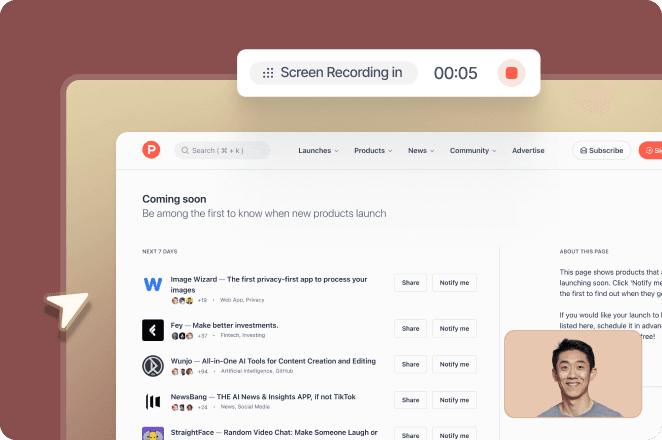
Writing step-by-step documentation by hand means doing a task, stopping to take screenshots, pasting them into a document and describing every click. AI documentation tools do most of this from a single screen recording. This guide explains how AI interprets a screen recording, step by step, what it gets right, where it struggles, and how to record and review so the documentation is accurate the first time.
For how the same process produces a spoken script, see how AI generates a narration script from screen activity.
What AI Looks at in a Screen Recording
Signal | What it tells the AI |
|---|---|
Video frames | What the screen looks like at each moment, and when it changes |
On-screen text | Names of buttons, menus, fields, tabs and messages |
Clicks and cursor position | Which element the user interacted with |
Typing | What was entered and into which field |
Page and window changes | When the user moved to a new screen or application |
Narration, if recorded | Why the user is doing something, and any extra context |
The richer the signals, the better the documentation. A recording with clear clicks, readable labels and a short spoken explanation gives the AI far more to work with than a silent, fast recording.
How AI Turns a Recording Into Step-by-Step Documentation
1. Detect actions and screen changes
The AI finds the moments where something happened: a click, typed text, a menu opening or a new page loading. Each of these is a candidate step.
2. Read the interface
Text recognition and computer vision identify the elements involved, such as the “Save” button, the “Invoice date” field or the “Reports” tab, so instructions can use the exact names the reader will see.
3. Split the recording into steps
Related actions are grouped into one step, for example clicking a field and typing a value, while unrelated actions become separate steps. Good segmentation aims for one meaningful action per step.
4. Choose a screenshot for each step
The AI picks the frame that best shows the action, usually just before or as the click happens, and can highlight the element that was used.
5. Write the instruction
A language model writes a short instruction for each step, such as “Click Save in the top-right corner”, using the interface labels it read and, if available, the narration for context. It can also write a title, an introduction and a summary for the whole document.
6. Assemble the document
Steps, screenshots and text are combined into a structured guide that can be edited, exported or published.
Example: From Recorded Actions to Documentation
What the AI detected | Step it wrote |
|---|---|
Click on “Expenses” in the left menu | 1. In the left menu, click Expenses. |
Click “New report” button; new form opens | 2. Click New report. |
Click “Report name” field; typed “March travel” | 3. In Report name, enter a name such as “March travel”. |
Click “Add expense”; dialog opens | 4. Click Add expense to add your first item. |
Click “Submit”; confirmation message appears | 5. Click Submit. A confirmation message appears when the report is sent. |
Notice what the AI cannot know: whether there is an approval limit, what to do if a receipt is missing, or who to contact if submission fails. Those are the details a reviewer adds.
Which Tasks AI Documentation Works Best For
Good fit | Harder fit |
|---|---|
Software workflows with clear clicks and screens | Physical tasks away from a screen |
Repeatable processes such as data entry or approvals | Judgment-heavy work with many exceptions |
Onboarding and how-to guides for internal tools | Policies and rules that are not visible in the interface |
Help center articles for product features | Processes that change every week |
IT and service desk fixes | Tasks that rely mainly on keyboard shortcuts |
For harder fits, AI still saves time on the visible parts; a subject matter expert adds the rest.
Where AI Documentation Gets It Wrong
Situation | What goes wrong | How to avoid it |
|---|---|---|
Very fast clicking | Steps get merged or missed | Pause briefly after each action |
Hover menus and tooltips | The menu may disappear before it is captured | Click rather than hover where possible, or pause on the menu |
Keyboard shortcuts | Actions happen with no visible click | Use the menu option while recording, or mention the shortcut aloud |
Icons without labels | The AI may describe the icon vaguely | Narrate the icon’s purpose, then edit the step text |
Decisions and exceptions | The recording shows one path only | Add notes for other paths during review |
Sensitive data on screen | Personal or customer data appears in screenshots | Use test data and blur before sharing |
How to Record for Better AI Documentation
Plan the task and close unrelated tabs and notifications
Use realistic test data, not real customer records
Move at a steady pace and pause briefly after each click
Use the visible menu options rather than shortcuts
Narrate the why if context matters, even briefly
Record one task per recording rather than several
How to Review AI-Generated Documentation
Check that every step matches the current interface
Confirm the step boundaries make sense, splitting or merging where needed
Add business rules, approvals and exceptions the screen did not show
Blur any sensitive information in screenshots
Add a short introduction with who the document is for
Have someone unfamiliar with the task follow it once
For a deeper review process, see AI documentation accuracy. For when to use AI and when to write by hand, see AI documentation vs manual documentation.
Step-by-Step Guide Generators Compared
Tool | How it captures | Output |
|---|---|---|
Trupeer | Screen recording or uploaded video, document or slides | Step-by-step guide with screenshots plus a narrated video; export to DOC, PDF and Markdown |
Scribe | Click capture in the browser or desktop | Written step-by-step guides with screenshots |
Tango | Click capture in the browser | Written how-to guides with screenshots |
Guidde | Browser capture | Short narrated video guides with step descriptions |
Click-capture tools record each click as it happens; video-based tools like Trupeer interpret the full recording, which also lets them produce a narrated video from the same capture.
How Trupeer Generates Step-by-Step Documentation
Record or upload

Record a browser tab, a window or your entire screen with the Trupeer Chrome extension, or upload an existing video. You can narrate as you go, or choose No Microphone and Trupeer builds the content from your clicks and the visual elements on screen.
Generate the document

Click Generate AI Content to get a step-by-step document with a screenshot for each step, plus a polished video if you want one. Use Doc Skills to apply your own documentation template. Try the step-by-step guide generator.
Edit, translate and publish

Edit step text, annotate screenshots with arrows, shapes and text, blur sensitive data or replace a screenshot with a better frame from the recording. Export to DOC, PDF or Markdown, translate the document, or publish it in a searchable knowledge base. To go straight from recording to SOP, see convert screen recording to SOP.
Final Thoughts
AI interprets screen recordings by combining what it sees, what it reads and what the user does, then turns that into clear steps with screenshots. It handles the repetitive work well. Record carefully, review for context and exceptions, and you get accurate step-by-step documentation in a fraction of the time it takes to write by hand.
Frequently Asked Questions
How does AI create documentation from a screen recording?
It detects clicks, typing and screen changes, reads on-screen text to name buttons and fields, splits the recording into one-action steps, picks a screenshot for each and writes plain-language instructions.
Can AI create a step-by-step guide from a video?
Yes. AI documentation tools turn a screen recording or uploaded video into a step-by-step guide with screenshots, which you can edit and export.
How accurate is AI-generated documentation?
It is usually accurate for visible actions and interface labels, but it cannot see business rules, exceptions or reasons, so a person should review and add them.
Do I need to narrate my screen recording?
No, but it helps. Narration gives the AI context about why steps happen. In Trupeer you can also record without a microphone and generate documentation from clicks and on-screen elements.
What can AI not capture from a screen recording?
Decisions, approvals, exceptions, keyboard shortcuts with no visible click, and anything that happens off screen.
How should I record for the best AI documentation?
Use test data, move at a steady pace, pause after each action, use visible menu options, record one task at a time and narrate context when it matters.
Can AI-generated documentation be exported?
Yes. Trupeer exports step-by-step documents to DOC, PDF and Markdown, or publishes them in a knowledge base.
Is AI documentation better than writing by hand?
AI is much faster for capturing steps and screenshots. Manual writing is still needed for context, policy and decisions, so most teams combine both.