Trupeer Blog
Shrnout

Imagine a user struggling with a feature in your software product. They're stuck and need help, but handling through a maze of documentation is daunting. Now, picture a smarter solution: a contextual help video popping up right when they need it, offering exactly the guidance they're seeking. This isn't just about convenience. It's about enhancing user experience and reducing churn. For instance, when users find relevant help instantly, retention rates can increase by up to
15%, according to a study by User Experience Professionals Association.
Tailoring help content to specific user actions can transform frustration into satisfaction. This approach isn't just for tech giants; any product team can implement it with the right tools. Whether you're a product manager aiming to improve user onboarding or a customer success leader focused on reducing support tickets, the stakes are high. Your users expect smooth assistance, and delivering that can set your product apart in a competitive market. With advancements in AI and video technology, creating and triggering the right help video at the right moment is more accessible than ever. Explore how you can use these technologies for effective product video creation.
Why does triggering the right help video matter?
When a user encounters an obstacle within your product, their immediate reaction is crucial. Without prompt assistance, frustration can quickly lead to abandonment. This is where contextual help videos become indispensable. They provide targeted guidance based on the user's current interaction within the software. Imagine a user attempting to import data into your platform but facing unexpected errors. A well-timed video explaining the process or troubleshooting common issues can be the difference between a satisfied customer and a lost one. This level of support doesn't just enhance the user experience; it directly impacts your bottom line by reducing churn and improving engagement.
Also, triggering the right help video is essential for maintaining a competitive edge . As products become increasingly complex, users demand more intuitive and immediate solutions. By implementing contextual help videos, you're not only meeting these demands but exceeding them. Stakeholders such as product managers and customer success teams play a critical role in this process. They're tasked with identifying user pain points and creating solutions that are both effective and scalable. The ability to deliver precise, timely assistance can significantly enhance the customer success workflow, leading to higher satisfaction rates and loyalty. In essence, a strategic approach to help videos can transform user support from a reactive to a proactive strategy, ultimately building a more engaged and loyal user base.
What are the benefits of triggering the right help video?
Implementing a system to trigger the right help video offers several tangible benefits.
Enhanced User Experience. Users receive assistance exactly when and where they need it, increasing satisfaction and reducing frustration. This can significantly improve user retention rates.
Reduced Support Costs. By addressing common issues through automated videos, you decrease the volume of support tickets, saving time and resources for your support team.
Increased Product Engagement. Users are more likely to explore and use your product's features effectively when they have access to contextual guidance. This leads to higher engagement rates and more active users.
Faster Onboarding. New users can quickly learn how to navigate and use your product with guided video tutorials, reducing the onboarding time and increasing the likelihood of adoption.
Consistency in Support. A single AI video platform ensures that all users receive the same high-quality guidance, maintaining consistency in the support provided and reinforcing your brand's reliability.
Improved Conversion Rates. When potential customers encounter helpful videos that address their concerns, they are more likely to convert. A make product demo can directly impact your sales funnel by clarifying product value and features.
Which Trupeer features help you trigger the right help video?
Trupeer offers a variety of features that can help you efficiently trigger the right help video based on user actions within your product.
AI Screen Recording with Auto-Zoom and Click Detection
This feature allows you to capture and create highly relevant help videos automatically. By detecting user actions such as clicks and hovering, Trupeer's AI screen recording ensures that the help video focuses on the most pertinent areas of the user's screen. This targeted approach makes the video more useful and less overwhelming for the user. By using auto-zoom, the video keeps the user's attention on the critical steps or information they need, so enhancing comprehension and retention. The result is a smooth interaction that feels intuitive and responsive to the user's needs.
AI Voiceover in 65+ Natural Voices
Trupeer's AI voiceover capability allows you to create help videos with a variety of natural-sounding voices, catering to diverse user preferences. With adjustable pacing and tone, you can customize the delivery to match your brand's voice or the specific context of each help video. This feature is especially useful for international products, where tone and pace can significantly affect user understanding. By offering a personalized auditory experience, you make the help content more engaging and easier to follow, which can lead to quicker problem resolution and a more satisfied user.
AI Dubbing for Non-English Audiences
With Trupeer's AI dubbing, you can reach a broader audience by providing help videos in multiple languages. This is crucial for products with a global user base, as it ensures that language barriers don't hinder user support. The AI dubbing feature includes lip-sync technology that aligns the voiceover with the speaker's lips, creating a natural and professional appearance. By removing language as a potential obstacle, you enhance accessibility and inclusivity, broadening your product's appeal and usability across different regions and demographics.
AI-Searchable Knowledge Base
Trupeer's AI-searchable knowledge base indexes every help video with timestamp-level deep links. This feature allows users to quickly find and jump to the precise moment in a video that addresses their query. By integrating this capability into your product, you enable users to independently resolve issues, which can significantly reduce the burden on your support team. also, having a centralized and searchable repository of help content ensures consistency and accuracy in the information shared with users.
Automatic SOP Generation from Any Recording
By using Trupeer's SOP generation capability, you can create standardized operating procedures directly from your help videos. This feature automatically generates editable and exportable SOPs, which can be useful for both internal training and user guidance. The auto-updating functionality ensures that any changes in your product are promptly reflected in the documentation, maintaining accuracy and reliability. This capability not only simplifies the process of AI documentation platform creation but also enhances the quality and relevance of the help content you provide to users.
How do you trigger the right help video step by step with Trupeer?
Step 1: Record the Relevant Screen Interaction
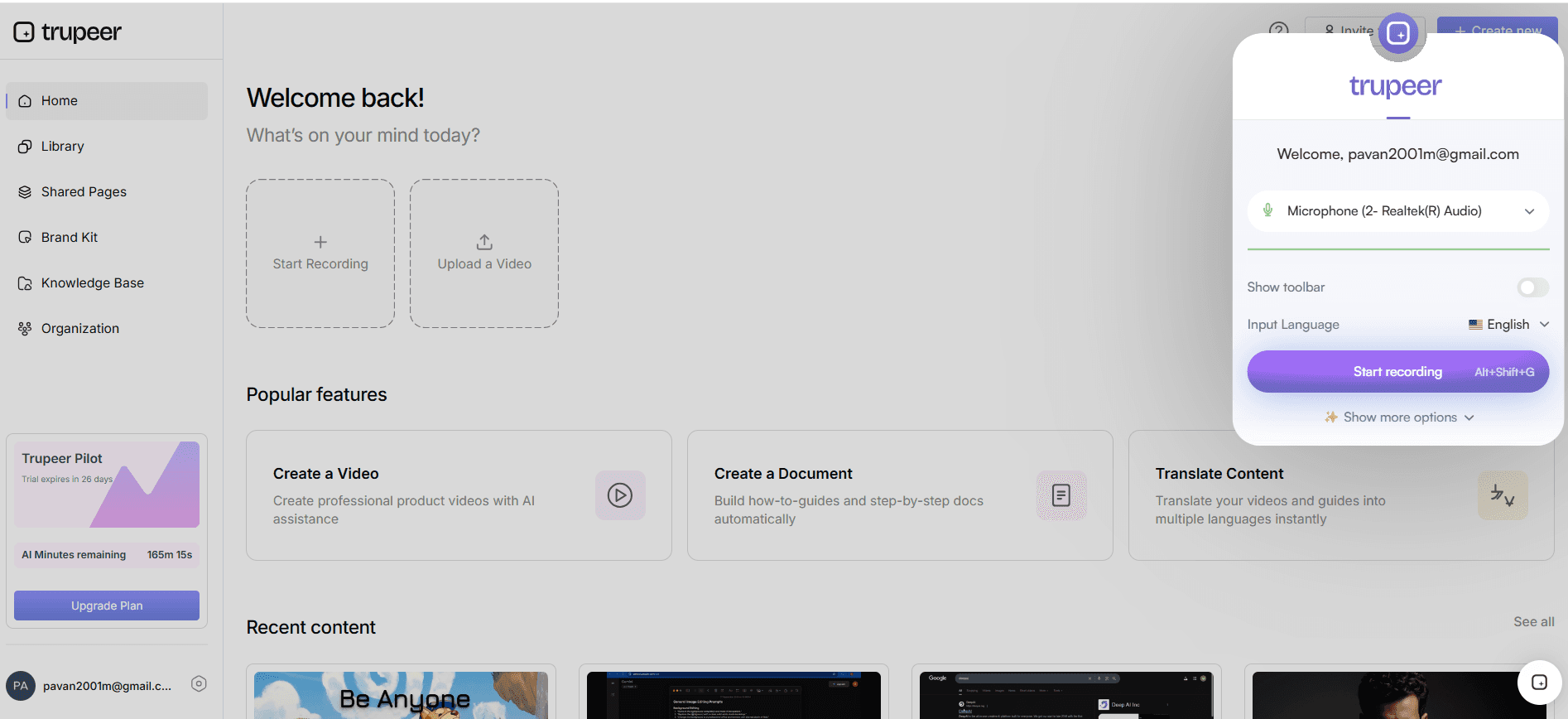
Begin by using Trupeer's AI screen recording with auto-zoom and click detection. Navigate to the part of your product where users typically encounter issues. Click the "Record" button on the Trupeer dashboard to start capturing. As the user interacts, the AI automatically zooms in on the action areas, like button clicks or form entries. This ensures that the resulting video is focused and relevant. Typically, a 5-minute recording can capture a comprehensive interaction. Once done, click "Stop" to end the recording. This process allows you to create a video that directly addresses user pain points without unnecessary content.
Step 2: Generate the AI Voiceover
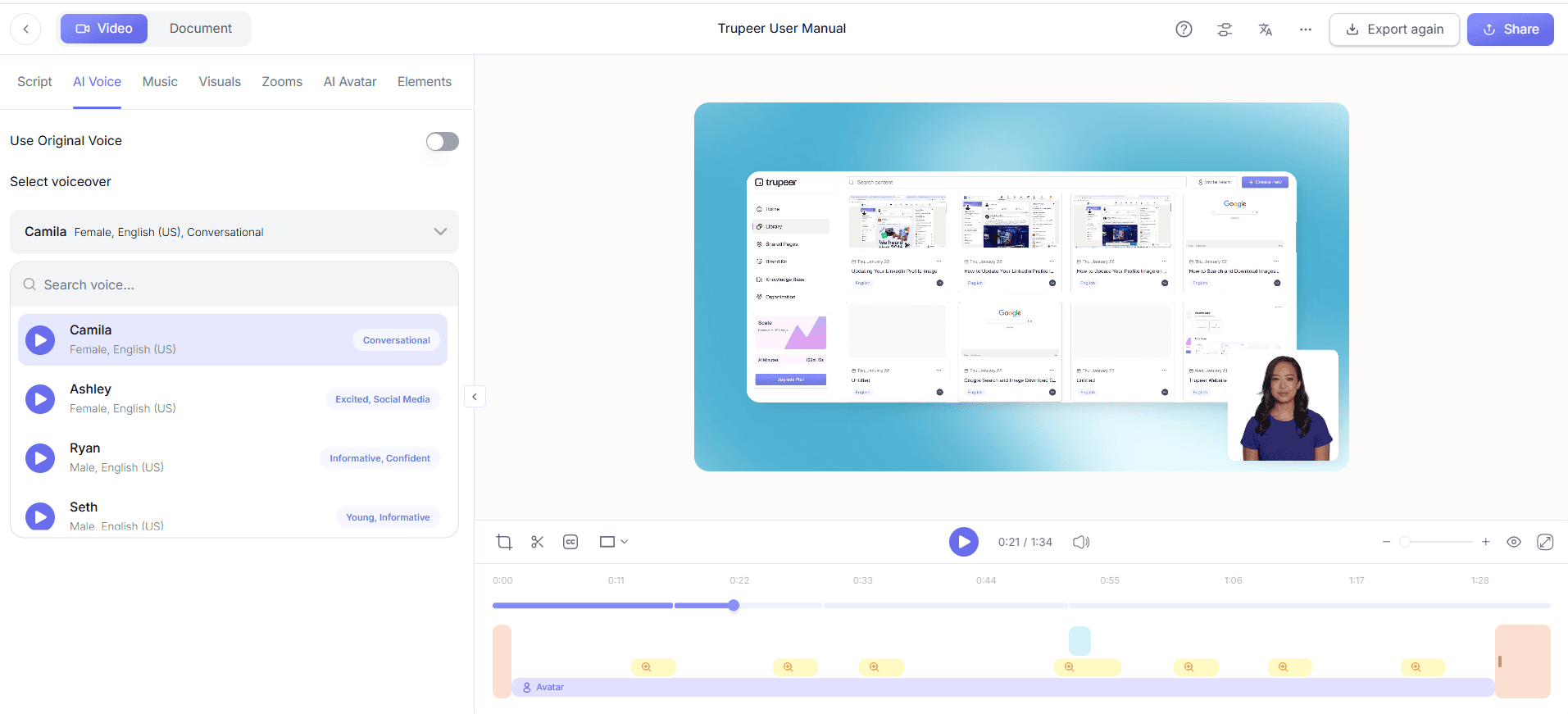
After recording, select "Generate Voiceover" from the Trupeer interface. Choose from over 65+ natural voices and adjust the pace and tone to match your brand's style. For example, if your product is a financial tool, a calm and steady voice might be appropriate. The AI analyzes your video’s context and generates a voiceover script that complements the visuals. This step usually takes about 2-3 minutes. Review the script and make any necessary edits before finalizing. This ensures that your help video is not only visually accurate but also audibly engaging and informative.
Step 3: Add AI-Generated Captions
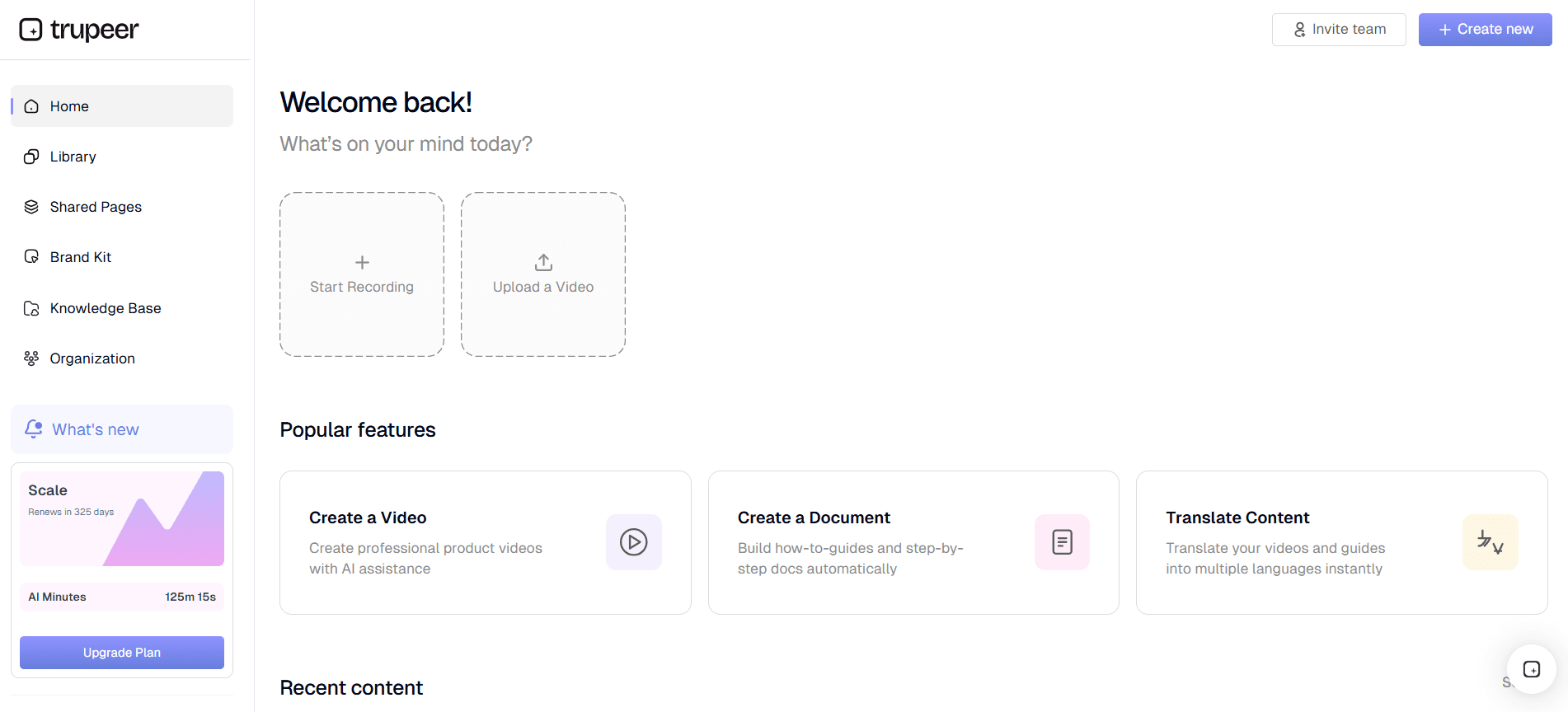
Navigate to the "Captions" tab and click "Auto-Generate Captions." Trupeer will create captions based on the voiceover, ensuring accessibility for users who prefer reading or have hearing impairments. Review and edit the captions to ensure accuracy, especially for technical terms or industry-specific jargon. This process takes about 2 minutes and is crucial for making your video inclusive. Captions enhance comprehension and are particularly useful in environments where audio isn't an option, such as open offices or public transport.
Step 4: Localize the Video for Global Audiences
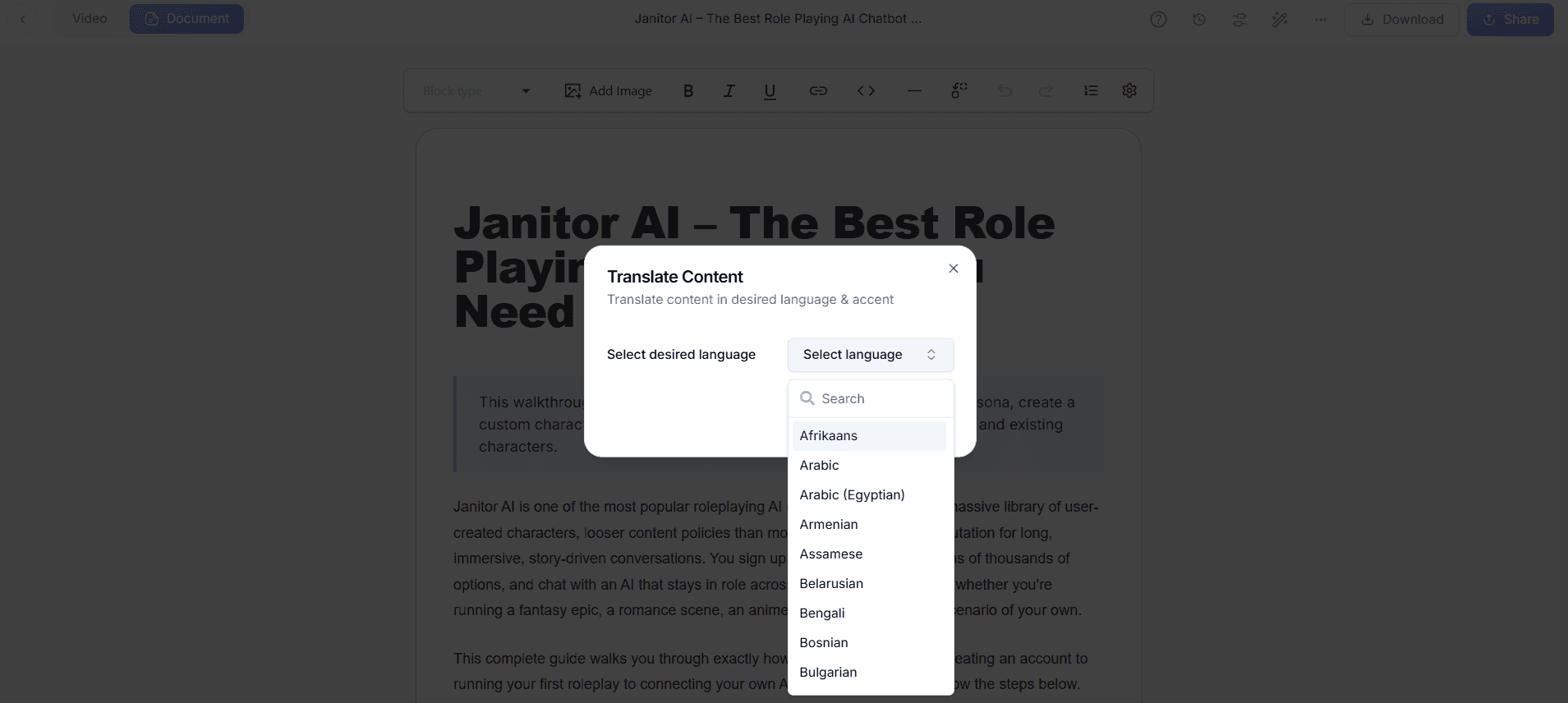
Use Trupeer's AI translation and dubbing features to localize your video. Select the "Translate Video" option and choose from 40+ languages. The AI will translate the script and dub it, syncing the voiceover with the speaker’s lips. This entire process takes approximately 5-7 minutes per language. Make sure to review the dubbed video to ensure cultural nuances are respected. Localization expands your product’s reach, making the help content accessible to a diverse user base and reducing barriers to understanding. Teams weighing tools often start with a Loom alternatives comparison before standardizing on a workflow.
Step 5: Embed the Video in Your Product
Now, it's time to integrate the video within your product. Go to the "Distribution" section in Trupeer and select "Embed Video Widget." Customize the widget to fit your product's design, then copy the embed code. Insert this code at the specific user interaction points in your product where help is needed. This integration is smooth, ensuring that help videos appear contextually. Typically, embedding takes about 3-5 minutes per location. This step ensures the video is always available when users need guidance, reducing frustration and enhancing user satisfaction.
Step 6: Monitor User Engagement and Adjust
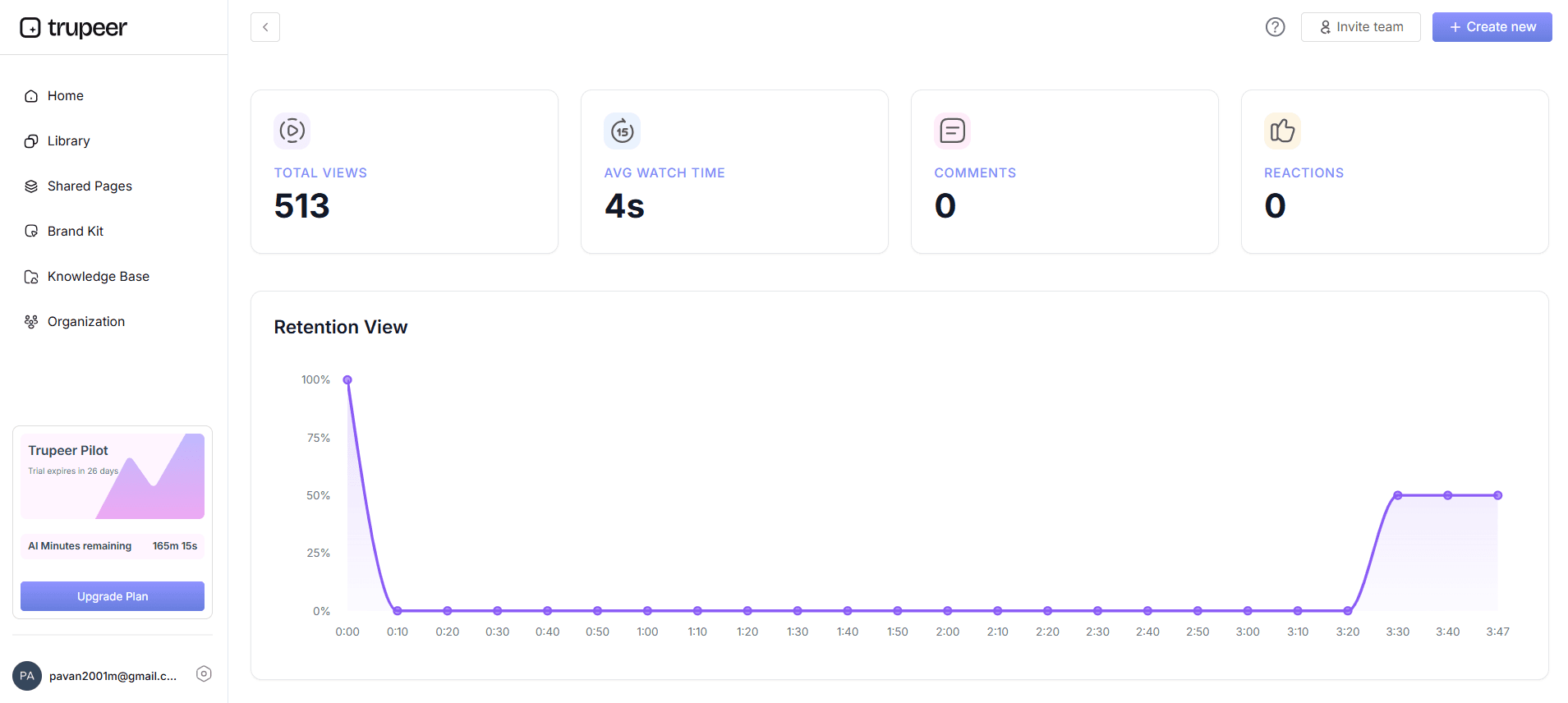
Finally, use Trupeer’s viewer engagement analytics. Access the "Analytics" tab to view metrics like video views, drop-off rates, and heatmaps. This data helps you understand how users interact with your videos and identify areas for improvement. For example, if users consistently drop off at a specific point, it may indicate confusion or a lack of clarity. Use these insights to refine your help videos, ensuring they remain effective and relevant. Regularly updating your content based on real user feedback is key to maintaining high levels of user engagement and satisfaction.
What tips help you trigger the right help video?
Creating and deploying contextual help videos requires strategic planning. Here are some actionable tips to optimize the process and ensure effectiveness.
Identify Key User Pain Points. Conduct user research to pinpoint where users most frequently encounter difficulties. This ensures your help videos address real needs.
Standardize Video Production. Use a product demo video recording editing tool to maintain consistency in video style and quality, reinforcing brand identity.
use Analytics for Continuous Improvement. Regularly review video performance metrics to identify opportunities for enhancement and ensure content remains relevant.
Keep Videos Concise and Focused. Aim for videos under 5 minutes to maintain user attention and ensure digestibility of information.
Use AI Avatars for Personalization. Incorporate AI avatars to add a personalized touch, making the help experience more relatable and engaging for users.
Test Across Devices. Ensure that help videos function smoothly on all devices, from desktops to mobile, to cater to diverse user preferences.
Explore Alternatives for SOPs. If you're considering other tools, check a Scribe alternatives for SOPs to find the most suitable option for your needs.
Frequently asked questions
How do I ensure the right video is triggered at the right time?
To ensure the correct video is triggered, integrate your video widgets at specific user interaction points within the product. Use behavioral triggers such as mouse clicks or page visits to automatically display the relevant help video. Trupeer's embedding tools allow you to define these triggers precisely. Regularly check analytics to validate that videos are being shown at the right moments and adjust your trigger conditions based on user feedback and data insights.
What if a user doesn't find the help video useful?
If a user finds a video unhelpful, it’s essential to provide an easy way for them to give feedback. Encourage users to rate the video or leave comments directly within the video widget. This feedback loop helps you understand what content needs improvement. also, reviewing video engagement analytics can highlight parts of your help video that may be ineffective. Use this information to refine your content and ensure it meets user needs more effectively.
Can I update help videos without disrupting user experience?
Yes, you can update help videos smoothly using Trupeer's auto-updating documentation feature. This capability ties the video to its underlying recording, allowing you to make updates without needing to re-embed or redistribute the video. As a result, users always access the latest version without any disruption. This is particularly useful for products that undergo frequent updates or changes, ensuring that help content remains current and accurate.
Does localization impact the effectiveness of help videos?
Localization significantly enhances the effectiveness of help videos by making them accessible to a global audience. Trupeer's AI translation and dubbing features enable you to offer help videos in over 40 languages, ensuring that language barriers don’t impede user understanding. This approach not only broadens your audience but also demonstrates a commitment to inclusivity and user-centric design. By providing content in users' native languages, you improve comprehension and engagement. For global audiences, adding AI video translation extends the same workflow across 40+ languages with lip-sync.
Why is user engagement analytics important for help videos?
User engagement analytics provide insights into how users interact with help videos, highlighting areas that may require improvement. By monitoring metrics such as video views, drop-off rates, and heatmaps, you can identify what content resonates with users and what doesn’t. This data-driven approach allows you to make informed decisions about content adjustments, ensuring that your help videos remain effective and user-focused. also, it helps in understanding user behavior patterns and preferences, further enhancing user experience.
Související blogy


