ScreenRec vs Trupeer: Feature Comparison (2026)
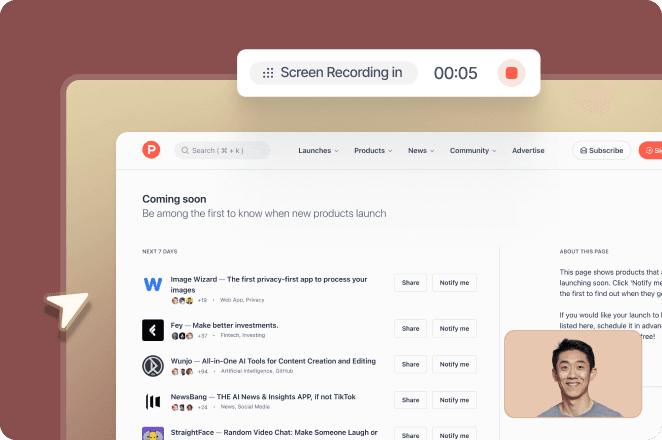
ScreenRec and Trupeer both record your screen, but they are built for different outcomes. ScreenRec is a lightweight, free screen recorder and screenshot tool with instant cloud sharing. Trupeer turns screen recordings and documents into polished videos with AI voiceover and step-by-step written guides.
This ScreenRec vs Trupeer feature comparison covers recording, screenshots, editing, AI, documentation, sharing, security and pricing.
ScreenRec vs Trupeer at a Glance
Feature | ScreenRec | Trupeer |
|---|---|---|
Built for | Quick, free screen recording and sharing | Polished videos and step-by-step documentation |
Platforms | Windows, Mac and Linux desktop app | Chrome extension and web app; upload videos and documents |
Recording | Screen, webcam and audio; works offline | Browser tab, window or full screen |
Screenshots | Screenshots with annotation | A screenshot for each step of a generated guide, with annotations and blur |
Editing | Basic | Edit by script, Rewrite with AI, zooms, trim, split, skip and crop |
AI features | None | AI script, voiceover, avatars and custom voices |
Written documentation | Not included | Step-by-step guide from every recording, exportable to DOC, PDF and Markdown |
Sharing | Instant private links with view analytics | Share pages, embeds that update automatically and a knowledge base |
Quality and storage | 720p free, 1080p Pro, 4K Premium; 2 GB to 200 GB cloud storage | MP4 export with captions |
Pricing | Free; Pro $4/month and Premium $49/month billed annually | Pro $40/month billed annually; Scale and Enterprise |
Features and prices checked in October 2026 from vendor-provided pricing on G2 and each vendor’s published information. Confirm current details before you buy.
What Is ScreenRec?
ScreenRec is a free screen recorder and screen capture tool for Windows, Mac and Linux. It lets you record your screen, webcam and audio or take annotated screenshots, then shares them instantly with a private link backed by cloud storage.
ScreenRec features
Screen, webcam and audio recording with no watermark
Annotated screenshots
Instant private share links with encryption and view analytics
Offline recording
Cloud storage: 2 GB free, 50 GB on Pro and 200 GB on Premium
Recording quality: 720p free, 1080p on Pro and up to 4K on Premium, with team seats on Premium
ScreenRec pricing
Free Forever with 2 GB of storage; Pro $4 a month billed annually ($8 monthly); Premium $49 a month billed annually ($81 monthly) for up to five users.
What Is Trupeer?
Trupeer turns rough screen recordings into finished content. Record with the Trupeer Chrome extension, or upload a video, PowerPoint, Word or PDF file, then click Generate AI Content to get a polished video with AI voiceover and a step-by-step guide with screenshots.
Trupeer features
AI video and step-by-step documentation from one recording
AI script and voiceover, Rewrite with AI, zoom editing, and trim, split, skip, sync and crop
AI avatars and custom AI voices
Screenshot annotations, adjustable blur and replacing a screenshot with a frame from the recording
Export documents to DOC, PDF and Markdown, and video to MP4 with captions
Translation of videos and documents (Scale and above)
Share pages, embeds that update automatically and a knowledge base with Ask AI
ISO 27001 certification, SOC 2 Type II and GDPR compliance, with SSO, SCIM and audit logs on Enterprise
Trupeer pricing
Free for 10 days; Pro $49 a month or $40 billed annually (one creator); Scale $249 a month or $199 billed annually (three creators, translation); Enterprise custom. See Trupeer pricing.
ScreenRec vs Trupeer: Feature-by-Feature
Recording and screenshots
ScreenRec is the simpler, cheaper tool for quick recordings and screenshots on any desktop, including Linux, and it works offline. Trupeer records a whole workflow and generates a screenshot for every step automatically. For one-off annotated screenshots, see Trupeer’s AI screenshot generator.
Editing and AI
ScreenRec keeps editing basic and has no AI features. Trupeer uses AI to write the script, add a voiceover and zooms, and lets you edit the video by editing text.
Documentation
ScreenRec shares recordings; it does not create written guides. Trupeer produces a step-by-step guide from every recording, which suits SOPs, help articles and turning screen recordings into SOPs.
Sharing and security
ScreenRec offers encrypted private links and view analytics. Trupeer adds embeds that update automatically, branded share pages and a searchable knowledge base, with ISO 27001 and SOC 2 Type II.
Which Should You Choose?
Choose ScreenRec if:
you want a free or very low-cost recorder for quick screen recordings and screenshots shared with a link, on Windows, Mac or Linux.Choose Trupeer if:
you need polished product videos, training videos, SOPs or help documentation with AI voiceover, translation and a knowledge base.
Comparing more tools? See our ScreenRec alternatives guide.
ScreenRec vs Trupeer FAQs
Is ScreenRec free?
Yes. ScreenRec’s Free Forever plan includes unlimited recording, 720p quality, no watermark and 2 GB of cloud storage.
Does ScreenRec have AI features?
No. ScreenRec focuses on recording, screenshots and sharing. Trupeer uses AI for scripts, voiceover and documentation.
Does ScreenRec work on Linux?
Yes. ScreenRec has desktop apps for Windows, Mac and Linux.
Can ScreenRec create documentation?
No. ScreenRec shares recordings and screenshots. Trupeer creates step-by-step guides from every recording.
Can I use ScreenRec and Trupeer together?
Yes. Use ScreenRec for quick everyday recordings and Trupeer for polished training videos and documentation.
Other Tool Comparisons