Trupeer Blog
Summarise
Service desk agents and employees rarely browse a knowledge base. They search. If the search box does not return the right article in the first few results, they open a ticket or ask a colleague, and the knowledge base might as well not exist. This guide shows how to build an internal knowledge base for IT service desk teams with search as the starting point: what to write first, how to make articles findable, where to put search, and how to measure whether it works.
For the overall category and article structure, see our companion guide on IT knowledge base structure.
Why Search Matters More Than Structure for a Service Desk
Agents search during live tickets and need an answer in seconds
Employees search from the portal or chat, not from a category tree
People describe symptoms (“Outlook keeps asking for my password”) rather than solutions
The same issue is described in many different ways
A good structure still matters, but the knowledge base succeeds or fails on whether search connects the words people use to the right article.
How to Build a Searchable Internal Knowledge Base in 7 Steps
1. Start from your ticket data
Export the last few months of tickets and group them by issue. Your first 20 to 30 articles should cover the most frequent requests and incidents, such as password resets, MFA, VPN, email and software access. Note the exact words users write in ticket titles; those are your search terms.
A practical way to do this: sort tickets by category, count how often each issue appears, and pick the issues that are frequent, easy to solve with steps, and currently handled by agents rather than users. Those are the articles that will cut ticket volume fastest.
2. Write one article per problem
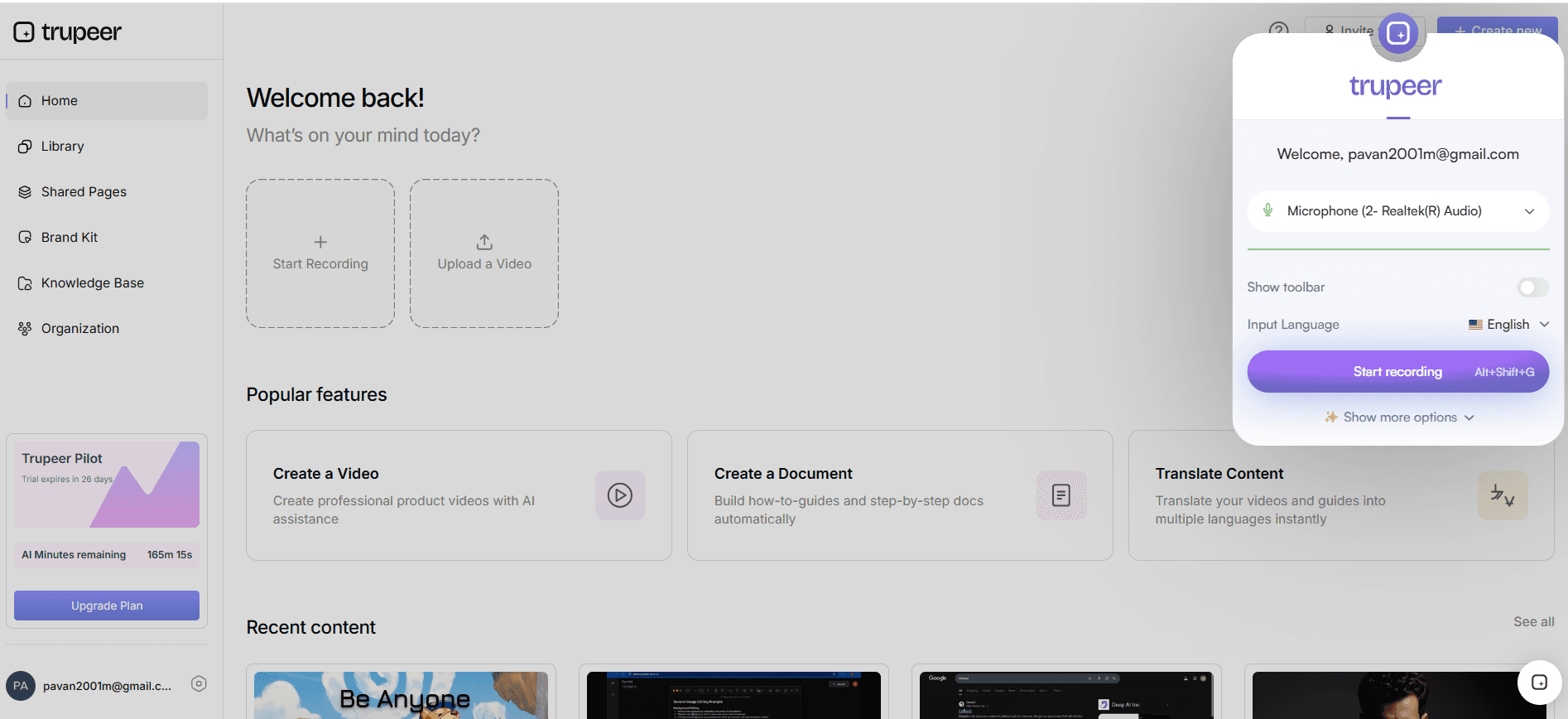
Each article should solve one problem or task. Long articles that cover several issues rank poorly in search and are hard to follow. Record the fix as you perform it, so the steps and screenshots are accurate.
3. Title articles the way people search
Weak title | Searchable title |
|---|---|
VPN client configuration | Can’t connect to the VPN |
MFA enrollment procedure | How to set up multi-factor authentication |
Outlook credential prompt issue | Outlook keeps asking for my password |
Software request process | How to request new software |
4. Add tags, synonyms and error messages
Tag articles with the system, device and location, and add common synonyms and abbreviations, for example “MFA, 2FA, two-factor, authenticator”. Paste exact error messages into the article text, because people often search by copying the error they see.
5. Separate agent and employee content
Keep internal agent articles, with admin steps and escalation details, in a section only the service desk can see. Search results for employees should only show articles they are allowed to follow.
A useful rule: if a step needs admin rights, an internal tool or a judgement call, it belongs in the agent article. The employee version ends with what to do if the steps do not work, such as raising a ticket with specific details.
6. Put search where people already ask for help
Self-service portal: a prominent search box on the home page
Ticket form: suggest matching articles as people type the subject, before they submit
Chat tools: search from Slack or Microsoft Teams, where employees already ask questions
Agent workspace: suggested articles alongside each ticket
7. Add AI search for natural-language questions
AI search lets people ask a full question, such as “why can’t I log in to the VPN from home?”, and get the relevant article or a direct answer, even when their words do not match the title. It works best on top of well-structured, current articles.
A Search-Ready Article Template
Use the same fields for every article so search and AI tools can find and use them consistently:
Field | What to write | Why it helps search |
|---|---|---|
Title | The symptom or task in the user’s words | Matches what people type |
Summary | One sentence on what the article fixes | Shown in search results and AI answers |
Symptoms and error messages | What the user sees, including exact error text | Catches copy-pasted errors |
Tags and synonyms | System, device, location, abbreviations | Matches different wording for the same issue |
Audience | Employees or agents only | Keeps internal steps out of employee results |
Steps | Numbered steps in text, with a screenshot each | Text is searchable; images are not |
If this did not work | Next step or how to raise a ticket | Prevents dead ends |
Owner and review date | Who maintains it and when to check it | Keeps results current |
Related articles | The next likely question | Helps people continue without searching again |
Example: Mapping Search Terms to One Article
One article should be findable by every way people describe the problem. For an article titled “How to set up multi-factor authentication”, the searches might be:
What people type | How the article catches it |
|---|---|
MFA, 2FA, two-factor | Synonym tags |
authenticator app not working | Troubleshooting section and tag |
new phone, lost phone, codes not arriving | Sections for each scenario |
“The code you entered is incorrect” | The exact error message in the article text |
how do I log in from a new laptop | AI search matching the question to the article |
Starter List: 15 Articles Most IT Knowledge Bases Need First
Area | Articles |
|---|---|
Accounts and access | Reset your password · Set up MFA · Request access to an application |
Network | Connect to the VPN · Connect to office Wi-Fi · Fix slow internet at home |
Email and calendar | Set up email on your phone · Share a calendar · Fix Outlook password prompts |
Devices | Set up a new laptop · Connect to a printer · Report a lost or stolen device |
Software and security | Request new software · Report a phishing email · Update your operating system |
Check these against your own ticket data and add the issues specific to your organization.
How to Measure Knowledge Base Search
Metric | What it tells you |
|---|---|
Unresolved or zero-result searches | Topics with no article, or articles people cannot find |
Top search terms | What people need most, and the words they use |
Views and time spent per article | Which articles are actually used |
Tickets on topics with articles | Whether articles solve the problem or need improving |
Stale articles | Content that has not been reviewed and may be wrong |
Review these every month. Turn the top unresolved searches into new articles, and add missing terms as tags or synonyms to existing ones.
What to Look For in Knowledge Base Software for an IT Service Desk
Capability | Why it matters |
|---|---|
Fast full-text search with synonyms | People find articles even when they use different words |
AI search or answers | Handles full questions written in natural language |
Search analytics | Shows failed searches and top terms so you know what to write |
Audience and permission controls | Keeps agent-only content internal |
Integrations with the portal, ticket form and chat tools | Puts search where people already ask for help |
Templates and easy authoring | Keeps every article in the same searchable format |
Review dates and freshness reports | Stops outdated articles appearing in results |
How Trupeer Helps Build a Searchable IT Knowledge Base
Create articles from recordings
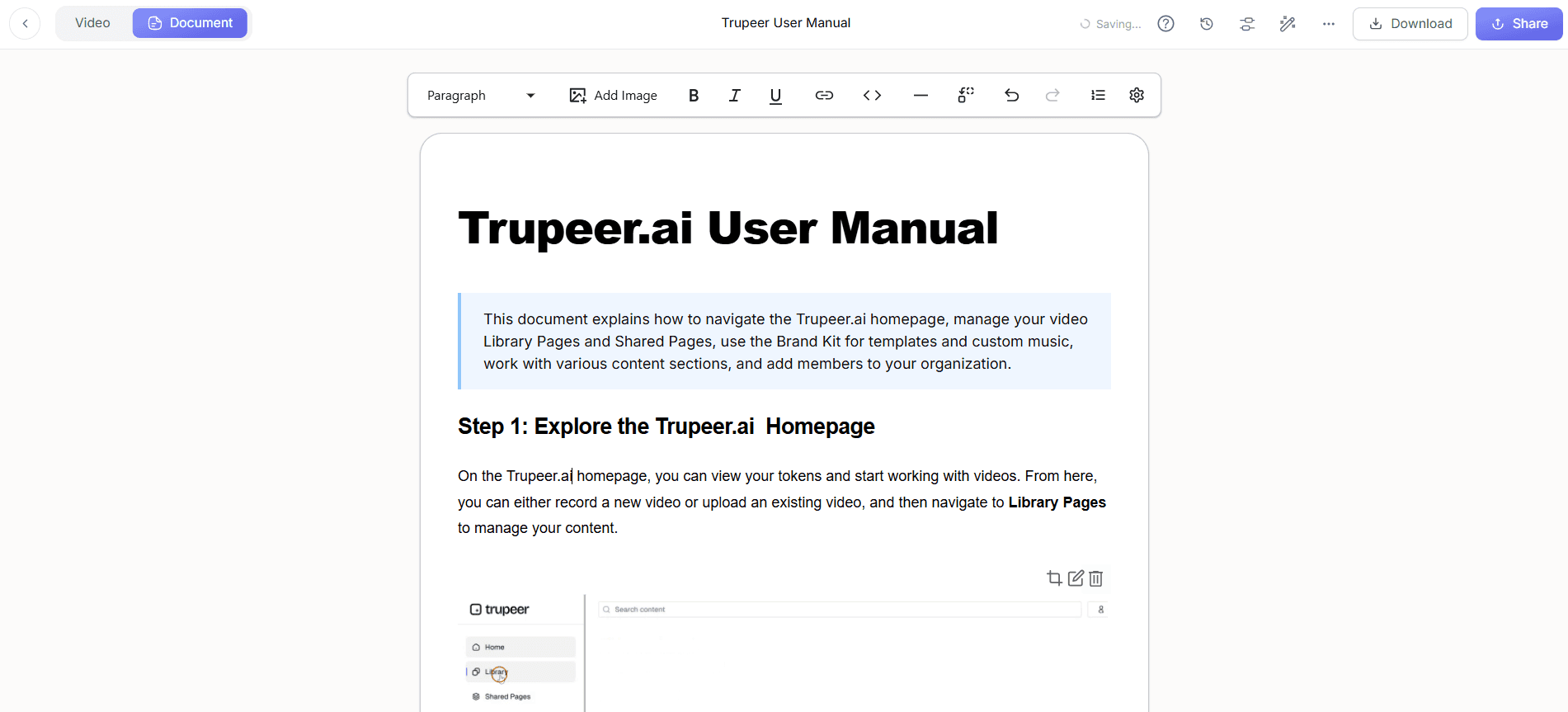
Record a fix with the Chrome extension and click Generate AI Content to get a step-by-step article with screenshots and a short video. Blur passwords and personal data before publishing. See the IT documentation generator.
Publish with search and access control
Publish articles in a Trupeer knowledge base, with sections by category and access set to Organization, Selected Domain or Invited Only, so agent-only content stays internal. Employees and agents can search with Ask AI.
Measure search and keep content current
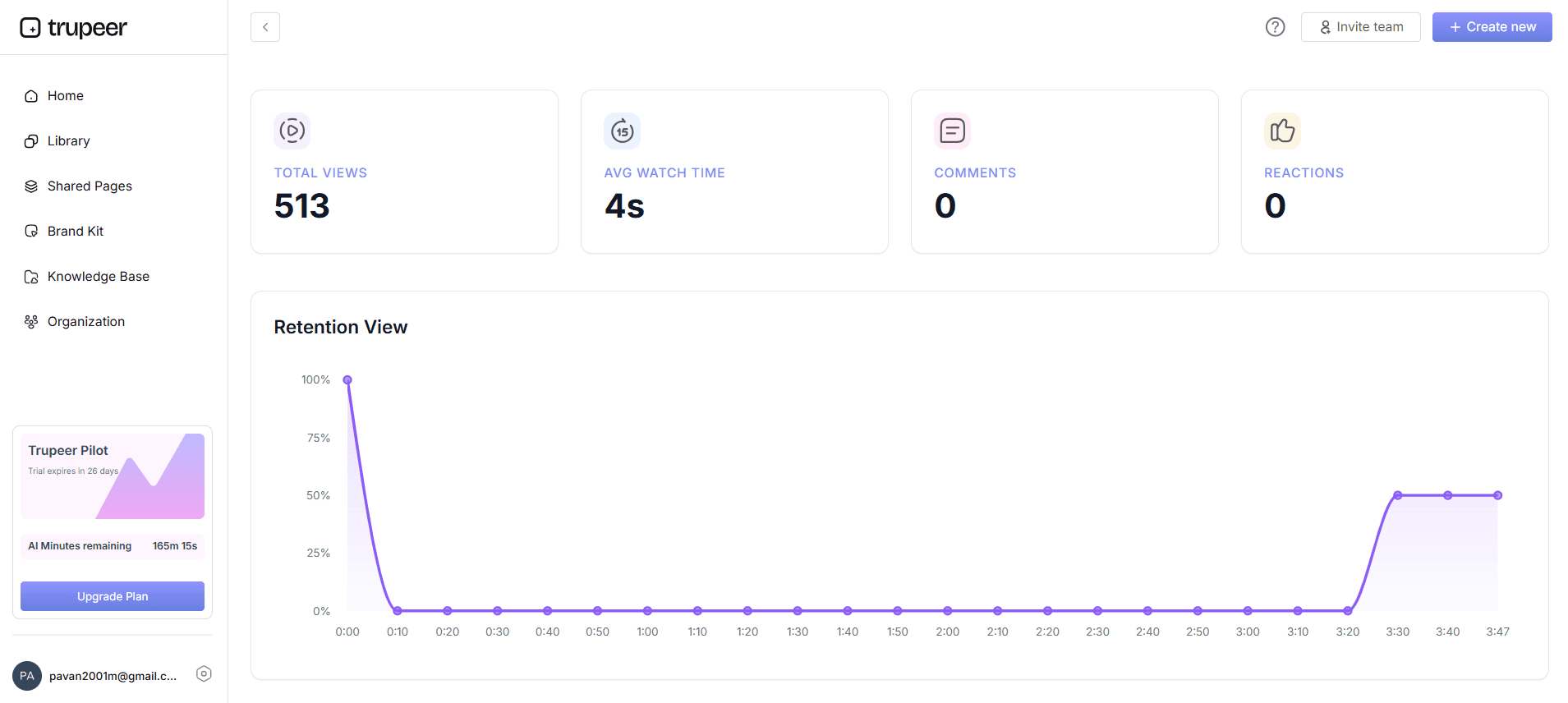
Analytics show content performance, search performance including AI queries and the unresolved rate, and knowledge base health such as stale articles and content freshness.
Connect AI assistants
Through Trupeer’s MCP server, AI assistants such as Claude and ChatGPT can search the same knowledge base when answering questions.
A 90-Day Rollout Plan
Days 1 to 30: analyze ticket data, agree categories and the article template, and publish the first 15 to 20 articles for the most common issues
Days 31 to 60: add search to the portal and ticket form, connect chat tools, train agents to search first and update articles as they resolve tickets
Days 61 to 90: review failed searches and top terms, add missing articles and synonyms, retire duplicates, and set a monthly review routine
How Hedrick Gardner trained 200+ employees in 5 locations using AI videos
Hedrick Gardner, a US law firm, was moving its employees from a legacy Citrix-based system to a modern cloud application. Employees resisted the change, training resources were scattered, and trainers were reluctant to record videos in their own voices.
IT Director Jeremy DeHart’s team used Trupeer AI to create consistent training videos with AI voiceover, so trainers never had to record themselves. They built bite-sized modules of three to five minutes for specific tasks, hosted in a central SharePoint training hub, with engagement tracking to measure progress.
More than 200 lawyers and staff across five locations moved to the new system with minimal disruption. The team created 100+ videos and saved 500+ hours in content creation, all without external help.
“We had the smoothest IT migration ever in our company, thanks to Trupeer. The videos were consistent and engaging. The best part - we pulled the content off in weeks, without external help.”
— Jeremy DeHart, IT Director, Hedrick Gardner
Read the full Hedrick Gardner story →
Common Mistakes That Make Knowledge Bases Hard to Search
Titles written in IT jargon instead of user language
Several problems in one long article
Steps only in screenshots or video, with no searchable text
No synonyms, abbreviations or error messages
Duplicate articles that split search results
Never checking which searches return nothing
For a broader guide to company-wide knowledge bases, see internal knowledge base.
Final Thoughts
A searchable internal knowledge base starts with the questions people actually ask. Build from ticket data, title articles in users’ words, add tags and error messages, put search where people already look for help, and use failed searches to decide what to write next.
Frequently Asked Questions
How do you create an internal knowledge base?
Start from your most common questions or tickets, choose a few categories, write one article per problem with a consistent template, publish them in a searchable tool, and assign owners to keep them current.
How do you build a searchable knowledge base?
Title articles in the words people search, write one article per problem, add tags, synonyms and error messages, put search in the portal and chat tools, add AI search, and review failed searches monthly.
What is an internal knowledge base?
An internal knowledge base is a searchable library of articles that employees and teams use to find answers about tools, processes and policies inside a company.
What does an internal knowledge base look like for IT?
A self-service portal with a search box, articles grouped into categories such as accounts, network and devices, and a separate agent-only section with escalation and admin steps.
How do you make knowledge base search work better?
Use user-language titles, add synonyms and exact error messages, remove duplicates, keep steps in text, and check zero-result searches regularly.
Should an IT knowledge base use AI search?
AI search helps when people ask full questions in their own words, but it depends on clear, current articles underneath.
How do you measure knowledge base search?
Track unresolved searches, top search terms, article views, tickets on topics that already have articles, and stale content.
How does Trupeer help build a searchable knowledge base?
Trupeer turns recordings into step-by-step articles and videos, publishes them with access controls and Ask AI search, and shows search and freshness analytics.
Related Blogs