Trupeer Blog
Summarise
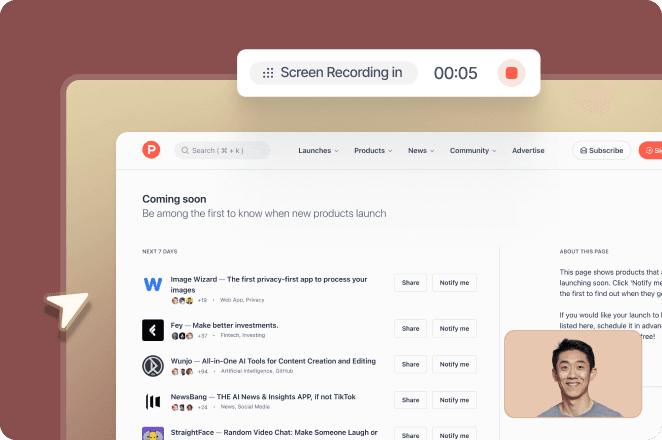
Enterprise teams need more from screen recording software than good video quality. For documentation and SOP work, the recording is only the input. What matters is what comes out the other end, a usable procedure, and whether the sensitive data that appeared on screen can be handled safely.
This guide compares the best screen recording software for SOPs and process documentation in 2026, explains what to evaluate, and shows how recordings become procedures.
TL;DR: Which Screen Recorder Fits Your SOP Team?
The best screen recording software for enterprise SOP teams depends on whether you need auto-generated written guides, quick narrated videos, or both from one recording:
Written SOP and narrated video from one recording:
TrupeerClick-by-click written guides:
Scribe or TangoShort narrated video guides:
GuiddeQuick async video explanations:
LoomPolished edited training videos:
CamtasiaFree video capture:
OBS Studio or ScreenPal
Why Screen Recording for Documentation Is Different
Most screen recorder and screen capture software comparisons focus on capture quality, frame rate and editing. Those matter if you produce video. If you produce documentation, they are close to irrelevant. A recorder that exports a flawless 4K file and nothing else leaves the documentation job entirely ahead of you, because a ten-minute recording is not a procedure.
How Welltower trained 150 new employees across three countries
Welltower’s Redevelopment team grew from 30 to 180 people in two years. Every new hire had to learn dense, workflow-heavy software, including Yardi, Smartsheet and custom Excel forms, and the only way to learn was to watch a colleague or wait for a one-on-one call. Madison Crimi-DeMichele was tasked with building SOPs and training for a department growing faster than documentation could keep up.
With Trupeer AI, Madison became a one-person production team. Subject matter experts record their screens, and she turns the recordings into consistent, polished training videos. The videos also serve as the first draft of written SOPs, so one recording covers both.
In 10 months, Madison created 50+ training videos that now serve 180 employees across three countries. The same library has extended to vendors and on-site operators, and HR and Marketing are adopting the platform next.
“Send it to Madison for her AI video.”
— How VPs across Welltower now refer to the documentation process
Read the full Welltower story →
What Makes a Screen Recorder Good for SOPs and Documentation?
Documentation output:
Does it produce screenshots, written steps and searchable text, or only a video file?Recording to SOP:
Does the capture become a structured procedure, and how much editing does that take? See converting a screen recording to an SOP.Redaction:
Can sensitive data that appeared on screen be blurred after recording?Access control and security:
Who can view recordings and published procedures, and is SSO available on your plan?AI processing:
Transcription, step detection, written instructions and voiceover.Output formats:
PDF, Word, Markdown, share links and embeds.Maintenance:
When the process changes, can you regenerate the documentation instead of rebuilding it by hand?Recording capability:
Browser or desktop capture, and whether long sessions record reliably.

Best Screen Recording Software for SOPs Compared
Tool | Documentation output | Recording to SOP | Starting price |
|---|---|---|---|
Trupeer | Written SOP with screenshots plus narrated video | Built in | Pro $40/month billed annually |
Scribe | Written step-by-step guides with screenshots | Built in (click capture) | Free plan; Pro from about $23/month |
Tango | Written step-by-step guides with screenshots | Built in (click capture) | Free plan; Pro $22/user/month billed annually |
Guidde | Short narrated video guides | Video guides with AI script | Free plan; paid from about $16/creator/month |
Loom | Video with transcript | No | Free Starter; Business per creator |
Camtasia | Edited video | No | Paid license |
ScreenPal | Video | No | Free plan; paid plans |
OBS Studio | Video only | No | Free and open source |
The 8 Best Screen Recording Tools for Documentation and SOP Teams
1. Trupeer: Best for SOPs With Both Written Steps and Video

Best for: Teams that need a written SOP and a narrated video from the same recording
Trupeer treats recording and documentation as one workflow. Record a browser tab, a window or your entire screen with the Trupeer Chrome extension, or upload an existing video, slide deck or document, then click Generate AI Content. Trupeer produces a step-by-step document with a screenshot for each step and a polished video, or the document alone if you only need the SOP.
Screenshots can be edited with rectangles, circles, arrows, text and crop, blurred with adjustable strength, or replaced with a better frame from the recording. Finished SOPs can be exported, embedded in tools like Confluence and Notion (embeds update automatically), or published in a Trupeer knowledge base with Ask AI search.
What it produces: Written SOP with screenshots, plus narrated video, exportable to DOC, PDF and Markdown.
Enterprise strengths: Blur for on-screen data; knowledge base access set to Public, Organization, Selected Domain or Invited Only; ISO 27001 certified, SOC 2 Type II and GDPR compliant; SSO, SCIM and audit logs on Enterprise.
Pricing: Free for 10 days; Pro $49/month or $40/month billed annually (recordings up to 10 minutes); Scale $249/month or $199/month billed annually (3 creators, translation); Enterprise custom (recordings up to 3 hours). See Trupeer pricing.
Caveat: Not a workflow or approval system; review each SOP to add anything that was not visible on screen.
2. Scribe: Best for Fast Written Process Guides

Best for: Click-by-click written guides and automated SOP generation
Scribe captures clicks and keystrokes as you work and turns them into a written step-by-step guide with screenshots. It is one of the most widely used tools for quick process documentation.
What it produces: Written step-by-step guides with screenshots; guides can be combined into longer documents.
Enterprise strengths: SOC 2 Type II and GDPR compliance; blur on paid plans; SAML SSO, SCIM and AI-based PII and PHI redaction on Enterprise.
Pricing: Free Basic plan; Pro Personal from about $23/month; Pro Team per seat; Enterprise custom.
Caveat: Captures clicks rather than reasoning, so someone still adds context; no narrated video, and desktop capture needs a paid plan.
3. Tango: Best for Browser Workflow Guides

Best for: Written how-to guides for browser-based workflows
Tango captures workflows in the browser and turns them into how-to guides with screenshots, and its Guide Me feature walks users through steps inside web apps.
What it produces: Written how-to guides with screenshots; PDF export on Pro.
Enterprise strengths: Blur, custom branding, 14-day version history and audit logs on Pro; more controls on Enterprise.
Pricing: Free plan; Pro $22/user/month billed annually for 1–2 users ($26 monthly), $15/user/month billed annually for 3 or more ($20 monthly); Enterprise custom.
Caveat: Desktop capture and PDF export need Pro, and costs scale per user.
4. Guidde: Best for Short Narrated Video Guides

Best for: Short narrated video guides for support and training
Guidde turns browser recordings into narrated how-to videos with AI-written step descriptions, popular with support teams that answer "how do I" questions with video. For a closer look at how the two differ, see our Guidde vs Trupeer feature comparison.
What it produces: Short video guides with AI script and voiceover.
Enterprise strengths: SOC 2 Type II compliance; SSO and PII redaction on Enterprise.
Pricing: Free plan; paid plans from about $16 per creator per month.
Caveat: Video-first, with less depth for long written SOPs.
5. Loom: Best for Quick Async Explanations

Best for: Fast, async narrated video walkthroughs
Loom, owned by Atlassian, records screen and camera for quick async updates and walkthroughs. It is excellent for communication but produces video rather than structured documentation.
What it produces: Video with transcript; AI summaries on AI plans.
Enterprise strengths: Part of Atlassian; SSO, SCIM and admin controls on Enterprise.
Pricing: Free Starter plan with video limits; Business priced per creator, with AI features on a higher tier; Enterprise custom.
Caveat: No written step-by-step SOP output.
6. Camtasia: Best for Polished Training Videos

Best for: Polished, edited training videos
Camtasia from TechSmith is a screen recorder and video editor for producing polished training and tutorial videos with callouts, captions and effects.
What it produces: Edited video files.
Enterprise strengths: Desktop software; enterprise licensing available.
Pricing: Paid license; check TechSmith for current pricing.
Caveat: Manual editing, and no written SOP output.
7. ScreenPal: Best for Simple Video Capture

Best for: Simple screen and webcam video capture
ScreenPal, formerly Screencast-O-Matic, offers screen and webcam recording, simple editing and video hosting.
What it produces: Video.
Enterprise strengths: Team and admin features on business plans.
Pricing: Free plan with limits; paid plans for more features.
Caveat: No written documentation output.
8. OBS Studio: Best Free Open-Source Recorder

Best for: Free, high-quality video recording with full control
OBS Studio is free, open-source software for high-quality recording and streaming. It gives full control over capture but no documentation features. If you like OBS but need documentation output too, our roundup of OBS Studio alternatives covers tools that do both.
What it produces: Video only.
Enterprise strengths: Self-hosted on your own machines, so security depends on your setup.
Pricing: Free and open source.
Caveat: No AI, editing or documentation output.
Screen Recording Software vs SOP Software
A screen recorder produces a video file. SOP software and process documentation software produce something a reader can scan: ordered steps, a screenshot for each and searchable text. Many teams buy a recorder and then discover they still have the documentation job ahead of them. Some tools, such as Trupeer, Scribe and Tango, do both; where a tool does not, add the cost of a second step to your decision. See our SOP software and process documentation software pages for more.
How Screen Recordings Become SOPs
Record or upload the process. AI identifies the visible actions, groups them into steps, captures a screenshot for each and drafts the instructions. You review, add anything that was not on screen, such as approvals or exceptions, and publish. The SOP generator covers the generation step in detail.
Enterprise Security and Governance for Screen Recordings
Redaction after capture:
If sensitive data cannot be blurred after recording, every capture needs a sanitised test environment, which often stops teams documenting at all.Access control:
Who can view recordings and published procedures, and can that be scoped by team, domain or client?SSO and identity:
Often limited to enterprise plans, so check the plan you priced.Retention and deletion:
How long recordings are kept, and whether you control it.Certifications and data residency:
Ask for ISO 27001 or SOC 2 reports and where data is processed and stored.
Confirm each point with the vendor directly. Security capabilities often change by plan and region.
How to Choose Screen Recording Software for SOP Teams
Decide what you need out, not what you need in: a written procedure, a video or both
Run security review before shortlisting
Record one real process during the trial, with real data on screen, to test redaction
Time the editing, not the recording
Test the update path: change the process and see what it takes to refresh the SOP

If you are comparing SOP platforms rather than recorders, see the best SOP creation software comparison. For general-purpose recorders, see our best screen recording software guide.
Final Thoughts
The best screen recording software for enterprise documentation is the one that turns a recording into a usable, secure procedure with the least editing. Choose a tool by its output and its security controls, test it on a real process, and check how easily you can update documentation when the process changes.
Related reading
Frequently Asked Questions
What is the best screen recorder for creating documentation?
It depends on what you need to produce. For written SOPs and narrated video from one recording, Trupeer fits best. For written click-by-click guides, Scribe and Tango are strong options. Video-only recorders such as Loom, Camtasia and OBS Studio still need a separate documentation step.
Can a screen recording be converted into an SOP?
Yes. AI identifies the visible actions, groups them into steps, captures a screenshot for each and drafts the instructions. A person then adds anything that was not on screen, such as approvals or exceptions, before publishing.
What should enterprises look for in screen recording software?
Redaction after recording, access control, SSO on your plan, retention and deletion controls, certifications such as ISO 27001 or SOC 2, and where data is processed and stored.
Is screen recording enough to create an SOP?
On its own, no. A recording is the input; the SOP is the output. You need SOP software or a recorder with built-in documentation to turn the recording into steps people can follow.
How should enterprises protect sensitive information in screen recordings?
Use a tool that can blur on-screen data after recording, restrict who can view recordings, and confirm retention and security controls with the vendor. Test this with a real process during your trial.
What is the difference between a screen recorder and SOP software?
A screen recorder produces a video file. SOP software produces ordered steps with screenshots and searchable text. Some tools, such as Trupeer, Scribe and Tango, do both.
What is the best SOP software for screen recordings?
Trupeer for written SOPs plus video from one recording, and Scribe or Tango for written step-by-step guides. Choose based on whether your team also needs video, translation and a knowledge base.
How much does screen recording software for documentation cost?
Scribe, Tango, Guidde and Loom have free plans, with paid plans priced per user or creator. Trupeer Pro costs $40 a month billed annually, and OBS Studio is free.
Related Blogs