Trupeer Blog
Opsummer

Still making those long, unpolished screen recordings, no click-zoom effects, no AI avatars, and a jittery cursor that just won’t stay still?
Please stop frustrating your customers! Probably, you are using software like ScreenPal to create tutorials, product demos, or updates for your teams. Be aware that ScreenPal:
Lacks advanced editing features
Limits video quality
Makes sharing a slow and manual process
The result? Clunky videos that lose your audience before the message lands! Need some alternatives to Screencast-o-matic? If you are struggling to record clear videos, make quick edits, or share content easily, this article is for you!
We’ve compiled a list of top ScreenPal alternatives you can consider for your next assignment. Read till the end!
Quick Answer: The Best ScreenPal Alternatives in 2026
Trupeer AI - best for turning screen recordings into polished, narrated videos and written guides.
Loom - best for quick async team videos.
Camtasia - best for advanced timeline editing.
Snagit - best for screenshots and visual documentation.
Zight - best for quick visual sharing.
OBS Studio - best free and open source screen recorder.
Cap - best open source recorder with a built-in editor.
ScreenPal Pricing and Why People Look for an Alternative to ScreenPal
ScreenPal (formerly Screencast-O-Matic) is a low-cost screen recorder, video editor and hosting tool used widely by educators and small teams. It runs on Windows, Mac, Chromebook, iOS and Android.
Free – recordings up to 15 minutes, with basic editing and hosting.
Deluxe – from about $4/month billed annually.
Max – about $10/month billed annually, with AI captions, text-to-speech and quizzes.
Team Business – $8/user/month billed annually, with a three-seat minimum.
ScreenPal is rated 4.4/5 on G2, and ScreenPal reviews generally praise its price and ease of use. People usually look for a ScreenPal alternative when they need more polished output, AI voiceovers, written guides, stronger team features, or a more modern interface.
How We Picked These ScreenPal Alternatives
Output quality without heavy manual editing.
Editing and AI features such as voiceover, captions and guides.
Price, including free and open source options.
Platforms and sharing for teams and educators.
A note on bias: Trupeer AI is our product and we have listed it first. We note where each tool, including Trupeer, is not the right choice. Pricing was checked on each vendor’s public pricing page in September 2026, so confirm before you buy.
ScreenPal Alternatives at a Glance (2026 Pricing)
Tool | Best for | Platform | Free plan | Paid from |
|---|---|---|---|---|
ScreenPal (for reference) | Low-cost recording, editing, hosting | Windows, Mac, Chromebook, mobile | 15-min recordings | ~$4/mo (yearly) |
Trupeer AI | Narrated videos + written guides | Web, Chrome | 10 days (1,000 AI credits) | $40/mo (yearly) |
Loom | Quick async videos | Web, desktop, mobile | 25 videos, 5-min cap | $18/user/mo |
Camtasia | Timeline editing | Windows, Mac | Trial | $39/yr |
Snagit | Screenshots and short clips | Windows, Mac | 15-day trial | $39/yr |
Zight | Quick visual sharing | Mac, Windows, Chrome | Yes | $9.95/user/mo (yearly) |
OBS Studio | Free recording | Windows, Mac, Linux | Free forever | Free |
Cap | Open source recorder | Mac, Windows | Personal use | $29 one-time |
The 7 Best ScreenPal Alternatives in 2026
1. ScreenPal vs Trupeer AI: Best for Polished, Narrated Videos and Guides

Trupeer.ai is one of the best AI tools for screen recording and guide creation. With screen capture with audio recording built into its Chrome extension, you can turn a simple screen capture into a polished video or step-by-step document, no complicated software needed Want use-cases? You can use it to create:
Please note that Trupeer is AI-enabled. It automatically polishes your rough screen recordings. So, if you are planning to learn those tough video editing skills, drop the idea! Instead, start your first screen recording today with Trupeer AI for free!
Key Features of Trupeer.ai
Screen recording: Record your screen using Trupeer’s Chrome extension.
AI script generation: Trupeer can write a clean script based on your screen activity.
AI voiceover: Add an AI-generated voiceover using different voice styles, languages and accents.
Video customization: Choose visuals, backgrounds, and music for your video.
Step-by-step documentation: Trupeer automatically captures key actions and turns them into a written guide with screenshots and descriptions.
Multi-format export: Download the final video or document in formats like:
PDF
Word
Markdown.
Language support: Trupeer generates voiceovers in 100+ languages and accents, with AI translation on Scale and Enterprise plans.
Advantages of Trupeer.ai

No editing skills needed: Trupeer automates video and document creation.
All-in-one solution: Record, edit, script, voiceover, and export - all from one tool.
Professional results: Outputs look clean and are suitable for:
Client presentations
Training
Public sharing
Multi-use: Helpful for marketing, onboarding, training, sales, or YouTube content.
Customizable: You can tweak the script, voiceover, and visual design before exporting.
Trupeer Pricing

Free Plan – free for 10 days, with 1,000 AI credits a month (about 10 minutes of AI video) and recordings up to 5 minutes
Pro Plan – $40/month billed yearly, or $49 monthly: 2,000 AI credits, 10-minute recordings, one creator seat
Scale Plan – $199/month billed yearly, or $249 monthly: 10,000 AI credits, 15-minute recordings, three seats, AI translation and brand kit
Enterprise Plan – Custom (contact Trupeer sales): 3-hour recordings, 100+ languages in bulk, SSO
Trupeer AI Reviews
Planning to use this alternative to Screencast? Trupeer AI is rated 4.92 out of 5 on Product Hunt. It has also been awarded the #1 Product of the Year. It is also rated 4.8 out of 5 on G2. Let’s see what some real users have to say -

If you are looking for top ScreenPal alternatives in 2026 and want polished, narrated videos instead of raw recordings, Trupeer AI is worth a close look.
Where it isn’t the answer: If you want the cheapest possible recorder with a built-in editor, ScreenPal itself or OBS Studio costs less. Trupeer records through a Chrome extension or uploaded video, AI credits are metered on every plan, and recordings are capped at 5 to 15 minutes below Enterprise.
Bottom line: The pick when recordings need to look professional and come with a written guide.
2. ScreenPal vs Loom: Best for Quick Async Team Videos

Loom is an online tool that lets you record your screen, webcam, or both at the same time. Instead of setting up a meeting or writing a long email, you can simply record a short video and send it to your team or clients. This ScreenPal alternative is mainly used to create:
Tutorials
Training content
Product demos
Internal updates
Key Features of Loom
Screen and webcam recording: You can record just your screen, just your webcam, or both.
Virtual background: You can blur or replace your webcam background.
Instant sharing: As soon as the recording is done, Loom creates a shareable video link.
Viewer comments: Viewers can leave timestamped comments and emoji reactions on the video.
Automatic transcription: The platform adds subtitles and closed captions.
Basic editing tools: You can trim parts of the video and remove filler words like “um”. Also, you can add chapters or transitions.
Third-party integrations: This software, like ScreenPal, works with Slack, Gmail, Jira, Salesforce, and others.
Advantages of Loom

Easy to learn and use
Good for quick team communication or explaining tasks
Free plan available
Includes transcription and some editing tools
Works in the browser. There is no need to install heavy software
Saves time by replacing long emails or meetings
Disadvantages of Loom
Videos are saved online and public by default (you must manually change privacy settings)
The free plan only supports 720p video quality
Weak screenshot tool as it offers no editing or annotation
Limited editing tools for professional-quality videos
Can lag on slower internet, or if your computer is under heavy load
Audio recording issues may occur if the settings aren’t correct
Videos saved to the cloud need extra steps for editing in other apps
Loom Pricing

Starter Plan - Price: $0 (25 videos, 5-minute recordings)
Business Plan - Price: $18/user/month
Business + AI Plan - Price: $24/user/month
Enterprise Plan - Custom pricing
Loom Reviews
Loom is rated 4.7 out of 5 on G2.com. But are those removals of “ums” and “aahs” enough to pick it? Read what real Reddit users are saying -

Bottom line: Fastest for quick internal updates, not for polished tutorials. Compare in detail: Loom alternatives.
3. ScreenPal vs Camtasia: Best for Advanced Timeline Editing

Camtasia is a software program used to record your computer screen, webcam, and audio. After recording, you can edit the video with the same tool. This ScreenPal alternative is built by TechSmith and is available as a desktop application for both Windows and Mac. It is mainly used to create:
Tutorials
Training videos
Product demonstrations
Other instructional content
Key Features of Camtasia
Screen and Webcam Recording: You can record your full screen, a selected area, or a single window. It also allows you to record your webcam and microphone at the same time.
Audio Capture: You can record system audio (from your computer), microphone input, or both.
Video Editing Tools: Includes cut, trim, and combine tools to edit clips. You can also adjust volume, add music, and insert voiceovers.
Visual Enhancements: Through this ScreenPal alternative, you can add transitions, text, shapes, arrows, highlights, and cursor effects.
AI Features: Camtasia offers automatic script generation and text-to-speech using AI tools.
Advantages of Camtasia

All-in-one tool: Recording and editing are done in the same software.
Rich editing tools: Good range of features for polishing your videos.
Multiple export options: Supports different formats and platforms for sharing.
Supports templates and presets: Speeds up the editing process for recurring video types.
Disadvantages of Camtasia
High system requirements: The software may run slowly, particularly during rendering or exporting large videos.
Can crash with large projects: Users have reported stability issues when working with heavy files or too many effects.
Interface may feel outdated: Some users find the design less intuitive compared to newer tools.
Camtasia Pricing

Camtasia moved to annual subscriptions in late 2024, and prices vary by country.
Camtasia Starter - Price: $39/year
Camtasia Essentials - Price: $179.88/year (billed annually)
Camtasia Create - Price: $249/year (billed annually)
Camtasia Pro - Price: $599/year (billed annually)
Camtasia Reviews
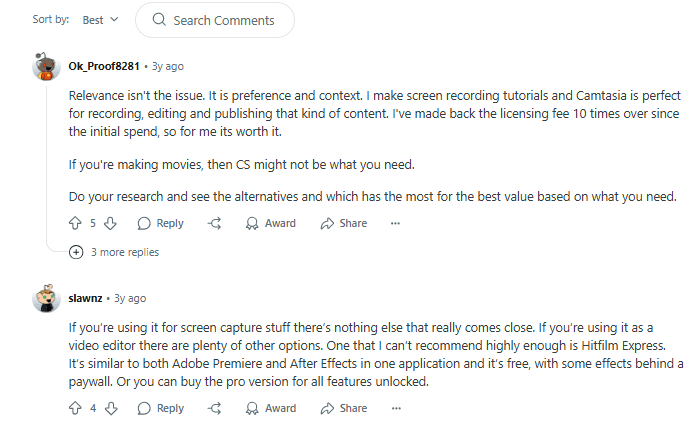
Camtasia is rated 4.6 out of 5 on G2 and holds the title of “highest user adoption” for Spring 2025. But is it worth the hype? Let’s check out some mixed responses received from Reddit users -
Bottom line: Right when you need frame-level control, quizzes or SCORM. Compare in detail: Camtasia alternatives.
4. ScreenPal vs Snagit: Best for Screenshots and Visual Documentation
Snagit is another ScreenPal alternative used for screen capture and screen recording. Through it, you can capture images or videos from your computer screen and then edit and share those files. Snagit is suitable for individuals and teams who need to explain something visually without needing complex video editing tools.
It is mainly used for making:
Tutorials
User guides
Documentation
Visual communication
Key Features of Snagit

Screen Capture: Capture your entire screen, a selected area, or just a specific window. It also allows “scrolling capture”, which is highly useful for capturing long webpages or documents in one image.
Screen Recording: Record screen activity and webcam video. Useful for creating walkthroughs, training clips, or feedback sessions.
Image Editing Tools: Add arrows, text, highlights, blur effects, and other visual elements to your captured images.
Basic Video Editing: You can trim the beginning or end of video clips and cut unwanted parts.
Templates: This software like ScreenPal, offers built-in templates. Using them, you can quickly create:
Guides
Instructions
Visual documentation
Sharing Options: Export your captures to email, Microsoft Office, Google Drive, Slack, or cloud storage directly from the software.
Advantages of Snagit
Easy to learn: Offers a simple interface with minimal training needed.
Great for image documentation: This ScreenPal alternative can also be used for editing and marking up screenshots.
Multiple sharing options: Integrates with many common apps and platforms.
Scrolling capture: A unique feature that helps when you need to show full web pages or long content.
All-in-one visuals: Combines capture, edit, and share functions in one tool.
Disadvantages of Snagit
Limited video editing: You can only trim or cut parts of the video. For advanced editing like automated zooms or highlights, you’ll need an advanced tool like Trupeer AI.
Performance issues: Some users experience crashes or glitches during video recording.
No SVG file support: You cannot save or edit in SVG format, which is a big limitation for design or web projects.
Snagit Pricing
Snagit Individual Plan - Price: $39/year (billed annually)
Snagit Business Plan - Price: $48/user/year (billed annually)
Free trial - 15 days
Snagit Reviews
Snagit enjoys a healthy 4.7 out of 5 rating on G2. However, most users are not satisfied with its cost, capture issues, and customer support. Let’s see what some real users are saying

Bottom line: Great for screenshots and short clips; pair it with an editor for longer videos.
5. ScreenPal vs Zight: Best for Quick Visual Sharing
Zight is one of the best alternatives to ScreenCast for capturing and sharing visual content. You can use it to record your screen, take screenshots, and create short videos or GIFs. The content you create is saved online and can be shared instantly with a link. It is mainly used to:
Explain ideas
Report bugs
Create tutorials
Support customers
Key Features of Zight
Screen Recording: Record all or part of your screen with or without audio. You can also include webcam footage.
Screenshots: Capture still images of your screen and highlight key areas.
GIF Creation: Turn short screen actions into GIFs for quick visual communication.
Annotations: Add arrows, shapes, or text to screenshots and images.
Cloud Storage: All content is stored in the cloud for easy access and sharing.
Easy Sharing: Share your captures using a link, email, or directly into other platforms like Slack or Gmail.
Cross-Platform Support: Available for Mac, Windows, and as a browser extension.
Tool Integrations: Works with common tools like Jira, Trello, Zendesk, and more.
Advantages of Zight

Multiple formats: Supports video, image, and GIF formats depending on your needs.
Simplifies communication: Reduces back-and-forth in emails by showing rather than telling.
Cloud-based access: View and manage your files from any device.
Useful across teams: Works for sales, support, product, engineering, and remote teams.
Disadvantages of Zight
Customer support issues: Some users report poor response times and a lack of helpful support.
Pricing concerns: Can be expensive compared to other tools with similar features.
Software bugs: Reports of issues with video saving, uploading, and full-page screenshot bugs.
User interface: Some users find the tool hard to navigate or not very intuitive.
Android limitations: The mobile app does not work well for some Android users.
Zight Pricing
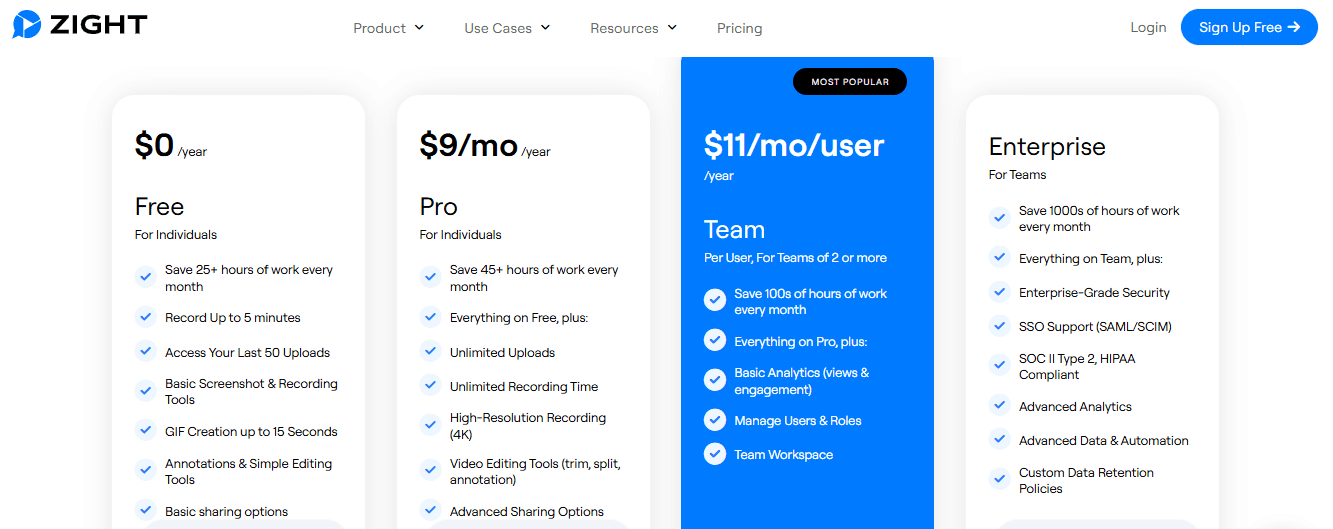
Share Plan - Free
Create Plan - Price: $9.95/user/month (billed yearly)
Collaborate Plan - Price: $12/user/month (billed yearly)
Scale Plan - Custom pricing (SSO, HIPAA)
Zight Reviews
Zight is rated 4.6 out of 5 on G2. Real users have given mixed responses to this ScreenPal alternative, with some facing problems, such as link issues, limited customization, compatibility issues, and more. Check out the reviews below -


Bottom line: Fast for visual feedback, not a full tutorial tool.
6. ScreenPal vs OBS Studio: Best Free and Open Source Screen Recorder
OBS Studio is free, open source recording software for Windows, Mac and Linux. It records anything at any quality, with full control over scenes and sources.
Key Features of OBS Studio
Unlimited recording with no watermark or account
Scene composition and multiple sources
Full encoding and quality control
Windows, Mac and Linux
Advantages of OBS Studio
It is the only option here that is completely free with no recording limits, which makes it the go-to for people who find ScreenPal’s paid plans unnecessary.
Disadvantages of OBS Studio
There is no built-in editor, hosting or share links, and setup takes time.
OBS Studio Pricing
Free and open source, permanently
Bottom line: The best choice when free and unlimited recording matters more than editing.
7. ScreenPal vs Cap: Best Open Source Recorder with a Built-In Editor
Cap is an open source screen recorder for Mac and Windows with instant share links and a built-in editor. You can use it hosted or self-host it.
Key Features of Cap
Instant mode with a shareable link
Studio mode with separate screen and webcam tracks
4K, 60fps export
Self-hosting and custom storage
Advantages of Cap
It offers a modern, Loom-style workflow at a low price, with the option to keep recordings on your own servers.
Disadvantages of Cap
The free tier is for personal use only, and it has no AI voiceover, quizzes or written guides.
Cap Pricing
Free – personal use
Desktop licence – $29 one-time
Pro – $8.16/user/month billed annually, or $12 monthly
G2 rating: No G2 reviews available
Bottom line: A strong low-cost ScreenPal alternative if you want an open source tool.
ScreenPal Alternatives: Detailed Comparison Table
The tools are just abundant! In recent estimates, the screen recording software segment is estimated at $2 billion. It is expected to grow at a 15% CAGR and would reach approximately $6 billion by 2033. To cash in on such impressive growth, several companies have entered the market with superior products.
Shouldn’t you just benefit from them? Read the detailed comparison table below and pick the best AI tool for screen recording today:
Feature | Trupeer AI | Loom | Camtasia | Snagit | Zight |
Best For | Product guides, marketing, and technical content | Quick team updates and async meetings | Detailed video tutorials with full editing | Annotated screenshots and short videos | Quick communication and bug reporting |
AI Capabilities | AI scripts, voiceovers, avatars, translations, documents | Auto-edits, recap emails, and meeting notes | Script generation, captions, avatars (only in Pro) | None | None |
Editing Tools | Full AI video editing + script editing | Basic only | Full editing suite (manual + AI) | Limited (basic trimming only) | Minimal (annotations only) |
Screen Recording | Up to 12 mins (Scale); longer in Enterprise | Unlimited (Paid plans) | Unlimited | Yes | Yes |
Voiceover Support | 200+ AI voices + custom voices | User mic only; no AI voice | Voiceover support with Audiate (paid add-on) | No AI voiceover | No AI voiceover |
Output Formats | Video, PDF, Word, Markdown | Loom-hosted links only | Video export, integrations with Audiate | Video and image export | Link-based sharing, no document output |
Learning Curve | Very easy | Moderate | Steep for beginners | Moderate | Steep for beginners |
Best Free ScreenPal Alternatives
OBS Studio: completely free and open source, with no recording limits.
Cap: free for personal use and open source.
Loom and Zight: free plans for quick recordings and sharing.
Trupeer AI: 10-day free plan with 1,000 AI credits.
Camtasia and Snagit: free trials only.
Is Trupeer AI the Right ScreenPal Alternative for You?

Looking for winners? Trupeer AI is far ahead in the race! Why so? That’s because:
Trupeer combines AI-powered video creation + document generation + voiceovers + editing = Everything in one platform!
This ScreenPal alternative is built specifically for
Product teams
Educators
Marketers
Small businesses
Content creators
Through it, you can save time and avoid complex video tools.
This best free screen recording tool offers full flexibility in output videos, step-by-step guides, and branded documents.
Trupeer AI is a good fit if:
You create tutorials, product demos or training videos that need to look professional.
You want AI voiceover and zooms instead of editing by hand.
You also need a written step-by-step guide from each recording.
Trupeer AI is not the right fit if:
You want the cheapest possible recorder. ScreenPal or OBS Studio costs less.
You need in-video quizzes for classrooms. ScreenPal Max or Camtasia covers that.
Studies show that companies investing in customer education (which includes high-quality tutorials) see an average 31% increase in product engagement and a 22% increase in product retention. Conversely, poor tutorials can undermine these gains!
So, want to move on from your rough recordings? Don’t settle for less! Choose Trupeer AI and offer the best to your customers. Start for free now!
Which ScreenPal Alternative Should You Choose?
Trupeer AI for polished, narrated videos and guides.
Loom for quick async team videos.
Camtasia for advanced editing.
Snagit for screenshots and documentation.
Zight for quick visual sharing.
OBS Studio for free recording.
Cap for an open source recorder with an editor.
Stay on ScreenPal if you mainly need an affordable recorder and editor for classroom or training content, and its quizzes and hosting cover your needs.
Comparing more recorders and editors? See our guides to Screen Studio alternatives and Descript alternatives.
Frequently Asked Questions About ScreenPal Alternatives
1. Why do my screen recordings look unprofessional or cluttered?
A. Most AI tools for screen recording capture everything:
Extra clicks
Pauses
Messy desktops
When left unedited (or you lack editing skills), this makes a video look unpolished. Leading tools like Trupeer AI solve this by automatically transforming a rough video into a polished one.
By using Trupeer AI, you can add click-zoom effects, eliminate filler content (“ums” and “aahs”), and even add AI voiceovers and avatars. In this way, your final output looks clean, even if your raw recording wasn't perfect!
2. In which format can I share screen recordings with my clients or teams?
A. It depends on the platform you are using! Some tools force you to share links hosted on their platforms, while others allow you to export files in your desired format. Ideally, you should look for a ScreenPal alternative that supports formats like:
Video
PDF
Word
Markdown
The more the better! Because it allows for broader compatibility.
3. How can I avoid spending hours editing screen recordings?
Editing screen recordings manually is time-consuming, particularly when you are:
Removing long pauses
Adding captions
Syncing voiceovers
Need help? With Trupeer AI, you can automate these steps! By using this best free screen recording tool, you can:
Transcribe your recording
Generate a clean script
Tweak it all before creating a final video with minimal effort
It's ideal for users who want to save time without sacrificing quality. Want to get started? Start with the 10-day free plan and 1,000 AI credits.
4. Why does my screen recording tool crash or lag when recording longer sessions?
A. Lag or crashes often happen because some tools:
Aren’t optimized for longer recordings or Use too much system memory
Thus, when picking the ScreenPal alternatives, you must check if your recorder supports longer sessions and has cloud-based processing. Otherwise, you’ll face limits or lose your work.
5. I need to create tutorials, guides, and videos from the same recording. Can one tool do it all?
A.You must try Trupeer AI. It is a unique ScreenPal alternative that combines both video and text. It turns a single screen recording into multiple content formats:
Videos
Documents
Step-by-step guides
This saves you time and allows you to maintain consistency across your training or marketing materials.
6. Is ScreenPal safe?
ScreenPal is an established product, formerly known as Screencast-O-Matic, and is widely used by schools and businesses. As with any recorder, download it only from the official ScreenPal site and check the privacy setting on each hosted video before sharing.
7. How much does ScreenPal cost?
ScreenPal has a free plan with recordings up to 15 minutes. Paid plans start at about $4 a month billed annually for Deluxe, about $10 a month for Max, and $8 per user a month for Team Business with a three-seat minimum.
8. ScreenPal vs Loom: which is better?
ScreenPal is cheaper and includes a fuller video editor and quizzes, which suits educators. Loom is faster for quick async team communication and instant sharing.
9. Is there a free alternative to ScreenPal?
Yes. OBS Studio is completely free and open source, Cap is free for personal use, and Loom and Zight have free plans. Trupeer AI has a 10-day free plan.
10. Who are Trupeer’s main competitors?
Trupeer competitors: Trupeer AI’s closest competitors are AI tools that turn a screen recording into a video and a guide, such as Guidde and Clueso. For recording, people also compare it with ScreenPal, Loom and Camtasia.
Related Blogs


