Trupeer Blog
Opsummer

Imagine you've just finished a crucial product demo for your team. You've got the screen capture ready, but it lacks the polish needed to impress stakeholders. The stakes are high. A rough video could lead to misunderstandings or missed opportunities. AI enhancement can bridge the gap between raw recordings and polished videos, raising your presentations to a professional level. A study shows that 80% of users prefer watching a video to reading text when learning about a product. But how do you transform that rough screen capture? The best screen capture software can provide a starting point, but AI tools are what can take your video to the next level. we'll explore AI-powered video enhancement, focusing on how it can refine your recordings, making them clear, engaging, and professional. This is particularly relevant for marketers, educators, and product teams who rely heavily on video to communicate complex ideas. With the right tools, you can transform a simple screen recording into a compelling video that resonates with your audience, drives engagement, and ultimately supports your business goals. Trupeer also supports doc to video AI: drop in a source file or a prompt and get a fully narrated video back. Trupeer also supports PowerPoint to video AI: drop in a source file or a prompt and get a fully narrated video back.
Why does turning a rough screen capture into a polished video matter?
In the fast-paced world of product marketing, conveying the right message is crucial. Videos are a powerful medium for demonstrating product features, offering tutorials, and providing customer support. However, a poorly edited video can lead to misunderstandings and miscommunications. A polished video, on the other hand, can clearly convey your message, ensuring that viewers understand the product's value and functionality. This clarity can lead to higher engagement and conversion rates, ultimately impacting your bottom line.
Beyond marketing, polished videos play a vital role in internal communications and training. Teams across different locations rely on video content to stay aligned on goals and processes. A rough screen capture might fail to convey the necessary details, leading to costly errors and inefficiencies. For instance, training videos that lack clarity can result in employees missing critical steps in a process, affecting productivity and morale. By enhancing screen captures with AI, companies can ensure that their video content is not only informative but also engaging and easy to understand. This can lead to better retention of information, more effective training sessions, and a more informed workforce.
What are the benefits of AI video enhancement?
AI video enhancement offers numerous advantages that go beyond simple video editing. Here are some key benefits:
Improved Clarity. AI can enhance video quality by adjusting lighting, colors, and sharpness, ensuring that your message is clear and professional. This can lead to higher viewer retention rates.
Time Efficiency. Automated processes like AI video editing can significantly reduce the time required to produce polished videos, allowing teams to focus on strategic tasks.
Consistent Branding. AI tools can apply brand templates and color schemes automatically, ensuring that every video aligns with your brand identity, which is crucial for maintaining brand consistency.
Accessibility. AI-generated voiceovers and subtitles make videos more accessible to a wider audience, including those with hearing impairments or language barriers, thus expanding your reach.
Cost Savings. By automating editing tasks, AI reduces the need for extensive human resources, lowering production costs while maintaining high quality.
Enhanced Engagement. AI can create dynamic elements such as talking-head avatars and interactive segments, keeping viewers engaged and encouraging interaction with the content. This is particularly useful in an AI video platform where engagement is a key performance indicator.
Which Trupeer features help you transform a screen capture into a polished video?
Trupeer offers a suite of features designed to enhance your screen captures, transforming them into professional-grade videos. Here's how specific Trupeer capabilities can assist in this process:
AI screen recording with auto-zoom and click detection
This feature automatically focuses on the active areas of your screen during recording, making the video more engaging and easier to follow. Auto-zoom highlights specific actions and details, enhancing clarity without requiring manual editing. Click detection ensures that viewers understand the sequence of actions, crucial for tutorials and demonstrations. This capability simplifies the recording process, ensuring that your initial capture is already a step above raw footage.
Silent screen recording with automatic AI narration
Sometimes recording audio isn't feasible. Trupeer solves this with AI-generated voiceovers. After capturing your screen, the AI adds a narration track using one of over 65+ natural voices. You can adjust the pace and tone to match your branding needs, ensuring a consistent and professional audio experience. This feature saves time and eliminates the need for separate audio recording sessions.
AI avatars / talking-head video
Trupeer's AI avatars can transform your videos by adding a human touch. You can choose from a stock library or create custom avatars using the HeyGen integration. This feature is ideal for making tutorials or presentations more engaging by simulating a real person delivering the content. It adds a layer of personalization that can help retain viewer attention and improve information retention.
Automatic filler-word removal
Removing filler words like "um" and "ah" can significantly enhance the professionalism of your video. Trupeer's AI automatically identifies and deletes these distractions, helping your message come across clearly and confidently. This feature reduces the need for extensive manual editing and ensures that your content is polished and to the point, making it ideal for both internal and external communications.
Brand kits and branded templates
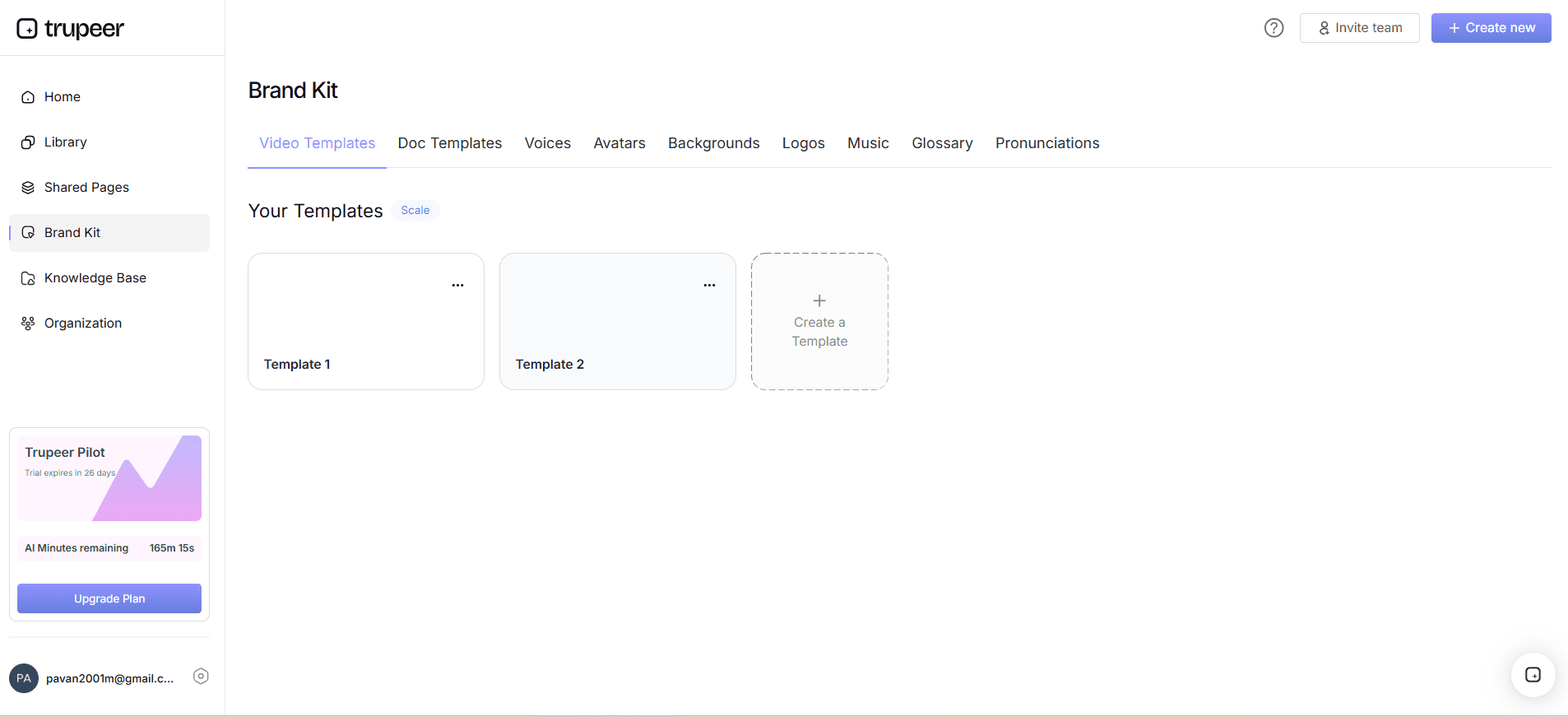
Consistency is key in video production, especially for brands. Trupeer allows you to apply brand kits and use branded templates to ensure every video aligns with your company's visual identity. This capability simplifies the process of maintaining a consistent look and feel across all video content, reinforcing brand recognition and trust among your audience. It also reduces the time spent on manual adjustments, allowing for quicker production cycles.
Trupeer's capabilities don't just enhance video quality; they simplify the entire production process, making it easier and more efficient to produce professional-grade content. ai/documentation">AI documentation platform, AI-searchable knowledge base, and video trimmer tool to see how these capabilities integrate smoothly into your workflow.
How do you turn a rough screen capture into a polished video step by step with Trupeer?
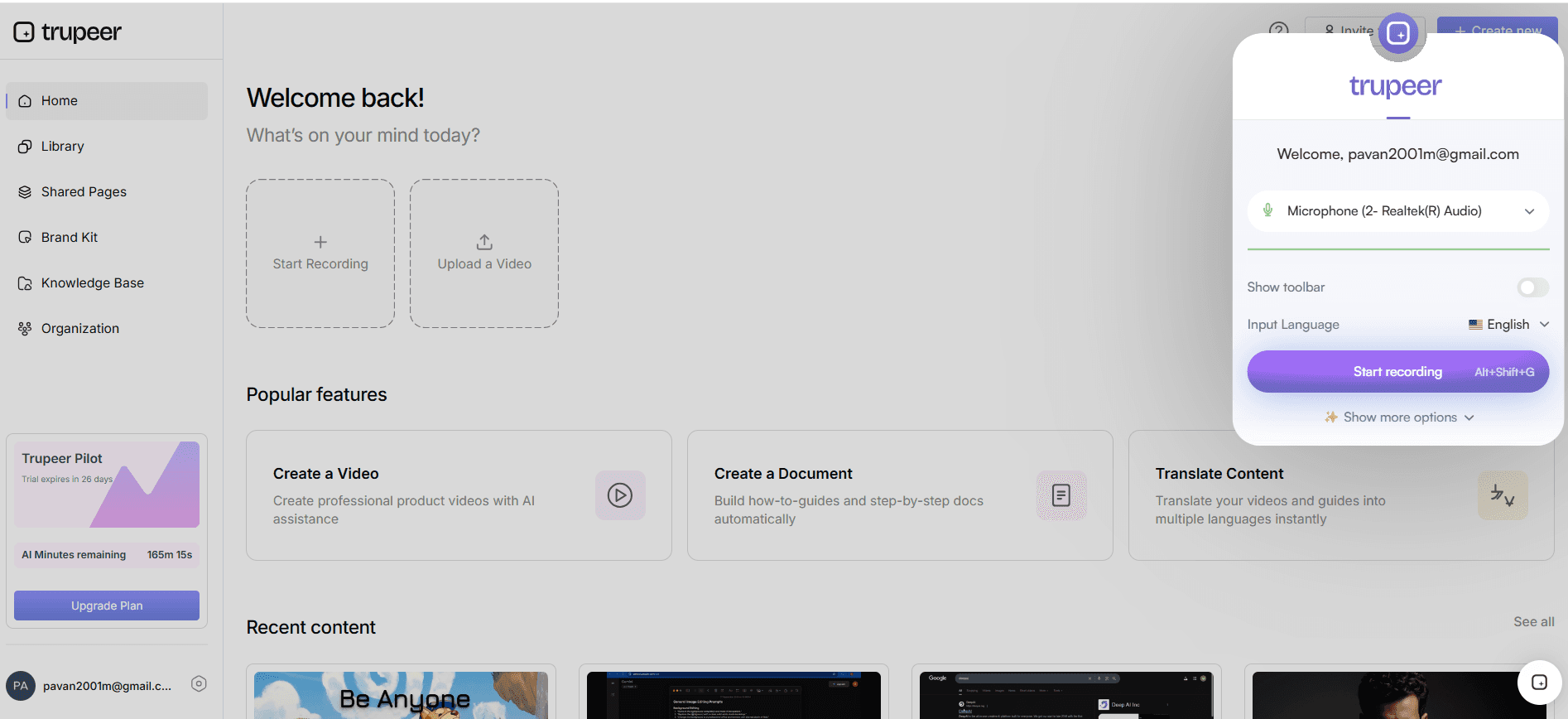
Step 1: Record Your Screen
First, initiate the screen recording using Trupeer's browser-based recorder or desktop app without any installation hassle. Click the "Record" button to start capturing your screen activities. Trupeer's AI screen recording capability automatically detects clicks and zooms into active areas, highlighting critical actions and ensuring clarity. This feature is particularly useful for capturing detailed software demos or walkthroughs. Record as long as needed, and once finished, click "Stop Recording." The video will be saved automatically in your Trupeer library, ready for the next steps. Typical recording sessions can range from a few minutes to an hour, depending on the complexity of the content.
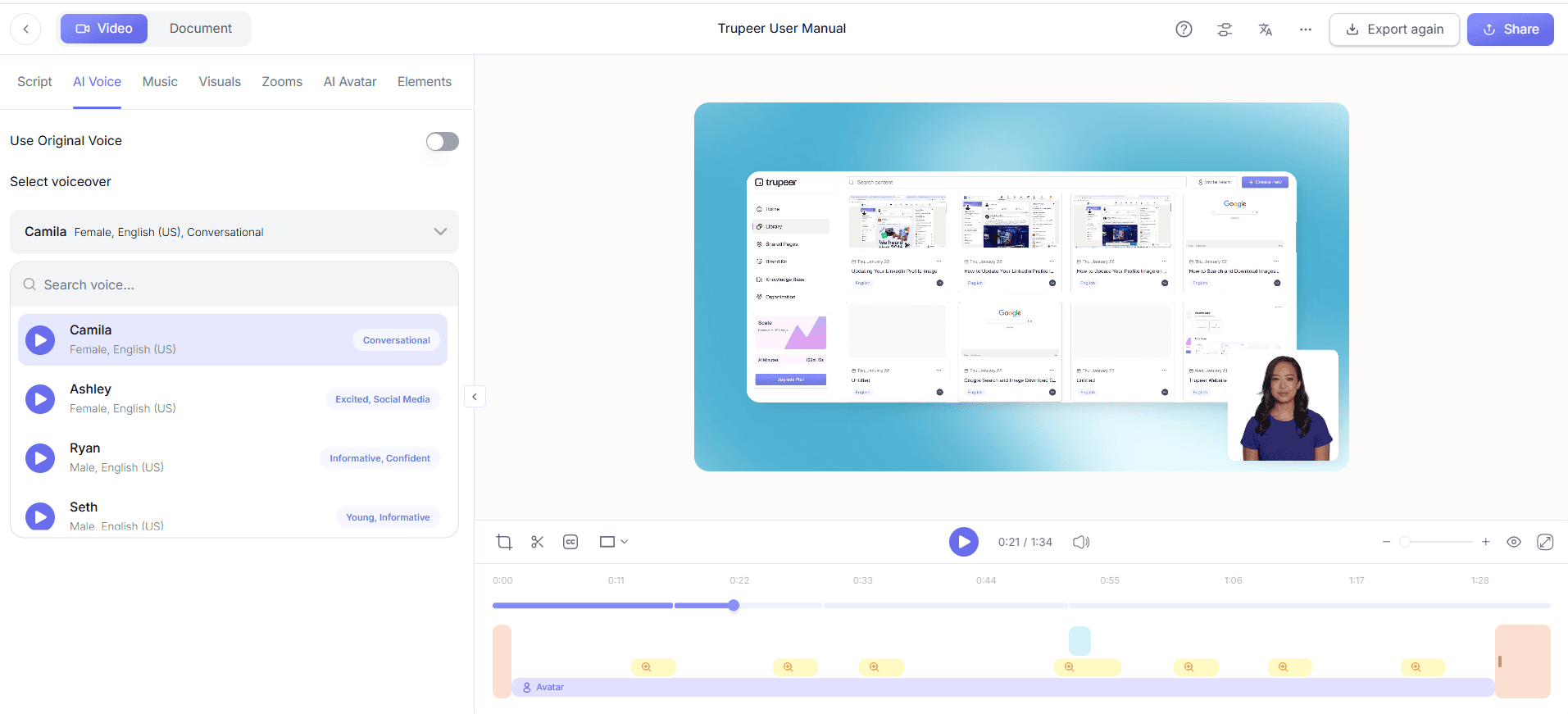
Step 2: Enhance Audio with AI Narration
If your recording lacks audio, Trupeer's silent screen recording with automatic AI narration can fill the gap. Select your video and choose the "Add AI Narration" option. Trupeer offers over 65+ natural voices, allowing you to pick one that best matches your brand's tone. Adjust the pace and tone to ensure the narration complements the visual elements. This process is quick, usually taking just a few minutes to apply the narration. This feature is ideal for creating professional-grade tutorials or presentations without needing a separate voiceover recording session.
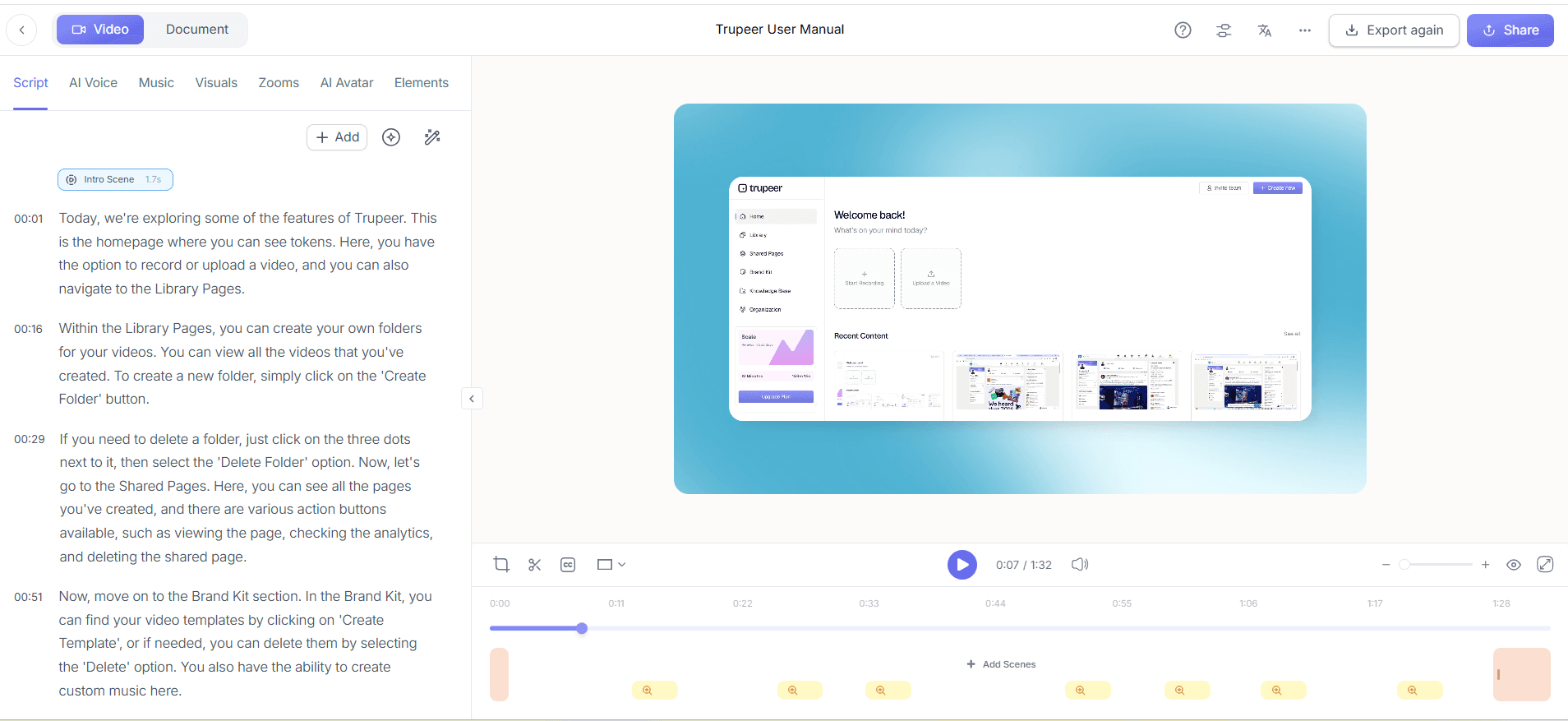
Step 3: Remove Filler Words Automatically
Polish your video's audio by eliminating unnecessary filler words like "um" and "ah." Navigate to the editing section and enable the "Remove Filler Words" feature. Trupeer's AI will scan the audio track and automatically cut out these distractions, enhancing the video's professionalism. This step is automated and takes only a short time, ensuring that your presentation sounds smooth and confident. By focusing on the core message, your video becomes more engaging and easier to follow.
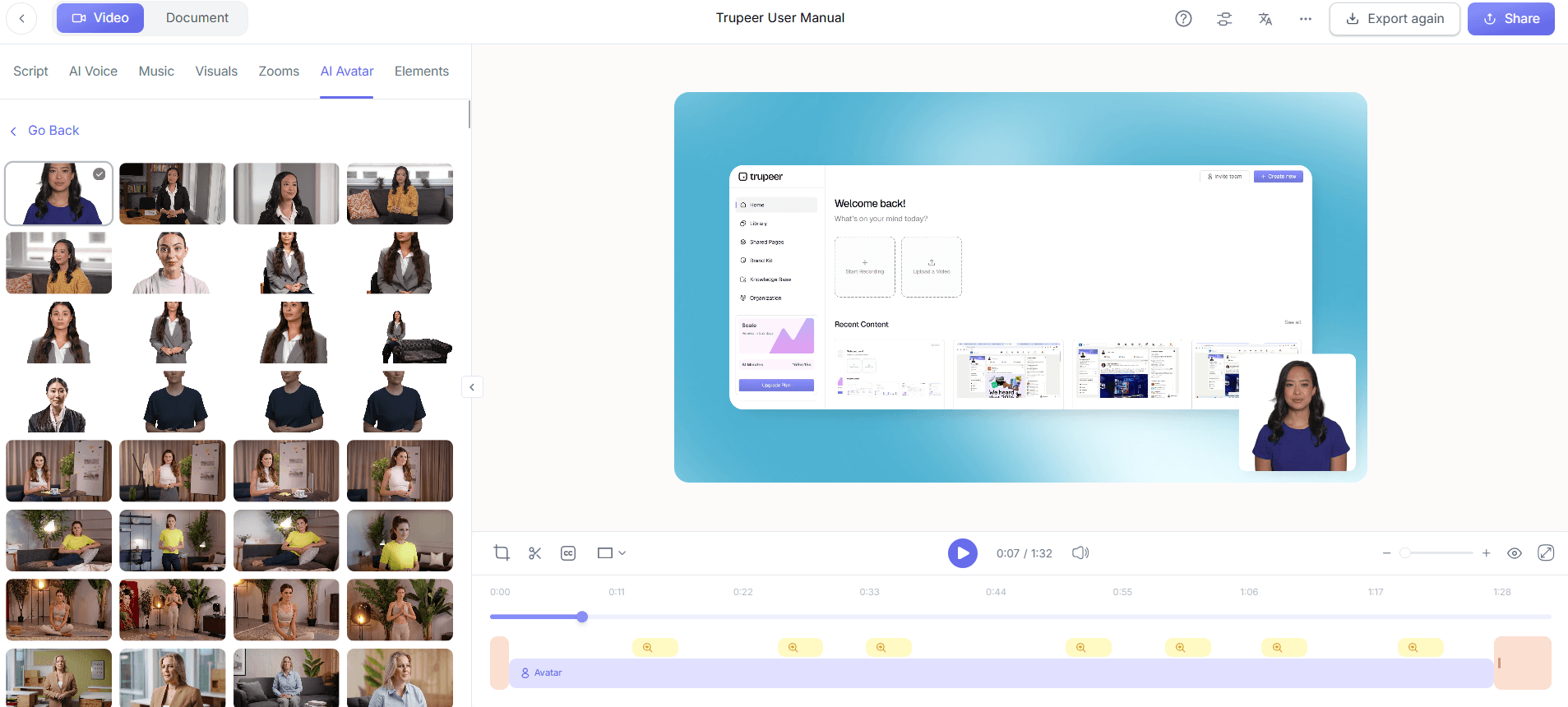
Step 4: Incorporate AI Avatars
Add a human touch to your video with Trupeer's AI avatars. After selecting your video, choose "Add Avatar" from the menu. You can pick from a library of stock avatars or create a custom one using the HeyGen integration. This feature is perfect for personalizing your content, making it more relatable and engaging. The process is straightforward, and an avatar can be integrated into your video within minutes. This step is particularly beneficial for instructional videos or customer-facing content, where a personal presence can make a significant difference.
Step 5: Apply Brand Kits and Templates
Ensure your video aligns with your company's branding by applying brand kits and templates. In the editing interface, select "Brand Kits" and choose from your pre-set options. This feature automatically applies your brand's colors, fonts, and logos, ensuring consistency across all your videos. Applying these templates takes only moments, yet it significantly enhances the video’s professional appearance. Consistent branding is crucial for maintaining viewer trust and recognition, especially in marketing or corporate communications.
Step 6: Export and Share Your Video
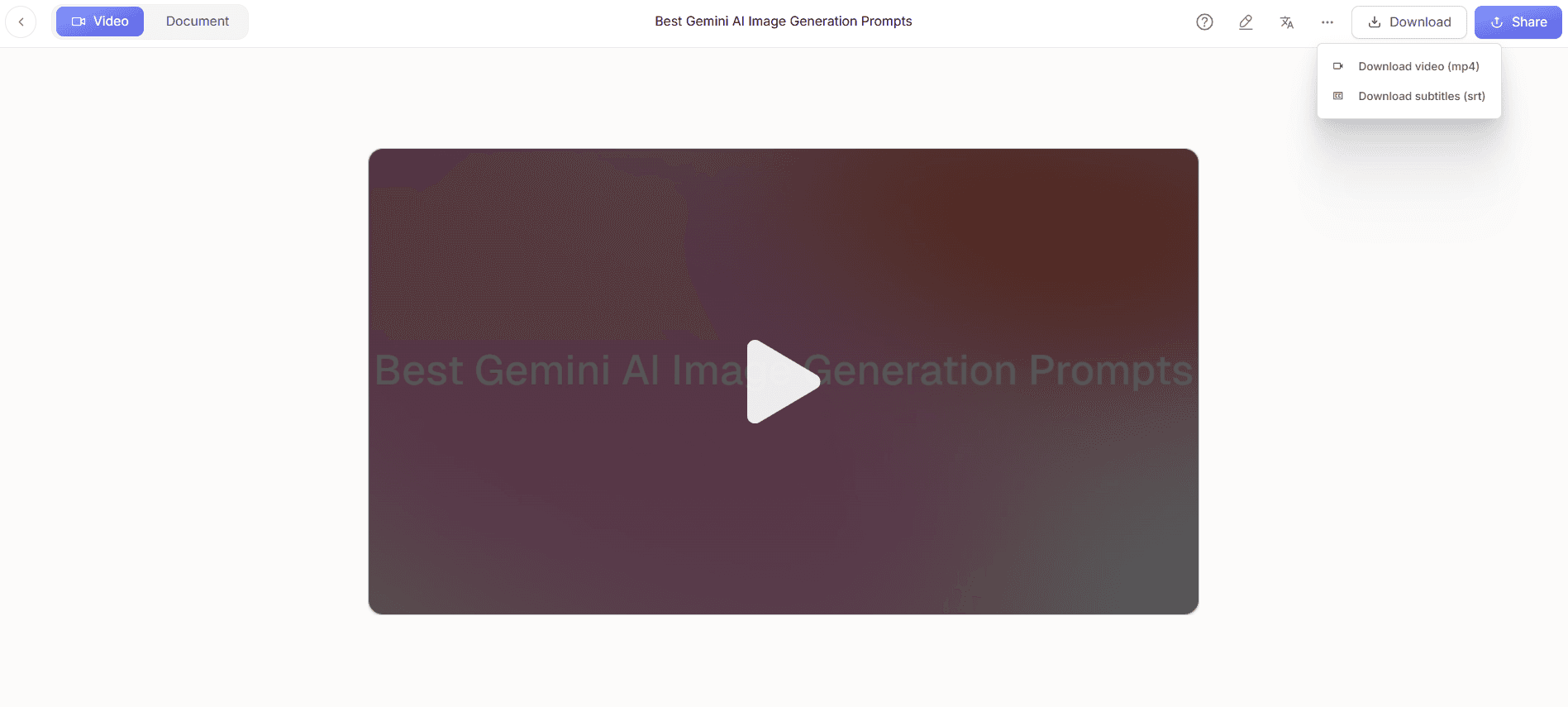
After finalizing your edits, export your video in the desired format, such as MP4, HTML, or PDF. Trupeer supports multi-format exports, making it easy to share your content across various platforms. Choose "Export" and select the format that suits your needs. This process is quick, and your video will be ready to share within minutes. You can also host your video on custom domains with SSO or embed it in your applications, providing flexible distribution options. For those comparing tools, check out this Loom alternative comparison to see how Trupeer stands out.
What tips help you transform a screen capture into a polished video?
Creating a polished video from a screen capture involves several strategic steps. Here are some tips to enhance your workflow and achieve professional results consistently.
Plan Your Recording. Outline your key points before recording to ensure a logical flow and clear message, reducing editing time later.
Use AI-enhanced Tools. use Trupeer's auto video editor tool to quickly enhance video quality with minimal manual intervention.
Standardize Visuals. Use brand kits to keep your videos visually consistent, reinforcing brand identity across different projects.
Incorporate Subtitles. Adding subtitles can make your videos more accessible, improving engagement and comprehension for diverse audiences.
Review and Revise. Watch the final cut to catch any errors or areas for improvement before sharing with your audience.
Optimize for Different Platforms. Tailor your video format and dimensions to suit the specific requirements of your target platforms, ensuring best playback quality.
Compare Editing Solutions. If you’re considering alternatives, review this Scribe alternative comparison for insights into different features and usability.
Frequently asked questions
How does AI improve screen capture quality?
AI enhances the quality of screen captures by automatically adjusting lighting, color balance, and sharpness. This results in clearer, more professional-looking videos. The AI can also identify and focus on key areas within the recording, such as user clicks or highlighted text, ensuring that the most important information stands out. These adjustments are made in real-time or during post-processing, minimizing the need for manual editing and allowing creators to produce high-quality content efficiently.
What is the role of AI avatars in video content?
AI avatars add a personal, engaging element to video content by simulating a human presence. They can deliver content more dynamically than plain screen recordings, capturing viewer attention and conveying information with a personal touch. Trupeer’s integration with HeyGen allows users to create custom avatars tailored to their brand or audience needs. This personalization helps in creating relatable content, particularly in educational or marketing videos, enhancing viewer connection and retention of information.
Can AI-generated voiceovers replace human narration?
AI-generated voiceovers can effectively replace human narration in many contexts, providing consistent, high-quality audio without the need for professional recording equipment. Trupeer offers over 65+ natural voice options, enabling users to select a voice that aligns with their brand’s tone. This flexibility ensures that the narration complements the visual content, creating a cohesive and professional final product. While AI narrations work well for most applications, some scenarios may still benefit from a human touch, particularly those requiring emotional nuance or specific pronunciations.
Why are brand kits important in video production?
Brand kits ensure visual consistency across all video content, reinforcing brand identity and trust among viewers. By automatically applying your brand’s colors, fonts, and logos, Trupeer’s brand kits help maintain a professional appearance in every video. This consistency is crucial for brand recognition, particularly in marketing and corporate communications. It also saves time, as you don’t need to manually adjust each video’s visual elements, allowing for faster production cycles and more efficient content creation workflows.
How does Trupeer handle video localization?
Trupeer offers comprehensive localization tools, including AI translation into over 40 languages with lip-sync capabilities. This ensures that your video content is accessible to a global audience, expanding its reach and impact. The process involves translating the audio and syncing it with the video, maintaining natural lip movements. This functionality is part of Trupeer's video localization tool, which simplifies the localization process and ensures high-quality results across different languages and markets. This capability is particularly beneficial for companies looking to engage international audiences effectively.
Related Blogs


