Trupeer Blog
Opsummer

From lightweight, budget-friendly tools to advanced editing platforms, there are plenty of options that match different needs, whether you’re looking for a software to record screen and audio Mac uses or a cross-platform solution, or simply a tool that feels easier to use. In this guide, we’ll break down the best alternatives so you can find the right fit for your workflow.
Are you also searching for software like Camtasia? This article talks about the 10 best Camtasia alternatives you can consider in 2026, free and paid, with updated pricing and honest trade-offs for each.
Quick Answer: The Best Camtasia Alternatives in 2026
Camtasia is no longer a one-time purchase. TechSmith moved it to annual subscriptions in late 2024, so many long-time users are comparing options for the first time.
If editing time is the problem, Trupeer AI turns a rough recording into a polished, narrated video and a step-by-step guide without a timeline. Guidde is the other option in this category.
If you need SCORM for your LMS, Colossyan is the cheapest credible replacement. Camtasia itself is still a reasonable choice.
If you want to keep a timeline editor, Descript is the easiest step across.
If you want to avoid a subscription, Cap has a $29 one-time licence and OBS Studio is completely free.
Why Teams Are Looking for Camtasia Alternatives in 2026
Camtasia has been the default screen recorder and editor in corporate training for two decades, and for frame-level control it still does things AI-first tools cannot. Teams start looking elsewhere for four reasons.
Camtasia Is Now a Subscription
In late 2024 TechSmith retired the perpetual licence and moved Camtasia to annual subscriptions. A tool many teams bought once and kept for years became a recurring cost. Current plans are Starter at $39 a year, Essentials at $179.88, Create at $249 and Pro at $599, with Business at $198 per user a year.
Prices Differ by Region
TechSmith prices Camtasia by region, and regional prices are not simple currency conversions of the US list. If you are budgeting outside the US, check the store in the country you will actually buy from.
Only One or Two People Can Edit
Camtasia is a timeline editor, so it assumes someone on the team can edit. In most teams that is one or two people, and every video queues behind them. A more powerful editor does not shorten that queue.
Updating a Video Means Rebuilding It
When your product or process changes, a Camtasia project usually has to be re-recorded or re-edited. For fast-changing software, libraries go out of date quickly.
If you need frame-level control, quizzes and SCORM in one desktop tool, and you have someone who enjoys editing, staying on Camtasia is a reasonable choice. The rest of this guide is for teams where at least one of the reasons above applies.
How We Picked These Camtasia Alternatives
We compared every tool on the same five points, in this order:
How much human time a finished video takes, because editing time is the real constraint for most Camtasia teams.
Whether SCORM or LMS delivery is supported, and on which plan.
Whether the licence is a subscription, one-time or free, given Camtasia’s move to subscriptions.
Whether pricing is published rather than hidden behind a demo call.
Windows and Mac support, because most Camtasia teams use both.
A note on bias: Trupeer AI is our product and we have listed it first. To keep this useful, we say where each tool, including Trupeer, is not the right choice. Pricing was checked on each vendor’s public pricing page in September 2026. Prices change often, so confirm before you buy.
Camtasia Alternatives at a Glance (2026 Pricing)
Tool | Best for | Platform | Free plan | Paid from | SCORM | Writes the guide |
|---|---|---|---|---|---|---|
Camtasia (for reference) | Frame-level control and quizzing | Windows, Mac | Trial only | $39/yr | Yes | No |
Trupeer AI | Polished videos and guides without editing | Web, Chrome | 10 days (1,000 AI credits) | $40/mo (yearly) | Higher tiers | Yes |
Descript | Editing by transcript | Windows, Mac | 60 min/mo | $16/mo (yearly) | No | No |
Colossyan | SCORM training on a budget | Web | 20 min/mo | $30/member/mo (yearly) | Yes, 5/mo | No |
Guidde | High-volume how-to docs | Web, extension, desktop (Business) | 25 videos | $19/creator/mo (yearly) | Enterprise only | Yes |
Screen Studio | Polished Mac recordings | macOS only | None | $9/mo (yearly) | No | No |
Cap | One-time licence, open source | Windows, Mac | Personal use only | $29 one-time | No | No |
Loom | Quick async recordings | Web, desktop, mobile | 25 videos, 5-min cap | $18/user/mo | No | Summary only |
Vyond | Animated explainers | Web | Trial | $58/mo (yearly) | Higher tiers | No |
Riverside.fm | Podcasts and interviews | Web, Mac | Yes | $15/mo (yearly) | No | No |
OBS Studio | Free unlimited recording | Windows, Mac, Linux | Free forever | Free | No | No |
Which Kind of Camtasia Alternative Do You Need?
Start with one question: who is going to sit in front of the timeline?
You have a dedicated video person and the output must be exact: keep an editor. Descript is the easiest move from Camtasia.
A product marketer, support lead or L&D manager is making the videos between other work: an editor is the wrong purchase. Trupeer AI or Guidde does the production step for you.
Your videos are presenter-led rather than screen-led: you may not need a screen recorder at all. Colossyan generates presenter videos from a script, with SCORM.
You just want to avoid a subscription: Cap’s one-time licence or free OBS Studio.
The 10 Best Camtasia Alternatives in 2026
1. Camtasia vs Trupeer AI: Best for Polished Videos and Guides Without Editing
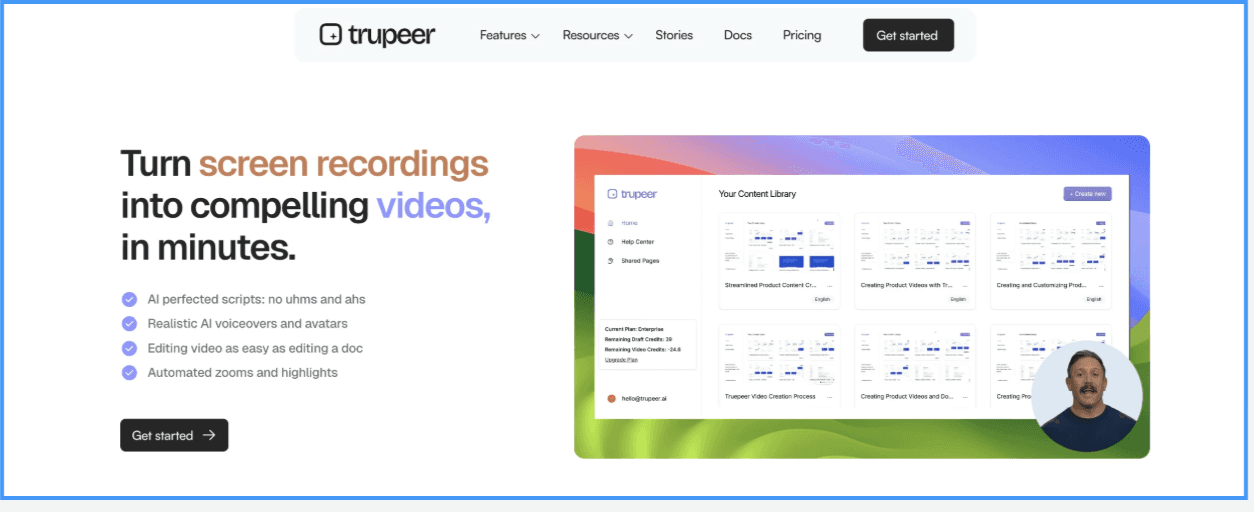
This Camtasia alternative, free software to record screen and audio, is Trupeer - an AI-powered platform that transforms rough screen recordings into polished, professional videos and detailed step-by-step guides all in just a few clicks. Designed for product marketers, educators, support teams, and anyone needing to communicate processes clearly, Trupeer allows you to record your screen naturally without worrying about scripting or perfect delivery. The AI automatically cleans up your voice, removes filler words, refines transitions, and generates a crisp final script that sounds clear and professional.
With Trupeer, you can instantly turn your recording into a fully branded video complete with smooth cursor highlights, dynamic zooms, background music, and lifelike AI voiceovers in multiple accents. You can even add AI avatars to serve as on-screen presenters, creating a more human and engaging feel without the need for a camera or extra production resources.
Beyond video, Trupeer automatically creates a detailed step-by-step document capturing every click and screen interaction. This guide is generated alongside your video and can be exported as a PDF, Word file, or Markdown document or shared via a branded web page. This dual-output feature makes it easy to create comprehensive support articles, onboarding materials, or product walkthroughs without any extra manual effort. It is useful for making:
- Product walkthroughs
- Training guides
- Sales demos
- Internal tutorials
Furthermore, you don’t need any video editing skills to use Trupeer AI. The tool handles most of the work on its own!
Key Features of Trupeer AI
1. Audio and Video Synchronization
You can speak in your natural accent or with rough audio.Trupeer syncs the video and audio so that it looks smooth and natural.
2. AI Video Generation
Upload screen recordings. Trupeer turns them into studio-quality videos suitable for clients or teams.
3. Background Noise and Speech Cleanup
Trupeer AI removes background noise from your recordings. It also improves speech clarity using AI.
4. Avatar-Based Narration
Add a human-like avatar to narrate your video.You can choose from pre-set avatars or create a custom one.
5. Auto and Manual Zooms
This software like Camtasia, highlights parts of the screen based on your mouse activity. You can also manually control zooms to explain things clearly.
6. Multilingual Support
Trupeer AI supports 100+ languages and accents. On Scale and Enterprise plans it translates audio and subtitles into your chosen languages.
7. AI Templates
Use pre-built templates for different video types like marketing, training, or sales.
8. AI Voiceovers
Choose from standard and premium AI voices across 100+ languages and accents. Custom voice clones are available on the Enterprise plan.
Advantages of Trupeer AI
Trupeer AI is rated 4.8 out of 5 on G2.com and is awarded #1 product of the day by Product Hunt. Let’s check out some of its major advantages:
1. Removes background noise and unnecessary filler words.
2. Fixes mispronounced words and improves how you sound.
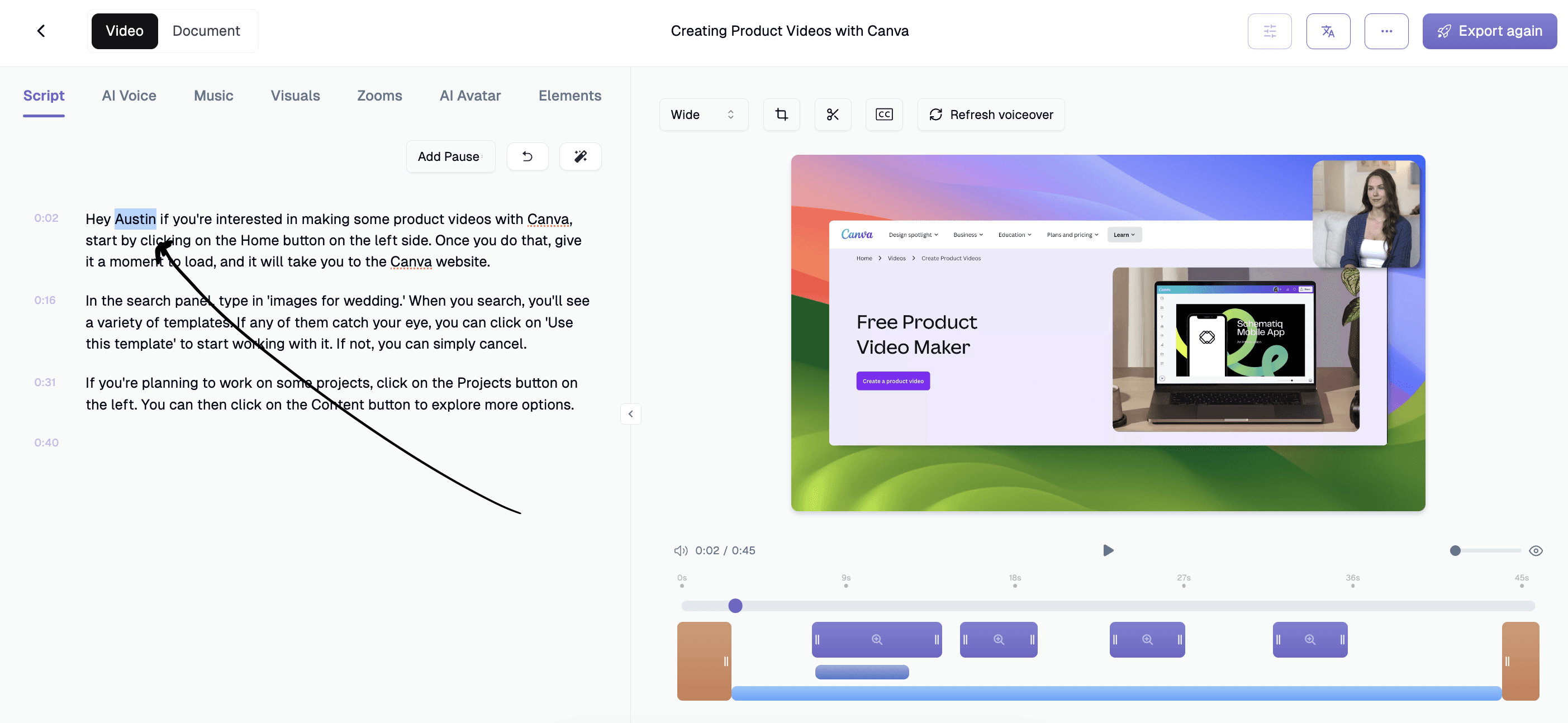
3. Keeps the audio synced even if you pause or use filler words while recording.
4. Creates a step-by-step guide automatically from your video.
5. No video editing knowledge is needed. The tool is easy to use.

6. Can translate your video into 100+ languages (on Scale and Enterprise plans).
7. Provides many pre-designed templates.
8. Adds captions to your video automatically.
Trupeer Pricing
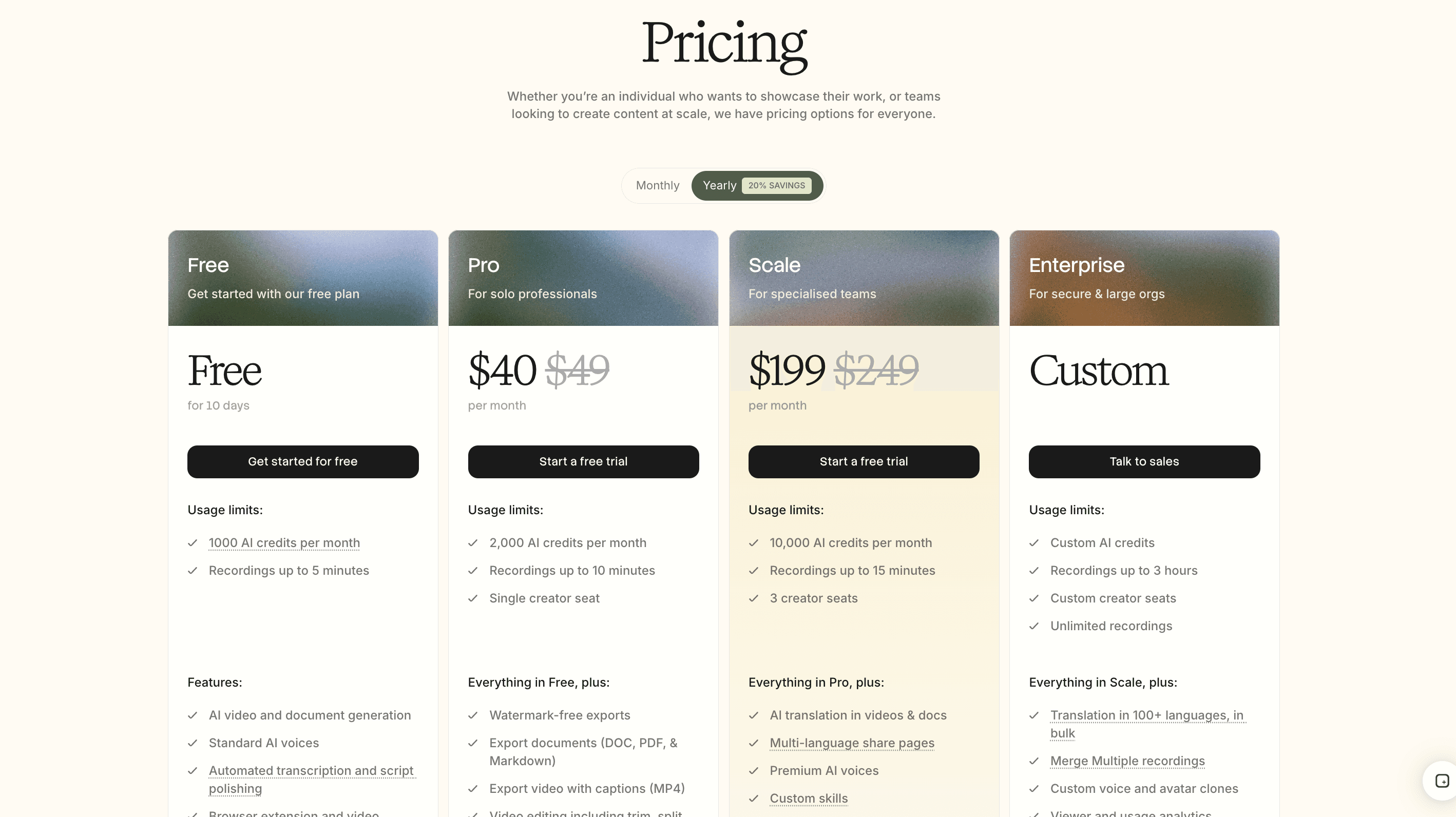
- Free Plan (free for 10 days: 1,000 AI credits a month and recordings up to 5 minutes)
- Pro Plan ($49/month or $40/month billed annually: 2,000 AI credits a month, recordings up to 10 minutes, one creator seat)
- Scale Plan ($249/month or $199/month billed annually: 10,000 AI credits a month, recordings up to 15 minutes, three creator seats, AI translation and brand kit)
- Enterprise Plan (Custom pricing: recordings up to 3 hours, 100+ languages in bulk, custom voice and avatar clones, SSO)Want to turn your raw screen recordings into polished videos automatically? Try out Trupeer AI today for free!
Trupeer AI Reviews
Trupeer has been the product of the day twice on ProductHunt. It has also been part of the Golden Kitty Awards. Trupeer AI is rated 4.8 on G2. See what the users are saying!

Great tool. Was able to quickly create a professional feature walkthrough without much prep and even a bit of cough. All of that was taken care of and improved in output. Impressed!
Why teams use it: It removes the editing step that makes Camtasia slow. Product marketing, customer education, support and L&D teams record once and get a polished, narrated video plus a written guide, without waiting for the one person who knows the timeline.
Where it isn’t the answer: Trupeer AI is not a quiz-authoring tool and it is not a frame-by-frame timeline editor. If your videos need quizzes at specific timestamps or branching scenarios, Camtasia or Colossyan is the better fit. AI credits are metered on every plan (100 credits per minute of AI video), and recordings are capped at 5 to 15 minutes below Enterprise, so size your plan for your volume.
Bottom line: The pick when the bottleneck is editing time, not editing capability. You can try it free on one real recording.
2. Camtasia vs Descript: Best for Editing Video by Editing Text

For those exploring camtasia studio software focused on screen recordings, Descript is a great tool to consider. As a camtasia alternatives, Descript offers robust screen recording capabilities combined with a unique text-based editing approach. Users can easily record their screen, webcam, or both, and hen edit their footage by simply editing text, making the process faster and more intuitive. This can be especially helpful for creating tutorials, product demos, and training videos without the complexity of traditional timeline-based editors.Descript allows for quick removal of filler words, easy rearrangement of sections, and captioning. For anyone researching camtasia recorder alternatives that simplify screen recording workflows, Descript provides a flexible, all-in-one solution worth exploring.
Key Features of Descript
1. Screen Recording
Capture your screen and webcam simultaneously. The tool automatically transcribes the content and generates a shareable link for easy collaboration.
2. Transcription
Convert spoken audio or video into editable text. Make changes simply by editing the text, just like working on a document.
3. Overdub (Voice Cloning)
Upload a voice sample to clone your own voice. Perfect for fixing mistakes or replacing sections of a recording an alternative to tools like Camtasia.
4. Filler Word Removal
Eliminate distracting filler words such as *“um,” “uh,”* or *“you know”* with a single click.
5. Multitrack Editing
Work with multiple audio and video layers at once. Ideal for podcasts, interviews, and music production.
6. Interactive Tutorials
Access built-in lessons that guide you through recording, editing, transcription, and more helping you make the most of every feature.
Advantages of Descript
1. Recording Options
Capture your screen, webcam, or both. You can also record remotely with guests, or upload and drag-and-drop media directly into the app.
2. Automatic Transcription & Text-Based Editing
Audio and video are transcribed instantly. Edit your media by editing the transcript, just like working on a text document.
3. Cleanup Tools
Remove filler words (“um,” “uh,” etc.) and background noise with a single click to polish your recordings.
4. Voice Cloning (Overdub)
Clone your voice by uploading a sample, then use it to replace or fix sections of your recordings.
5. Collaboration Features
Share links, leave comments, and work together seamlessly in real time.
6. Guided Learning
Built-in tutorials walk you through recording, editing, transcription, and more.
Disadvantages of Descript
1. Export quality issues: Users often report unexpected compression and lower video quality, with limited export setting controls.
2.Crashes and stability problems: Descript can become unstable or crash, especially on larger or more complex projects.
3. Transcription and cut accuracy: The automatic transcription can make mistakes, and text-based edits sometimes remove unintended parts of words or phrases.
4. Limited advanced editing features: Missing detailed tools for color grading, fine audio mixing, and advanced visual effects found in more traditional editors.
5. Frequent UI changes: Regular interface updates can disrupt workflows and require re-learning, which frustrates some long-term users.
6. AI features can be inconsistent: Functions like eye contact correction or overdub don't always work reliably and may need manual fixes.
Descript Pricing

Free Plan (60 minutes of media a month, 720p export)
Hobbyist Plan ($16 /person/month)
Creator Plan ($24/person/month)
Business Plan ($50 /person/month)
Descript Reviews
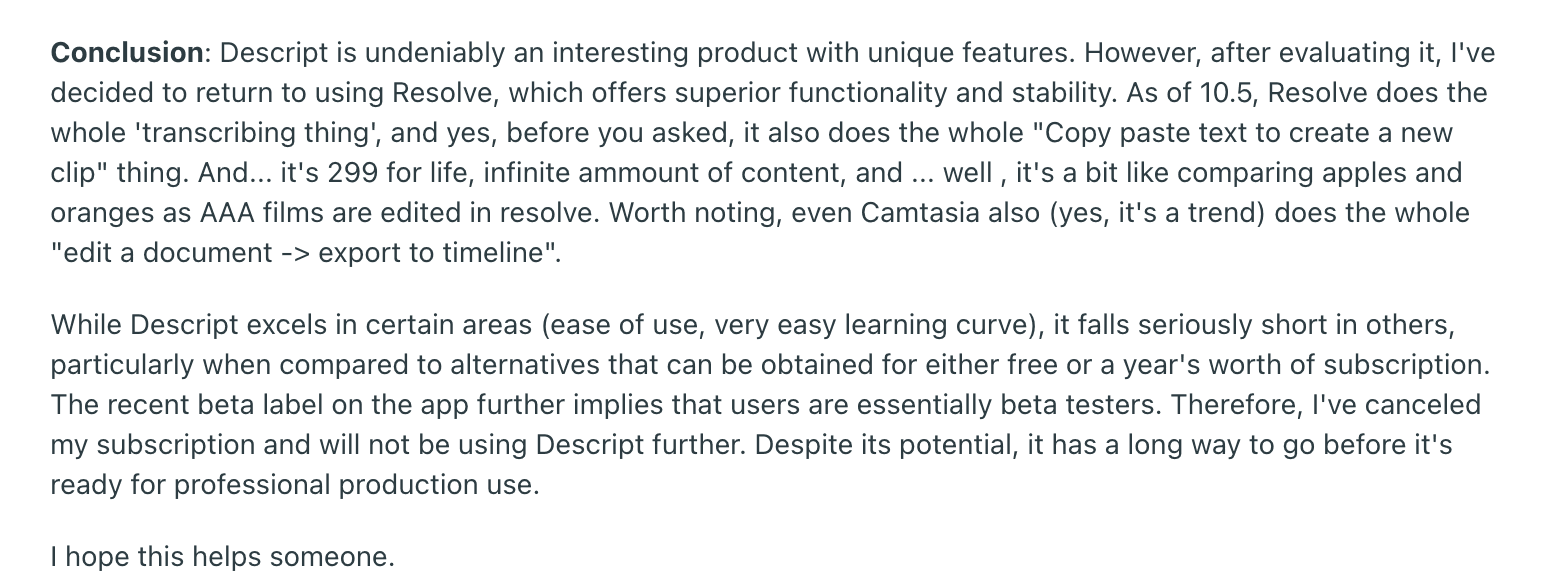
Descript enjoys a healthy 4.8 rating on Capterra. Below is one of the reviews shared by a user on Reddit.
Why teams use it: For narrated training videos with a lot of talking, cutting by transcript is far faster than scrubbing a Camtasia timeline.
G2 rating: 4.6/5 (based on 917 reviews)
Bottom line: The editor to buy if you are keeping an editor. Compare in detail: Descript alternatives.
3. Camtasia vs Colossyan: Best for SCORM Training Without an Enterprise Contract
Colossyan is an AI avatar video platform built for workplace learning. You write a script and it generates a presenter-led video, with branching scenarios and quizzes built in. For L&D teams whose main reason to stay on Camtasia is SCORM, it is the most direct replacement.
Key Features of Colossyan
Interactive videos with branching scenarios and knowledge checks
SCORM export on the paid Professional plan, not only Enterprise
Automatic translation
Two-avatar conversation mode for role-play scenarios
Advantages of Colossyan
Why teams use it: It gives training teams LMS-ready output with quizzes at a mid-market price, which is usually the one thing keeping them on Camtasia.
Disadvantages of Colossyan
Where it isn’t the answer: It generates video from a script, so it cannot record your screen. The Professional plan includes five SCORM exports a month, which is a real ceiling if you publish weekly.
Colossyan Pricing
Free – 20 minutes of video a month
Professional – $59/month, or $30/member/month billed yearly, with five SCORM exports a month
Enterprise – custom pricing, with unlimited SCORM
G2 rating: 4.7/5 (based on 494 reviews)
Bottom line: The SCORM answer for mid-market training teams. Check the five-export cap first.
4. Camtasia vs Guidde: Best for High-Volume How-To Documentation
Guidde captures a workflow, detects each step automatically, and produces a narrated how-to video and a written guide with very little editing.
Key Features of Guidde
Automatic step detection from a captured workflow
Text-to-voice narration
Export to video, PDF and slides
Sensitive-data blurring
Knowledge base hosting and analytics
Advantages of Guidde
Why teams use it: For procedural training content, step detection produces in minutes what takes an afternoon on a Camtasia timeline, and you get a written version too.
Disadvantages of Guidde
Where it isn’t the answer: SCORM is Enterprise-only. Video output is functional rather than polished, and AI narration quality is the most common complaint.
Guidde Pricing
Free – up to 25 how-to videos
Pro – $19/creator/month billed annually, or $29 monthly
Business – $39/month billed annually, or $59 monthly, for up to five creators
Enterprise – custom pricing, adds SCORM
G2 rating: 4.8/5 (based on 96 reviews)
Bottom line: Good for documentation volume, not for LMS delivery at a mid-market price. Compare in detail: Guidde alternatives.
5. Camtasia vs Screen Studio: Best for Polished Mac Recordings with No Editing
Screen Studio is a macOS recorder that adds automatic zooms, smooth cursor motion and padded backgrounds while you record, so the raw file already looks produced.
Key Features of Screen Studio
Automatic zoom that follows your clicks
Cursor smoothing and motion blur
Backgrounds, padding and recording presets
Basic trimming and social export presets
Advantages of Screen Studio
Why teams use it: If most of your Camtasia editing is adding zooms and cursor highlights, Screen Studio does that at capture time for a fraction of the cost.
Disadvantages of Screen Studio
Where it isn’t the answer: It is macOS only, which rules it out for most mixed Windows and Mac teams. No AI voiceover, no SCORM, no written guides and no real editor.
Screen Studio Pricing
Monthly – $20/month
Yearly – $9/month billed annually
Requires a recent version of macOS
G2 rating: No G2 reviews available
Bottom line: Brilliant and narrow. Only viable if the whole team is on Mac. Compare in detail: Screen Studio alternatives.
6. Camtasia vs Cap: Best Open Source Camtasia Alternative with a One-Time Licence
Cap is an open source screen recorder with a built-in editor. You can use the hosted version or self-host it, and it is the closest thing left to Camtasia’s old buy-once licence.
Key Features of Cap
Studio mode with a full editor on the free tier
4K, 60fps export
Self-hosting, plus custom S3 storage on Pro
Windows and Mac apps
Advantages of Cap
Why teams use it: Teams that disliked Camtasia’s move to a subscription like the one-time desktop licence, and security teams like being able to keep recordings on their own servers.
Disadvantages of Cap
Where it isn’t the answer: Commercial use needs a paid plan. There is no SCORM, no quizzing, no AI narration and no written guides.
Cap Pricing
Free – personal use only
Desktop licence – $29 one-time payment
Pro – $8.16/user/month billed annually, or $12 monthly
Self-hosted – free, plus your own infrastructure costs
G2 rating: No G2 reviews available
Bottom line: The pick if the subscription itself is your objection to Camtasia.
7. Camtasia vs Loom: Best for Quick Recordings That Don’t Need Editing
Loom makes screen recording incredibly fast and simple, designed for instant communication and effortless sharing. With just one click, you can record your screen, camera, or both at the same time, making it perfect for tutorials, walkthroughs, or quick updates. Once you finish recording, Loom automatically generates a shareable link, allowing you to instantly send videos to clients, colleagues, or students without downloading or heavy editing.
Videos are saved to your personal Loom library, where you can organize them into folders, trim clips, add basic call-to-action buttons, and customize share settings. Loom also offers auto-generated transcriptions and captions to improve accessibility and searchability. It supports high-quality video on any device and offers unlimited storage and recording time, making it ideal for teams and solo creators who need to produce a lot of content quickly.
While Loom’s editing features are minimal compared to more advanced tools like Camtasia, its ease of use, quick sharing capabilities, and integrations (including Chrome extension and mobile apps) make it a favorite for creators focused on speed and simplicity rather than deep post-production..
Key Features of Loom
Screen, Camera, and Audio Recording:
You can record your full screen, a specific window, or a browser tab.
Include your voice and webcam if needed.
You can record yourself and the screen together or separately.
Immediate Upload and Share
Once you finish recording, the video is uploaded to your Loom account.
Share the video instantly using a link, email, or Slack.
Embed the video into websites, emails, or tools like Asana and ClickUp.
Viewer Engagement and Analytics
Viewers can react with emojis or leave comments.
You get notifications when someone watches, reacts, or comments.
In business accounts, you can even see viewer activity and where they stopped watching.
Trimming and Editing Tools
In this software like Camtasia, you can trim the start, middle, or end of a video.
Remove filler words like “um” and “uh” (only in the Business + AI plan).
Adjust video playback speed.
Add closed captions and custom call-to-action buttons (Business plan).
Business + AI plan allows editing via text transcript.
Annotation Tools
Some plans allow drawing on the screen while recording.
Annotations disappear after a few seconds to keep the screen clear.
Recording Canvas and Notes
Record using a blank canvas to write notes or brainstorm during the video.
This feature is useful for remote presentations or visual thinking.
Privacy and Folders
Store videos in folders and control who can view them.
Choose whether viewers see your face, screen, or both.
Advantages of Loom
This Camtasia competitor has more than 21 million users across 350,000 companies worldwide. Their clientele includes leading brands like Slack and LinkedIn. Let’s check out some major advantages of this tool:
Record and share videos quickly.
No need for advanced video software.
Works on desktop, browser, and mobile.
Easy to invite viewers using links.
Viewers can comment and react.
Built-in trimming and editing tools.
Supports embedding and sharing on many platforms.
Integration with Slack, Asana, ClickUp, and more.
Disadvantages of Loom
Users have felt that selecting the correct screen or tab for recording can take extra effort.
Screenshot editing is in beta and not widely available yet.
You cannot blur or hide sensitive information during editing.
Loom Pricing

Starter Plan (Free: 25 videos, 5-minute recordings)
Business Plan ($18/month per creator)
Business + AI Plan ($24/month per creator)
Enterprise Plan (Custom pricing)
Loom Reviews
Loom enjoys a strong 4.7 rating on G2. Read what Reddit users have to say -

Why teams use it: A lot of what teams produce in Camtasia never needed producing at all. For internal updates to people who already have context, Loom skips the editing pass entirely.
G2 rating: 4.7/5 (based on about 2,400 reviews)
Bottom line: Audit what you actually produce before buying another editor. Compare in detail: Loom alternatives.
8. Camtasia vs Vyond: Best for Animated Explainer Videos

Vyond’s built-in screen recording is a seamless tool that lets you capture your screen, webcam, or both at the same time right inside the Vyond platform. Launched in August 2024, it supports recordings of up to four minutes, making it ideal for punchy tutorials, product demos, or internal training clips. Once you click "Create → Record screen,” you simply configure your recording preferences, grant permissions, and start. When you're done, Vyond processes the footage and automatically adds it to your media library, ready for editing in Vyond Studio.
What makes this feature truly powerful is how it blends live capture with Vyond’s animation capabilities. You can drag your recorded clip into the editing timeline alongside animated characters, AI avatars, voiceovers, and visual overlays all within a single, unified workspace. This transforms traditional screencasts into engaging mixed-media content, perfect for branded training videos, marketing explainers, and interactive e-learning experiences, without ever needing a second tool.
Key Features of Vyond AI
1. Built-in screen and webcam recording — Capture your screen, webcam, or both, and seamlessly combine them with animations in one editor.
2. Extensive animation library — Access a wide range of characters, props, templates, and scenes to create polished, professional videos quickly.
3. Custom character creator — Design fully personalized characters to match your brand or storytelling style.
4. AI-powered avatars and voiceovers — Use realistic AI avatars and natural-sounding text-to-speech voices in multiple languages.
5. Brand customization tools — Upload and apply your own logos, fonts, and colors to keep all your video content consistent and on-brand.
Advantages of Vyond AI
Rich animation and storytelling tools
Vyond offers a huge library of characters, props, and scenes, allowing you to create more visually engaging content that goes far beyond a simple screen walkthrough.Custom characters and AI avatars
You can design unique characters or even create AI-powered avatars, making your videos more personal and memorable.Easy brand integration
Built-in options to use your brand colors, logos, and fonts help maintain a professional, cohesive look across all content.AI-powered automation
Features like instant script-to-video generation, text-to-speech voiceovers, and automatic translations make video creation much faster and more scalable compared to traditional editors.

Disadvantages of Vyond AI
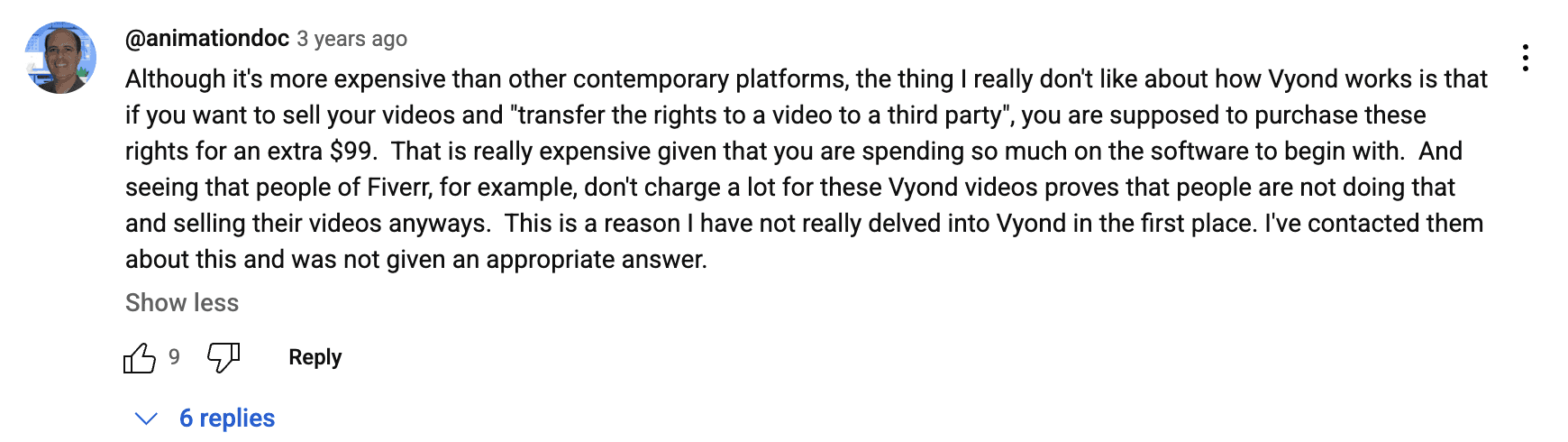
Higher pricing: Vyond is more expensive than many traditional screen recording or animation tools, and lower-tier plans still include a watermark, which many users find frustrating given the price.
Limited advanced animation control: While it offers lots of preset actions and motions, experienced animators sometimes feel limited because they can’t fully customize movements or rig characters like in more advanced animation software (e.g., Adobe After Effects or Toon Boom).
Steep learning curve for some features; Although easy to start, mastering all of Vyond’s advanced options (like custom camera movements, timeline control, or motion paths) can take time, especially for beginners.
Text-to-speech voices can sound robotic: While Vyond offers a wide range of AI voices, some users feel they still sound artificial and prefer using real recorded voiceovers.
Limited offline functionality: Vyond is entirely cloud-based, meaning you need a stable internet connection to create or edit videos, which can be inconvenient for some teams..
Vyond AI Pricing

Free Trial:
Starter Plan - Price: $58/month (billed $699/year):
Professional Plan - Price: $100/month per user (billed $1199/year):
Enterprise Plan - Price: $137/month per user (billed $1649/year):
Agency Plan - Price: $167/month per user (billed $1999/year):
Vyond Reviews
Vyond is rated 4.8 on Capterra. But there are mixed reviews about this tool. Feel the real user experience from the reviews below:
Why teams use it: Training and internal comms teams use it for character-led animated explainers, which Camtasia cannot build.
Bottom line: Choose it for animated storytelling, not for product screen recordings.
9. Camtasia vs Riverside.fm: Best for Podcasts and Remote Interviews
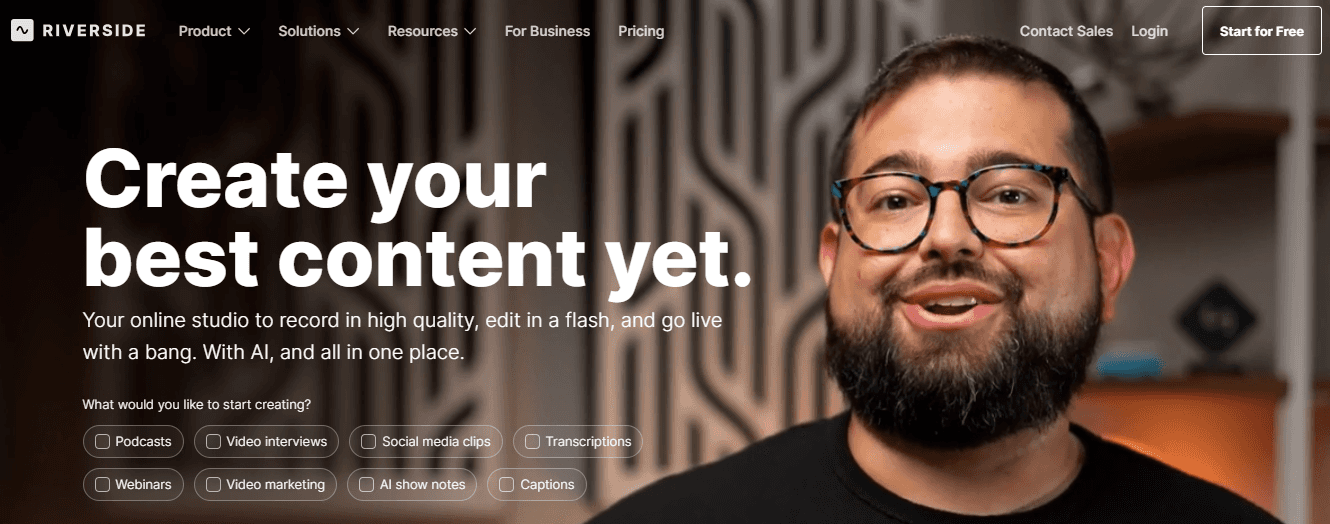
Riverside’s screen recording feature makes it easy to capture high-quality video and audio right from your browser or using its advanced Mac app. The free online recorder lets you quickly record your screen, mic, and system audio in 720p without downloads or sign-ups, ideal for short tutorials and presentations. For more professional needs, Riverside’s main studio and Mac app offer higher resolutions (up to 4K), separate audio and video tracks, and local recording for maximum quality and reliability. This makes it a flexible, all-in-one solution for creators who want polished, professional screen recordings with minimal effort.
The platform records both audio and video in high resolution (even if the internet connection is unstable). You can use this free Camtasia alternative to:
Record solo or guest-based podcast episodes
Record interviews remotely
Capture both video and audio locally (on your device)
Edit the recording using text-based editing tools
Create short video clips from longer content
Riverside.fm is built for beginners as well as professionals. It runs in a web browser and works with common podcast microphones and webcams.
Key Features of Riverside.fm
Local Recording:
Audio and video are recorded on the local devices of both the host and guests.
This keeps the quality high even if the internet connection is weak.
Files are automatically uploaded to the cloud after the recording.
Guest Invitations
You can invite guests by sending them a link.
Guests don’t need to install anything! They can join from a browser.
AI Editing Tools
Edit your recording by editing the transcript.
Automatically removes filler words like “um” and “uh.”
Cut out pauses or mistakes without listening to the full recording.
Magic Clips
AI selects key moments from your recording and creates short vertical clips.
These are formatted for platforms like Instagram Reels or YouTube Shorts.
Captions are added automatically.
Multitrack Recording
Records each participant’s audio and video on separate tracks.
Makes it easier to edit specific speakers later.
Screen Sharing
You can share your screen during the recording.
Useful for tutorials, demos, or presentations.
Text-Based Editor
Instead of working with waveforms or timelines, you can edit the content by deleting text in the transcript.
Advantages of Riverside.fm
This free Camtasia alternative has fetched a rating of 4.8 out of 5 on G2.com. The organisation has been earning consistent revenue since its launch in 2019. Let’s check out some of its major advantages:
High-quality recording — Capture in up to 4K resolution with clear, uncompressed audio (up to 48 kHz), even when internet is unstable.
Separate tracks — Get individual video and audio files for screen share, webcam, and guests, making editing much easier.
Browser-based and app options — Record directly in your browser without downloads, or use the Mac app for advanced local recording and extra reliability.
Easy guest support — Invite remote guests and record them along with your screen in studio-quality.
Simple, intuitive workflow — One-click setup, local backups, and progressive uploads so you never lose your recordings.
Disadvantages of Riverside.fm
Users have reported serious technical issues, especially when recording with guests — like audio and video getting out of sync, resulting in unusable recordings.
Customer support is often described as slow, unhelpful, or giving repetitive, generic replies (“rest assured we are looking into this”), leading to frustration and missed publishing deadlines.
App reliability is questioned, with complaints about poor connectivity and incomplete recordings.
Riverside.fm Pricing

Free Plan ($0/month)
Standard Plan ($15/month, billed annually
Pro Plan ($24/month, billed annually)
Business Plan (Custom pricing)
Riverside.fm Reviews
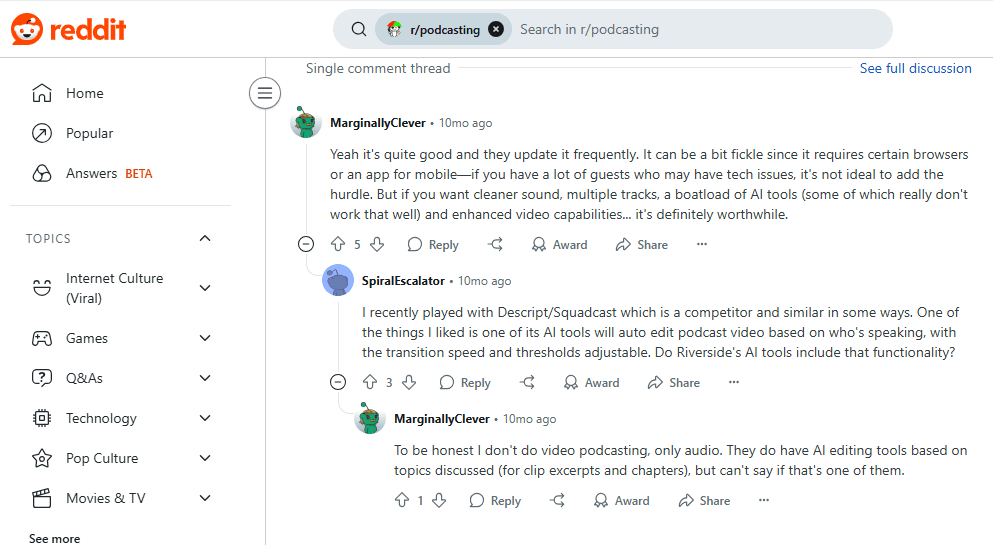
Want to know what people are saying about Riverside.fm? Check what Reddit users feel -
Why teams use it: Podcasters and interviewers use it because local recording keeps quality high even on unstable connections.
Bottom line: Great for podcasts and interviews. Not a replacement for Camtasia’s screen-tutorial editing.
10. Camtasia vs OBS Studio: Best Free Camtasia Alternative for Recording
OBS Studio is free, open source recording and streaming software. It records anything at any quality, with full control over scenes, sources and encoding.
Key Features of OBS Studio
Unlimited recording with no watermark or account
Scene composition and multiple sources
Full encoding and quality control
Windows, Mac and Linux
Advantages of OBS Studio
Why teams use it: It is the only option here that is completely free with no limits, which makes it the default for anyone who only needs to record.
Disadvantages of OBS Studio
Where it isn’t the answer: There is no built-in editor, so it replaces Camtasia’s recorder but not its editor. Expect a setup curve and a second tool for editing.
OBS Studio Pricing
Free, permanently
Bottom line: The right choice when free and unlimited recording matters more than editing.
Free Camtasia Alternatives: Detailed Comparison Table
The expectations are at an all-time high! The latest trends show that most users nowadays want these latest features in their screen recording tools:
AI-powered editing
Cloud-based storage
Automated transcription
Cross-platform compatibility
Additionally, user-friendly interfaces and advanced editing tools are getting increasingly important. But, where to get them?
For your help, the table below compares five of the tools above, Trupeer AI, Descript, Vyond, Riverside.fm and Loom, based on documented capability rather than marketing claims:
Feature / Capability | Trupeer AI | Descript | Vyond | Riverside.fm | Loom |
AI Voice and Dubbing | 100+ languages and accents; custom voice clones on Enterprise | Overdub feature (own voice only) | Text-to-speech in multiple languages | Not available | Available in the Business + AI plan only |
AI Avatars / Narration | AI avatars; custom avatar clones on Enterprise | Not available | Animated character control | Not available | Not available |
Multilingual Support | 100+ languages (audio and captions) | Not Available | 70+ languages | Not native | Not native |
Screen Recording | Integrated with smart zoom + editing | Yes, with auto transcript | Not designed for screen capture | Local high-quality screen recording | Basic screen recording |
Noise and Filler Word Removal | AI removes noise + ums, ahs, filler words | Auto filler removal | Not Available | AI-based editor removes filler words | Available in the Business + AI plan only |
Templates and Auto Guides | Pre-made templates for demos, walkthroughs, and training | Few templates | Extensive templates for training and marketing | No templates | Simple templates available |
Social Clip Creation | Direct export with captions + multilingual clips | Publish audiograms + clips | Export in GIF, MP4 formats | Magic Clips auto-generates vertical highlights | Share/ embed in Slack, social, or email |
Best Free Camtasia Alternatives
If you are looking for a free Camtasia alternative, or simply a Camtasia alternative free of yearly subscription fees, note that “free” means two different things, and the difference matters more than the price.
Free with no limits: OBS Studio is free forever, with no watermark, account or recording cap. Self-hosted Cap is free if you run it yourself.
Free tiers with limits: Trupeer AI (free for 10 days, with 1,000 AI credits, about 10 minutes of AI video), Descript (60 minutes of media a month), Colossyan (20 minutes a month), Guidde (25 videos), Loom (25 videos, five-minute cap) and Riverside.fm all let you test before paying.
If you only need to record, start with OBS Studio. If you want to see what a finished, narrated video looks like from your own workflow, try a free AI tool on one real recording and compare it with your Camtasia output.
Camtasia Alternatives with SCORM Export
SCORM output is often the single reason training teams stay on Camtasia. Here is where the alternatives stand:
Colossyan: five SCORM exports a month on Professional at $30 per member billed yearly, unlimited on Enterprise.
Synthesia: SCORM export from the Creator plan. See our Synthesia alternatives.
Guidde: SCORM on Enterprise only.
Trupeer AI: SCORM export on higher-tier plans, alongside AI video and written guides, but no in-video quiz authoring.
Camtasia: still a reasonable choice, with quizzing and no export cap.
Descript, Screen Studio, Cap, Loom and OBS Studio do not package SCORM. If LMS delivery is a hard requirement, shortlist Colossyan and Camtasia first.
Camtasia Alternatives for Mac and Windows
Mac: Screen Studio for the most polished recordings, Cap for a one-time licence, Descript for editing, and browser-based tools like Trupeer AI, Guidde and Colossyan.
Windows: Descript, Cap and OBS Studio run natively. Trupeer AI, Guidde, Colossyan and Vyond run in the browser. Screen Studio has no Windows version.
Linux: OBS Studio.
Is Trupeer AI the Right Camtasia Alternative for You?
If your main reason for leaving Camtasia is the time it takes to edit, here is why Trupeer AI is worth a close look:
Trupeer AI is built to simplify and supercharge the entire video creation process from ideation to publishing in a way that no single tool like Loom, Camtasia, Vyond, Descript, or Riverside can match. While tools like Loom and Camtasia focus mainly on screen recording and basic editing, and Vyond on animation, Trupeer combines multiple capabilities in one unified, AI-powered platform.
The major win for Trupeer is the synchronisation between your audio and video. Even with a rough recording, the speech-refining feature keeps your audio and video in sync, so you do not have to re-record to fix pauses or filler words.
Unlike Descript or Riverside, which are strong for editing but often require manual fine-tuning and technical setup (like matching frame rates or advanced audio syncing), Trupeer’s AI automates editing, voiceovers, translations, making it seamless for creators at any skill level.
Trupeer also offers hyper-personalized AI avatars and voice synthesis, so you can create engaging, on-brand videos without needing to appear on camera or hire voice talent something none of these other tools provide fully integrated. Additionally, it provides advanced content repurposing features, turning one video into multiple formats and languages instantly, which maximizes reach and ROI.
Ultimately, Trupeer AI isn’t just another video tool it’s an end-to-end intelligent video creation partner that empowers you to produce professional, multi-format content faster, easier, and more affordably than ever before.
Trupeer AI is a good fit if:
Your team makes product walkthroughs, training or demo videos, but nobody has hours to spend in a timeline editor.
Every video also needs a written step-by-step guide or SOP.
You need the same content in several languages, or prefer an AI voice or avatar to recording yourself.
Your videos go out of date quickly and need to be updated without starting over.
Trupeer AI is not the right fit if:
You need quizzes at specific timestamps or branching scenarios inside the video. Camtasia or Colossyan will serve you better.
You want frame-by-frame manual control over every cut and animation.
You only need a free recorder. OBS Studio does that.
Trupeer AI is built for professionals who need polished outputs from raw screen captures. So, want to create high-quality client-ready videos from screen captures without any technical skill? Trupeer AI is the strongest available option. Get started today for free!
Which Camtasia Alternative Should You Choose?
Trupeer AI if the bottleneck is editing time and you also need written guides.
Descript if you want to keep editing, but by transcript instead of a timeline.
Colossyan if SCORM and quizzes are what keep you on Camtasia.
Guidde if you have a backlog of processes to document quickly.
Screen Studio if your whole team is on Mac and you mainly add zooms and cursor effects.
Cap if the subscription itself is the objection.
Loom if most of your videos never needed editing in the first place.
Vyond if you need animated, character-led explainers.
Riverside.fm if you record podcasts or remote interviews.
OBS Studio if you only need free, unlimited recording.
Stay on Camtasia if you need frame-level control, quizzing and SCORM in one desktop tool and have someone on staff who can drive it. Nothing else on this list does all three.
Frequently Asked Questions About Camtasia Alternatives
1. Why do screen recording tools often produce poor audio or video quality?
A. Many screen recorders rely on real-time internet connections or basic system audio. This sometimes leads to:
Lag
Distortion
Low resolution
To ensure high-quality output, choose tools that support local recording, AI noise removal, and HD/4K export options.
2. What makes Trupeer AI different from other screen recording tools?
A. Trupeer AI goes beyond recording! This Camtasia alternative free uses AI to:
Polish rough footage
Syncs your voice naturally with the video
Adds zooms based on cursor movement
Allows multilingual dubbing and AI avatarsUsing it, you can get studio-quality results without editing skills. Start your 10-day free plan today!
3. What is the best free Camtasia alternative for beginners?
A. If you're new to screen recording and editing, Trupeer AI is a strong alternative to Camtasia. It doesn’t just record! Instead, it automatically improves your video with AI voiceovers, Avatars and Translations, removal of background noise or filler words
Also, with Trupeer AI, you don’t need editing skills to create polished videos. Everything is done automatically!
4. Is Camtasia still a one-time purchase?
No. TechSmith moved Camtasia to annual subscriptions in late 2024. Older perpetual licences keep working for the version you bought, but new purchases and upgrades are subscriptions. If you want a one-time purchase, Cap sells a $29 desktop licence.
5. How much does Camtasia cost in 2026?
Camtasia Starter is $39 a year, Essentials $179.88, Create $249 and Pro $599, with Business at $198 per user a year. Prices vary by region, so check the store in the country you buy from.
6. Is Camtasia free?
No. Camtasia offers a free trial, but there is no free plan. For a free alternative, OBS Studio is free with no limits, and Trupeer AI, Descript, Colossyan and Guidde have free tiers.
7. Which Camtasia alternatives support SCORM?
Colossyan includes SCORM on its Professional plan, Synthesia from its Creator plan, Trupeer AI on higher-tier plans, and Guidde on Enterprise only. Camtasia itself still supports SCORM with no export cap.
8. What is the best Camtasia alternative for Mac?
Screen Studio makes the most polished Mac recordings. Descript and Cap run natively on Mac, and Trupeer AI, Guidde and Colossyan work in any browser.
9. What is the best Camtasia alternative for Windows?
Descript, Cap and OBS Studio run natively on Windows, and browser-based tools like Trupeer AI and Guidde work on any Windows PC. Screen Studio is Mac only.
10. Is there an open source alternative to Camtasia?
Yes. Cap is an open source recorder with a built-in editor, and OBS Studio is open source recording software. Neither offers SCORM or AI narration.
11. Camtasia vs Descript: which is better?
Camtasia is better for precise timeline control, quizzes and SCORM. Descript is faster for spoken content because you edit by editing the transcript. If you want neither timeline nor transcript editing, Trupeer AI automates the edit.
12. Camtasia vs Loom: what is the difference?
Camtasia is a full recorder and editor for produced videos. Loom is for quick recordings you share instantly, with minimal editing. Many teams use Loom for internal updates and a production tool for anything customer-facing.
13. Do I need a video editor to make training videos?
Not for most of them. Editors are right when timing and interactions must be exact. For product walkthroughs and process explainers, AI tools like Trupeer AI apply narration, zooms and branding automatically, which is why teams without a video specialist often ship more after switching.
Related Blogs


